Incidents
Incidents lists every recorded production incident across the projects you can see, newest first. Open it from Incidents in the side menu. Anyone who can view projects sees it, and each row is limited to the projects that person can view. The page refreshes every 15 seconds. Where incidents come from, and how suspects and tasks are found, is in How Production QA works.
It is a plan feature: while your plan does not include Production QA, Incidents is left out of the side menu and opening the page shows Not on your plan with "Your plan doesn't include Production QA." Org admins also get See plans; anyone else reads Ask an admin to change the plan.
Filters
Filters sit above the list and are kept in the page's address, so a filtered view can be shared.
- Project: All projects, or one of the projects you can see.
- Severity: Any severity, Critical, Error, Warning, Info or Debug.
- State: Any state, Open, Reopened or Resolved.
- Type: Any type, Monitor, Release failed, Health, Regression or Lane slowdown.
On a phone the four fold into one Filters menu, whose badge counts the filters that are on; its Clear turns them all off.
The list
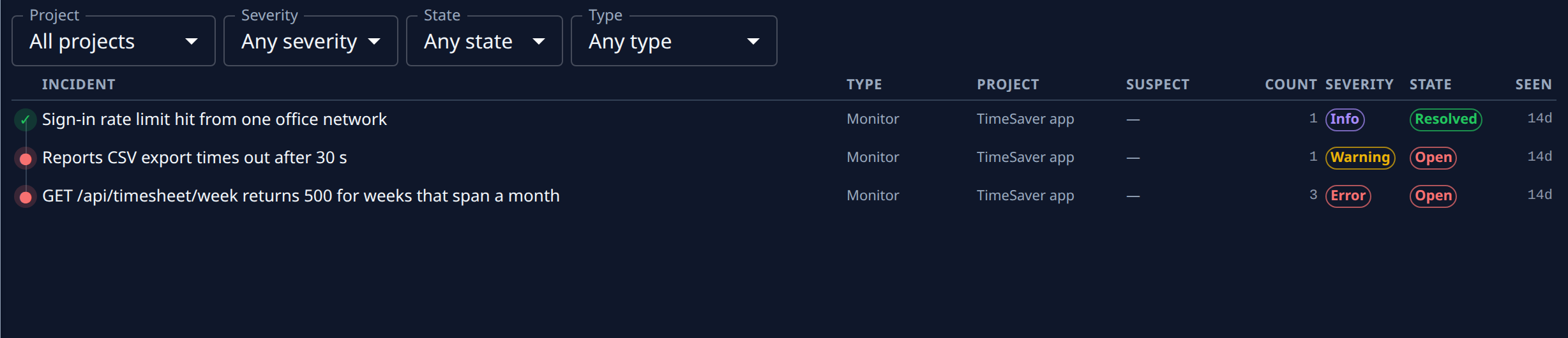
Each row opens the incident's own page.
| Column | What it shows |
|---|---|
| Incident | The incident's title, after a state mark; hover for the whole title. Under it, its type and project, and Suspect with the top suspect when there is one. |
| Type | Monitor, Release failed, Health, Regression or Lane slowdown. |
| Project | The project it happened in. |
| Suspect | The pull request most likely behind it, with its confidence as a word, such as #7 · High, or — for none. |
| Count | How many times it has happened. |
| Severity | Critical, Error, Warning, Info or Debug. |
| State | Open, Reopened or Resolved. |
| Seen | How long ago it last happened; hover for the time. |
On a narrower screen Type and Project, and then Suspect and Count, drop out; the type, project and suspect stay under the title.
The list shows the newest 200 under the filters; past that it reads Newest 200 — narrow the filters to see older ones. With no incident recorded yet it shows No incidents yet; when the filters hide every row it shows Nothing matches these filters with Clear filters. If the list can't be loaded, it shows Incidents unavailable, the reason, and Retry.
An incident's page
The incident's title heads the page, after Incidents in the path back to the list, with its state beside it. It refreshes every 15 seconds and has five tabs: Overview, Suspects, History, Tasks and Ledger. On a narrow screen the tabs that do not fit move to a menu at the end of the tab strip.
Overview
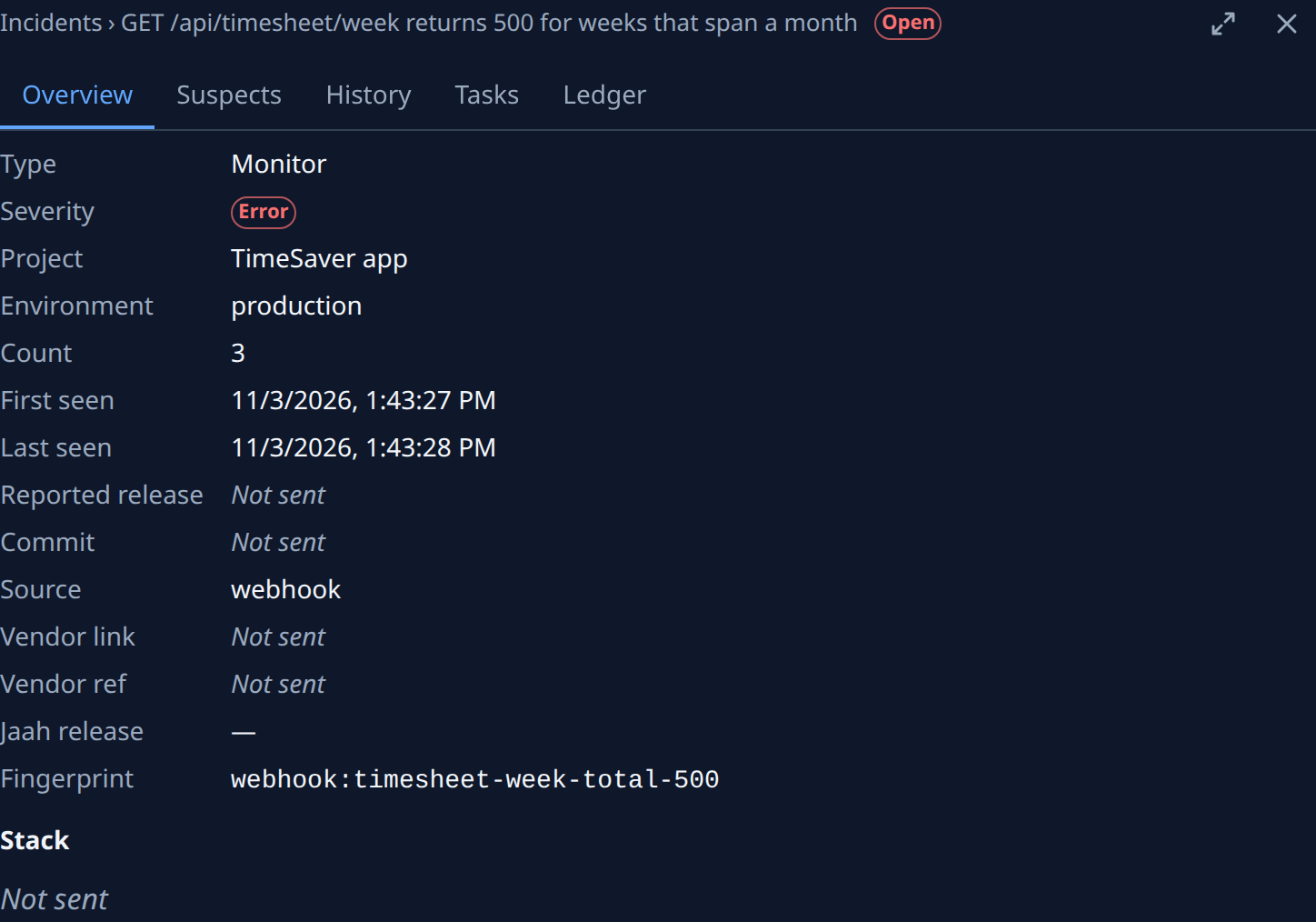
A field your monitoring tool did not send reads Not sent, never blank.
- Type, Severity and Project.
- Environment: where it happened, as the monitoring tool reported it.
- Count: how many times it has happened; (vendor total) when the count is the monitoring tool's own total.
- First seen and Last seen, and Resolved once it has stopped.
- Reported release and Commit: the release and commit your monitoring tool tied it to; hover the commit for its full hash.
- Source: where the incident came from.
- Vendor link: the incident in the monitoring tool, shown as its reference (or Open). Vendor ref: its reference there.
- Jaah release: the release run Jaah recorded that it followed, as
#and its number, which opens that release's page, or —. - Fingerprint: what Jaah uses to recognise a repeat of the same problem.
- Stack: the stack frames, each as function, file and line, with frames outside your code dimmed.
Suspects
Each pull request linked to the incident, with its confidence (High confidence, Medium confidence or Low confidence), its basis (why it was linked: Release, Deployment, Window paths, Window or Operator for one a person added), and its state (Suggested, Confirmed or Dismissed). It links to its Task and to the release that shipped it, as Release # and its number, when known. A decision shows who made it and when, such as Confirmed by, Dismissed by or Undone by a name. With no suspect the tab reads No suspect.
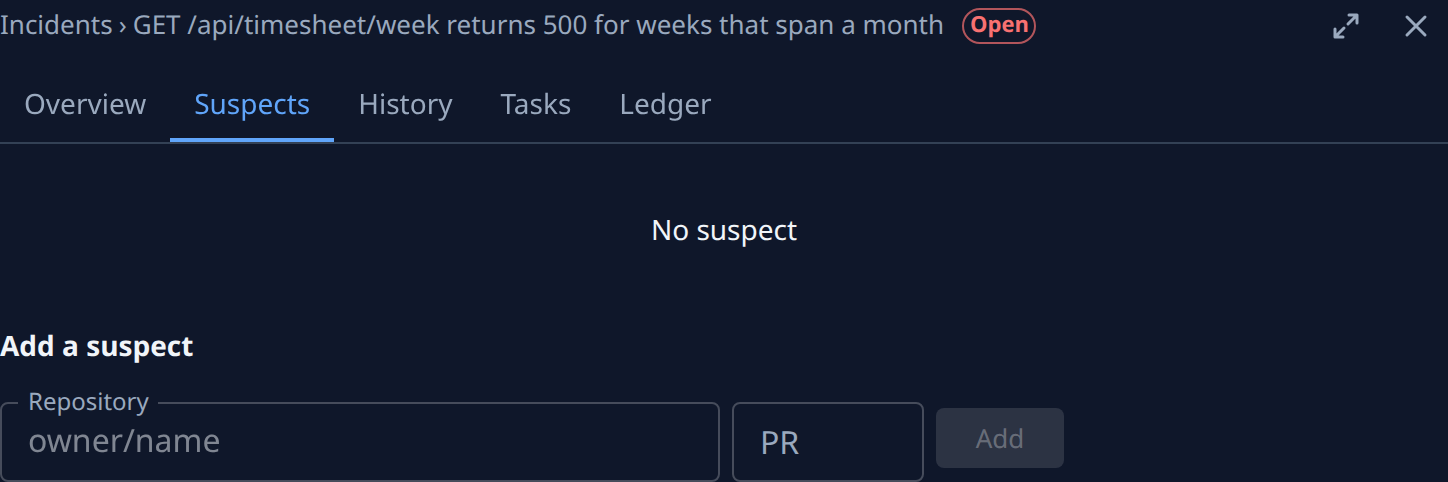
With permission to edit the project you also see:
- Confirm or Dismiss on each suspect, whichever it isn't yet, and Undo on a decided one to take the decision back. A suspect a person added has no Undo.
- Add a suspect: Repository (
owner/name) and PR, then Add. An added suspect is confirmed at once with high confidence; one already listed is confirmed in place.
If a change can't be saved, the reason shows under the suspects (by default Could not save the change).
History
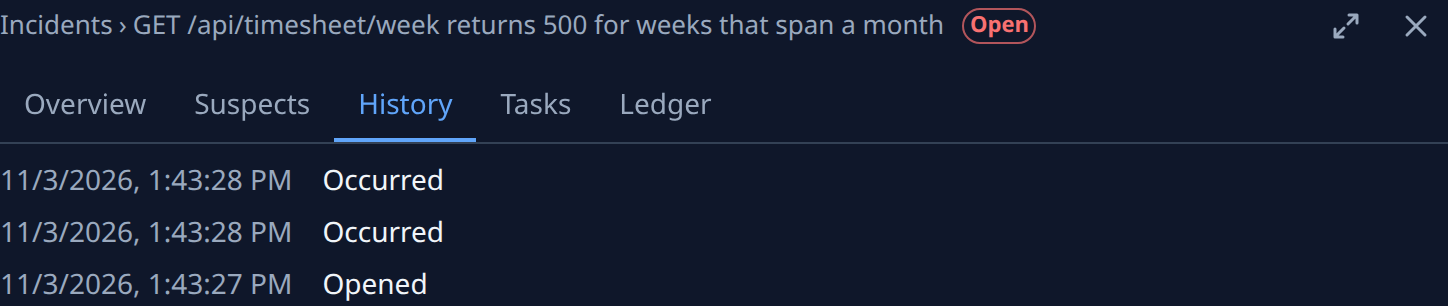
Each event on the incident, newest first, with its time: Opened, Occurred, Resolved, Reopened or Ignored stale, with a note where there is one. With none it reads No history.
Tasks

The tasks filed for the incident, each under its role (Triage, Fix or Revert), with when it was filed and, if it no longer holds the incident, when it was released. Filing shows while the task is being created. With none it reads No tasks filed, and, where the project's Revert policy filed no revert, why.
Ledger
The facts this incident adds to each task's outcome: Incident linked or Resolved by fix, the task, its standing (Applied once counted, Pending until then, Revoked if withdrawn) and when it happened. With none it reads No ledger facts.
An incident that is gone, or one in a project you cannot see, shows Incident not found.
Related
- How Production QA works: incident types, suspects, and when an incident becomes a task.
- Turn on Production QA for a project: switch on the tasks and reverts that incidents file.
- Release runs: the page of the release an incident followed.