Check production after every release
A release can succeed and still leave production broken: a page that answers with an error, a sign-in that no longer works. Probes catch that. After each successful production release, a node serving the project fetches each health URL and runs each smoke command you list. A probe that fails records a Health incident on the project, and the next pass that succeeds resolves it.
Before you start: Production QA is part of some plans only. The project needs its releases connected and its Production QA switch on, because probes run only while it is on: see Turn on Production QA for a project.
Who can do this: the permission to edit the project. Anyone else sees the probes greyed out, with no Add URL, Add command or Remove.
-
In the sidebar, select Directory, then the Projects tab, and select the project's name.
-
Select the Production QA tab. Use the arrows at the end of the tab strip if it doesn't fit.
-
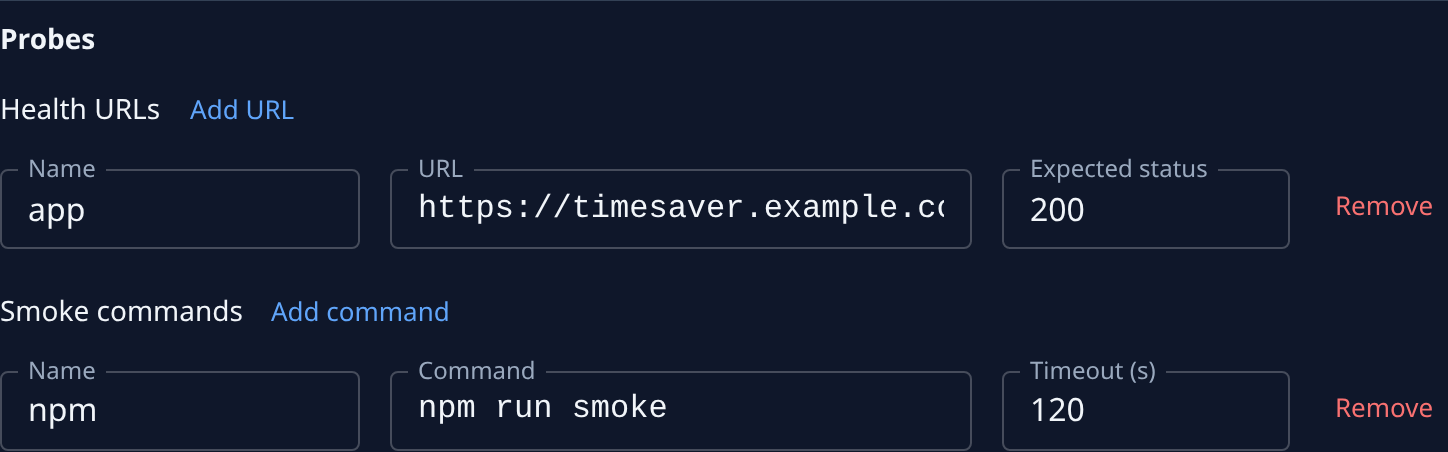
Scroll to Probes. It holds two lists, Health URLs and Smoke commands.
-
To check a page answers, select Add URL and fill in:
- URL: an
https://address with no credentials in it, fetched with oneGET. A redirect to another host or tohttpfails. - Expected status: the status a healthy answer has,
200unless you change it. Any other status fails. - Name: what its results are called. Left blank, it is the host part of the URL.
Up to ten.
- URL: an
-
To check something a single request can't, such as a sign-in or a checkout, select Add command and fill in:
- Command: what to run with
bashin the project's checkout on the node, such as a script that signs in a test user. A nonzero exit fails it. - Timeout (s): how long it may run,
60unless you change it; still running after that fails it. - Name: what its results are called. Left blank, it is the command's first word.
Up to five. A command runs in an isolated sandbox, so keep secrets out of it.
- Command: what to run with
-
Select Save. To drop your changes instead, select Discard.
-
After the next production release, open it from the project's pipeline and select the Probes tab. Each health URL and smoke command reads Passed or Failed, with its HTTP status or exit code.
-
If one failed, open the incident it recorded, from the Probes tab or from Incidents in the sidebar with Type set to Health.
To stop a probe, select Remove on its row, then Save. Turning the Production QA switch off stops them all.
Related
- Check whether a release broke production: read a release's Probes tab, and what else it shipped.
- How Production QA works: releases, probes and the incidents they record.
- Incidents: the incident a failed probe records.
- Projects: every setting on a project's Production QA tab.