Share a pipeline with a template
A pipeline template is one pipeline your organization keeps in one place: its stages and the step into each (who may do it, approvals, by hand or by itself). You mark which fields a project using the template may change and which it can't. You edit a draft; nothing reaches a project until you publish it, after reviewing every change.
Who can do this: an Org Owner or Org Admin. Others don't see the section.
Create a template
- In the sidebar, select Settings, then Pipelines under Customize, then the Pipeline templates card. With none yet, it says No templates yet.
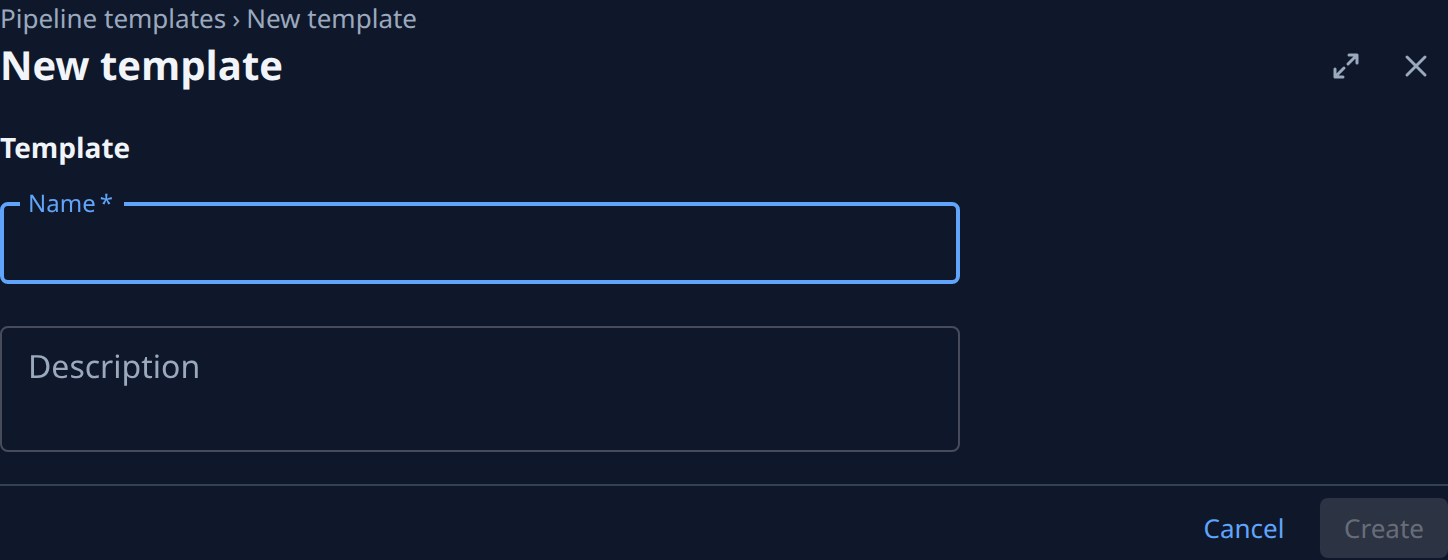
- Select New template, type a Name and, if you like, a Description.
- Select Create. The template opens on its own page, starting as the Standard pipeline: Ideas → Building → Dev → Production.
- Edit its stages and steps on the Pipeline tab, below, and select Save draft.
- Select Publish… to make it available to projects (Publish).

The list shows each template's name, stages, Linked count and State (The list).
Edit the stages and steps
The Pipeline tab has the same stage cards and steps table as a project's custom pipeline (Set up a project's pipeline), with a few differences (Pipeline tab).
- Add, rename, move and remove stages.
- For each stage, pick a Branch kind and, if every project shares it, an Address. Leave Address empty to let each project set its own.
- For each step, set Who, Approvals and How it runs. A template's step names roles only.
- Beside each field a project could change, select the lock to switch it between Locked (the template sets it) and Open (a linked project may set its own).
- Select Save draft, or Discard to drop your edits. Saving checks the stages as a pipeline save does and shows a problem on its stage card. A saved draft changes no project.
Publish
- Save the draft, then select Publish…. If it stays off, its hint says why.
- In Publish "name", read Changes and Linked projects (Publish review). If Org rules block this template shows, change the draft as it says, save, and select Publish… again.
- Select Publish, which reads Publish to 2 projects when projects are linked.
- Read Published version …: each project is under Updated (N) or Not updated (N) with the reason. Select Done.
- Open the Details tab to check each linked project's version (Details tab).
Each publish is a new numbered version. A release already running keeps the settings it started with.
What each linked project gets
Editing the draft never changes a linked project; only Publish does. On publish, each linked project gets the new values for the fields you locked and for open fields it hasn't changed. An open field a project changed stays as the project has it. A stage you renamed or moved in the template stays the project's same stage, so its tasks stay where they are.
A project the new version can't apply to stays on its previous version and shows under Not updated (N) with the reason:
- one of your org's pipeline rules set to Block refuses the result;
- a stage the version drops still has tasks on it;
- the organization's plan no longer includes Custom pipelines, or the project's pipeline is not in custom mode.
The others update. Fix the cause, then select Update again on the template page, shown while a project lags: it updates the projects still on an older version, and Updated to version … lists the result.
Link a project
Anyone who may edit a project can link or unlink it in the project's Settings › CI Pipeline: Link a project to a template. You need only publish; a template that was never published can't be linked.
Rename, describe or delete a template
- Open the template's Details tab, change the Name or Description, and select Save draft.
- To delete it, select ⋯, then Delete, and confirm in Delete template?. While projects are linked, the delete is refused: unlink them first (Link a project to a template).
What each field and button does: A template's page.
Related
- Every stage and step setting: Set up a project's pipeline.
- Start one project from a preset or another project: Start a pipeline from a preset or another project.
- Use a template from a project: Link a project to a template.
- Rules every save is checked against: Set your org's pipeline rules.
- Every field on the template pages: Pipeline templates.