Give agents a Jaah API key
A Jaah secret lets an agent call Jaah's own API: create, read and update tasks and epics, comment on them, read projects, nodes and worktrees, and start automations. It holds the console's address and a Jaah API key. The form can make the key for you, or take one you already have.
Who can do this: everyone. Every member can hold Jaah API keys.
Before you start: the key acts as you. Everything an agent does with it is recorded under your name, and it never does more than you can. To keep agents' work apart from yours, sign in as a dedicated account first and add the secret there.
Add the secret

-
In the sidebar, select Directory, then the Secrets tab.
-
Select Add secret. Type
Jaahin Search integrations, then select Connect on the Jaah card. -
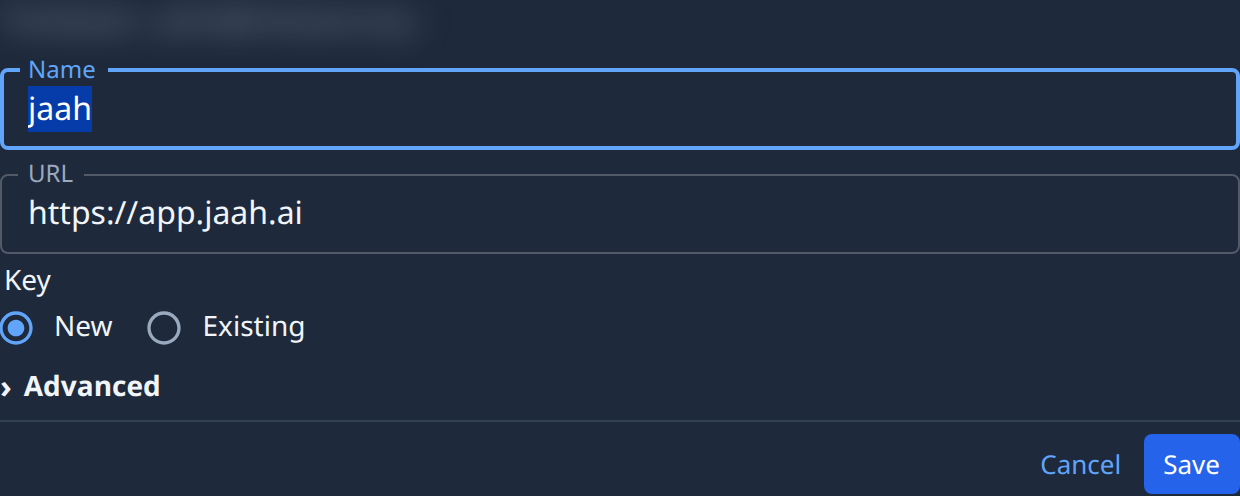
Check the Name. It starts as
jaah. Tasks find the secret by this name, so make it say what it is for, for examplejaah/board-bot. A key made by New is named after it too. -
Leave URL as it is to reach the console you are using. For another Jaah console, such as a self-hosted one, enter its address only, with no path, for example
https://console.example.com. -
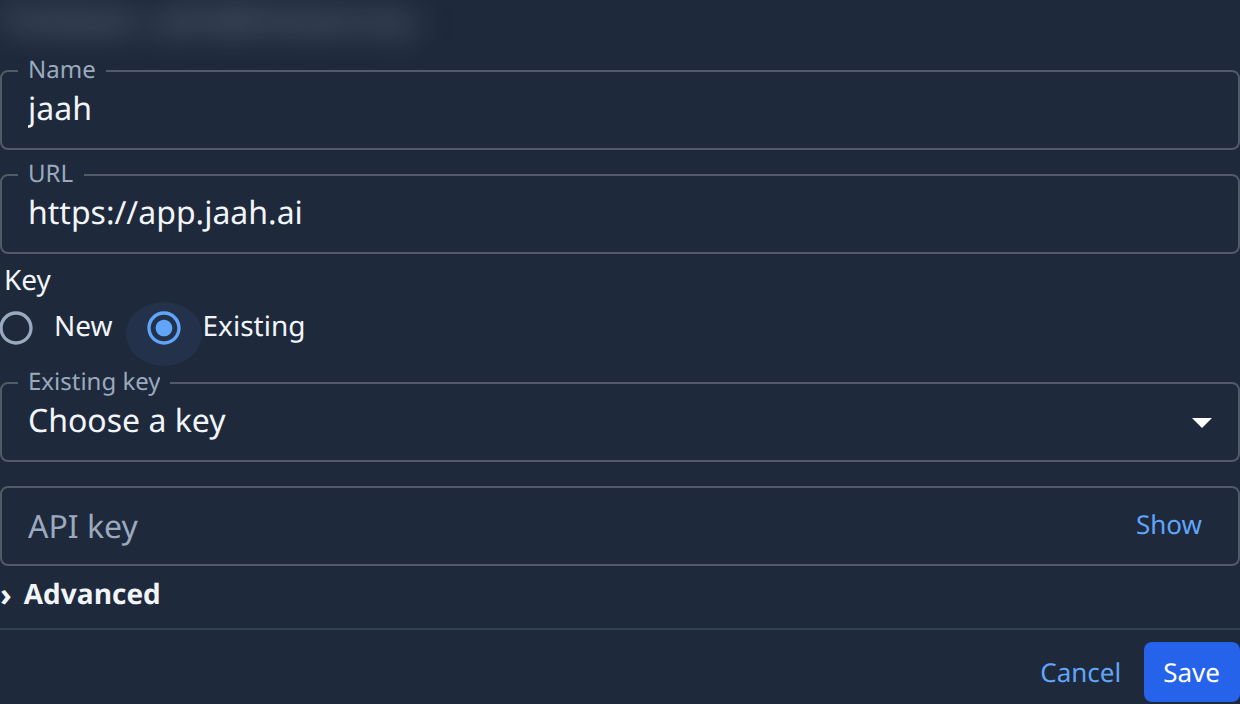
Choose the Key:
- New: Jaah makes the key when you save. It holds every permission you have, without org administration, and never expires. New is offered only for the console you are using.
- Existing: pick one of your own keys in Existing key (Choose a key), then paste its secret into API key. If the pasted secret doesn't end like the chosen key, the field says Not this key's secret.
-
Optional: open Advanced to add a Description. Org Owners and Admins also see Owner there: Organization shares the secret, so tasks on the projects it is attached to can use it.
-
Select Save. The secret appears in the list.
Select Cancel to close the form without saving. When New was chosen and the secret is not saved, no key is left behind.
Hand it to a task
- Attach the secret to a project, so every task there can use it: see Attach a secret to a project.
- Or name it in one task: see Tell a task which secret to use.
When the test fails
| The test reports | What to do |
|---|---|
| The key was rejected (401) | The key was revoked, expired or rotated, or its owner is disabled. Make a new key and paste it, or choose New on a new secret. |
| The key was rejected (403) | The call came from an address outside the key's IP allowlist or your organization's. Add the address, or clear the key's allowlist. |
| HTTP 404 | URL has a path. Enter only the console's address. |
Change or revoke the key
A key made by New is listed in Settings › Personal › Security under the secret's name. Narrow its permissions, set an expiry or revoke it there: see API keys. Revoking it stops every task using the secret. To remove the secret itself, see Replace or delete a secret.
What a key can and cannot reach: Authentication. Every field on the form: Secrets.