Set a new password
This is the page the link in a password reset email opens. On it you choose a new password for your account. You don't need to be signed in to open it.
To get the email, use Reset your password. Setting a new password doesn't sign you in: you sign in afterwards, and two-factor sign-in still applies there. See Sign in.
The link is checked as soon as the page opens, so a link that no longer works says so before you type anything.
Choose your new password
The heading reads Set a new password, with the email address of the account under it.
| Field or button | What it does |
|---|---|
| New password | Your new password. Required. Use at least 8 characters and at most 128, and don't use your email address. Show and Hide switch between showing what you typed and hiding it, in both fields. |
| Confirm password | The same password again. Required. If the two differ, it says "Passwords don't match." |
| Set password | Saves the new password. It shows Setting password… while it works. When it is done, you go to the sign-in page with your email already filled in. |
| Sign in | Next to Know your password?. Takes you to the sign-in page without changing anything. |
If the password can't be saved, a message appears above New password. "Could not set your password. Try again." means select Set password again. "Too many password reset requests. Try again in an hour." means wait an hour first.
If the link no longer works
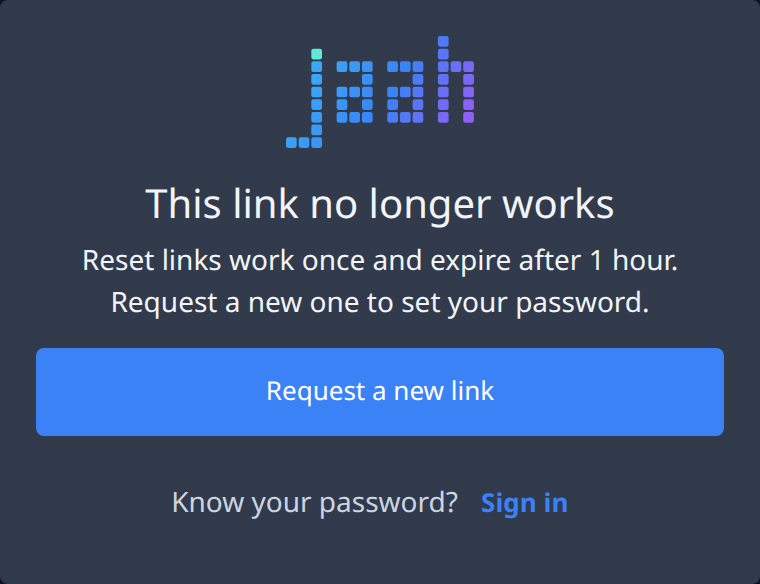
A reset link works once and expires after 1 hour. A used, expired or incomplete link shows This link no longer works instead of the form.
| Button | What it does |
|---|---|
| Request a new link | Opens Reset your password, where you ask for a new email. |
| Sign in | Next to Know your password?. Takes you to the sign-in page. |
If the link can't be checked at all, an error message appears with Try again, which checks it again.