Notifications
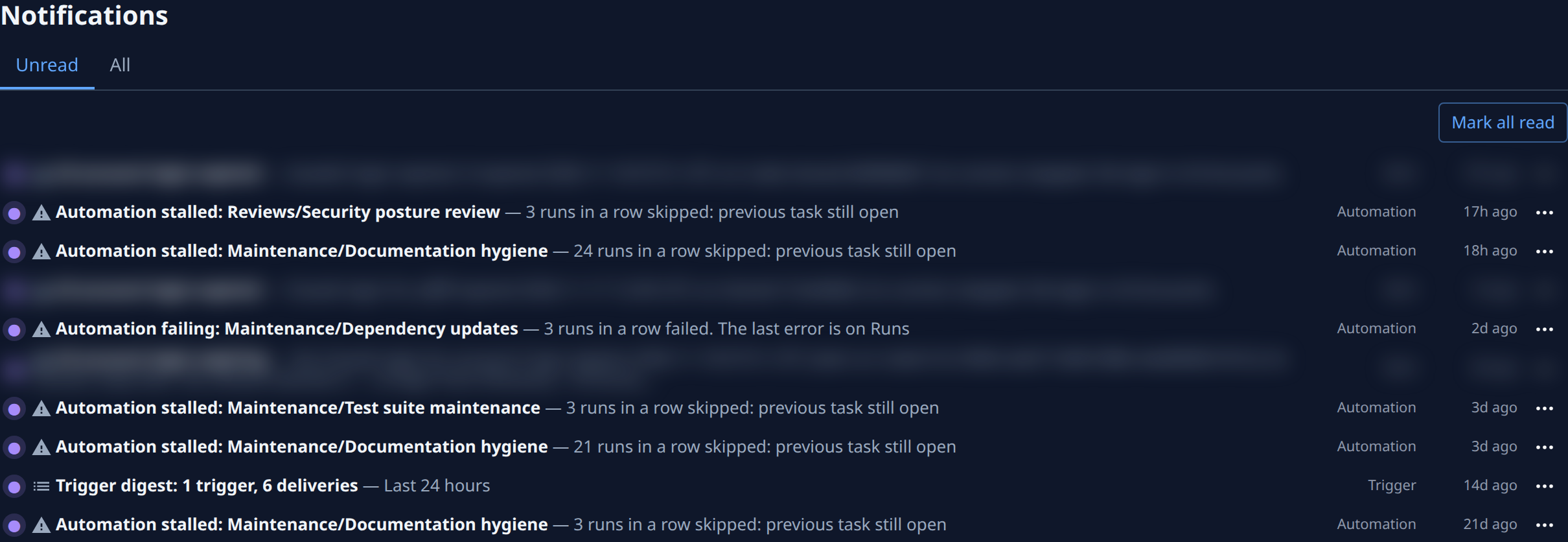
The Notifications page lists everything the bell at the top of the sidebar holds, at full size. Every member can open it from the bell's View all. It shows only your own items, in the current organization.
For the kinds of item and who receives each, see How notifications work. To work through them, see Catch up on your notifications.
Tabs
- Unread: the items you haven't read yet. The page opens here. Nothing new means there are none.
- All: read and unread items together. No notifications means you have none.
If the list cannot load, the tab shows Notifications unavailable with the reason and Retry.
Mark all read
Mark all read, above the list, marks everything unread as read. It shows only while at least one item on the tab can be marked read.
Each row
A row reads left to right:
- The dot: ● the item is unread, ○ it is read. Select it to mark the item the other way.
- What happened: for a mention, a comment or a reaction, who acted (hidden on a phone); for any other kind, a small icon, such as a warning sign on an automation or node alert or a list on a trigger digest. Then the subject (bold while unread) and its detail after a dash, up to two lines. A release item names the project or task, and after the dash Release and the event: Approval needed, Approval waiting, Approval timed out, Rejected, Live, Failed or Rolled back.
- Kind: Mention, Comment, Reaction, Support, Billing, Trigger, Automation, Alert, Release or API key. Hidden on narrow screens.
- Age: how long ago it happened, such as 4h ago. Hover over it for the exact time.
- ⋯: Open, plus Mark as read on an unread item or Mark as unread on a read one.

An Alert item comes to Org Owners and Admins only, at the same time as the alert goes to their channels: Node offline, Runner keeps crashing, Node full, AI account login expiring or AI account login expired, with the reason after the dash. A node alert opens the node; a login alert opens AI Accounts.
A Comment item is a new comment on a task you created or are assigned, from anyone but you. A comment that names you comes as a Mention instead.
Select a row to open what it is about and mark it read: the task or support ticket, the trigger or the automation's runs, the node or AI Accounts for an alert, or your API keys. A billing item may open in a new tab.
Only mentions, comments, reactions, billing, trigger, automation, alert and release items can be marked unread again. The others leave All once read.
Load more
The list shows 50 items at first. When it is full, Load more below the list adds the next 50, up to 200. It reads Loading… while it fetches.
Related
- Your profile: Alerts in Preferences sends task events, such as mentions, to Slack, email or Telegram.
- Comment on a task: where mentions, comments and reactions come from.
- Get told when someone comments on your task: the Comment item and its channel alert.