Support
Support is where you raise a ticket with the Jaah support team and follow the tickets you raised. It also holds your access requests.
Open it from your account menu: select your initials at the bottom of the sidebar, then Support.
You can also ask Help first. If its answer isn't enough, Help can open a ticket for you, and that ticket appears here too. See Find your way around.
The tabs

| Tab | What it shows |
|---|---|
| My tickets | The tickets you raised. |
| Org tickets | Every ticket raised in your organization. Shown only to Org Owners and Admins. |
| Requests | Your access requests. See Requests. |
The page remembers the open tab in its address, so a bookmark or a shared link opens the same tab.
Each ticket
Each ticket is one card. Select it to open the ticket.
| Item | Meaning |
|---|---|
| Title | The ticket's title. Bold while it has something you haven't read. |
| Unread | Something new since you last opened it. |
| Status | Open, Pending, Solved or Closed. |
| Priority | Urgent, High, Normal or Low. |
| Updated | How long ago the ticket last changed. Hover it for the exact time. |
| By | Who raised it. Shown on Org tickets only. |
When there are more tickets than fit, select Load more below the list.
When you have no tickets, the tab says No tickets yet.
Sort and filter
Select the sort button (↑↓) above the list to choose the order.

- Last updated — most recently changed first. The default.
- Opened — oldest first.
- Priority — most urgent first.
Org tickets also has two filters:
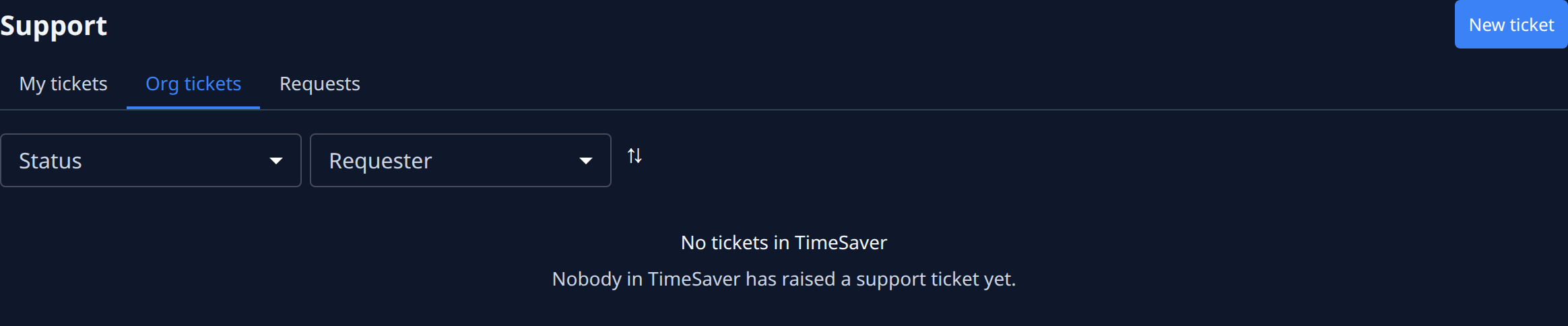
| Filter | What it does |
|---|---|
| Status | Shows tickets in one status. Any shows all. |
| Requester | Shows the tickets one person raised. Any shows everyone's. |
When nothing matches, the tab says No tickets match. Clear a filter to see more.
Raise a ticket
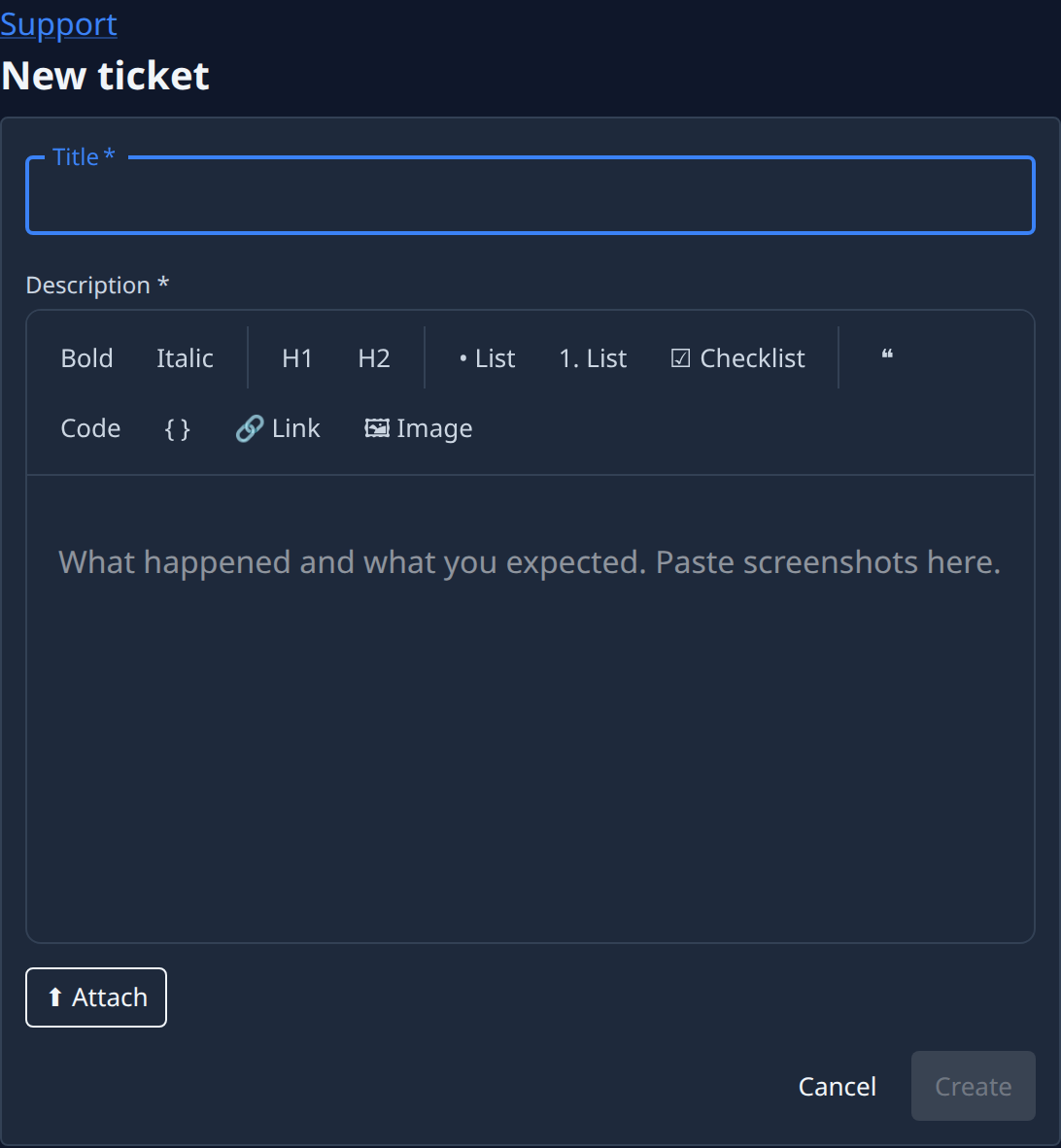
- Select New ticket at the top of the page.
- Enter a Title. It's required, up to 200 characters.
- Write a Description: what happened and what you expected. It's required. Use the formatting bar for bold, headings, lists, links and code. Paste or drop screenshots straight into it.
- Optional: select Attach to add files.
- Select Create. The new ticket opens.
Create stays unavailable until both Title and Description are filled in. Select Cancel to go back to Support without raising a ticket.
If the ticket is created but a file fails to upload, the form says which file and why, and Create becomes Retry. Select Retry to upload what's left. It doesn't raise a second ticket.
A ticket's page
Select a ticket to open its page. Support at the top takes you back to the list.
| Section | What it shows |
|---|---|
| Title | The ticket's title. |
| Details | Status and Priority, the Requester who raised it, the Organization, and when it was Opened. |
| Description | What the requester wrote when raising it. |
| Conversation | The replies between you and the support team. Type a reply in the box and send it, as in a task's comments: see Task page. You can attach files. |
| Linked tasks | Tasks the support team linked to the ticket, with their state. Shown only when there is one. |
| Chat transcript | The Help conversation the ticket was raised from, when Help raised it for you. |
Opening a ticket marks it read, so it's no longer Unread in the list.
Org Owners and Admins also see Close ticket on any ticket of their organization that isn't closed yet. It asks Close ticket? first: only support can reopen a closed ticket.
Requests
The Requests tab lists access requests: asks for a role on something you can't open yet.

| Box | What it shows |
|---|---|
| Pending | Requests waiting for your decision, for what you manage. |
| Mine | The requests you made, in every state. |
| History | Requests you could decide that are already decided. |
To make a request, ask from the page that says you have no access. See Find your way around.