Invite a person and grant access
A new team member needs two things: an account in your organization, and a role that lets them work. The New user page does both: their details first, then their access.
Who can do this: adding users requires the org admin role. Without it, Add user doesn't appear.
Add the person and invite them
- In the sidebar, select Directory, then the People tab.
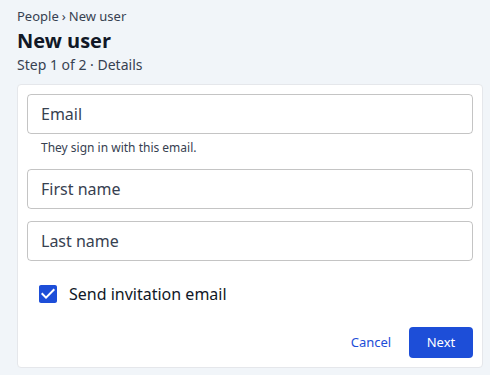
- Select Add user. The New user page opens on Details.
- Enter the person's Email. They sign in with this address.
- Optional: enter their First name and Last name.
- Leave Send invitation email on to email them an invitation.
- Select Next.
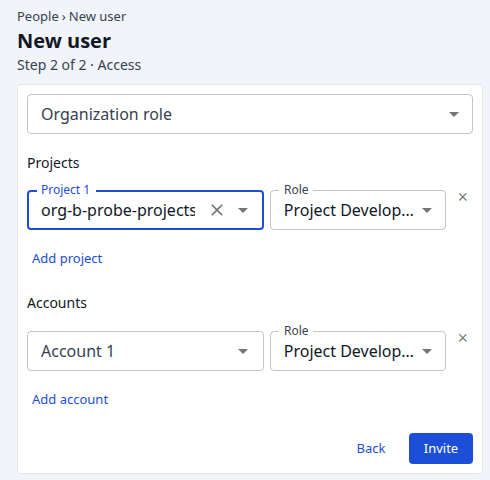
- Optional: pick an Organization role: None, Org Admin or Org Owner. Only an Org Owner is offered Org Owner.
- For each project they work on, select Add project, pick the project, then its Role. Project Developer is picked by default. × removes a row.
- For each model account they use, select Add account, pick the account, then its Role.
- Select Invite. With Send invitation email off, the button reads Create.
Back returns to Details and keeps what you typed.
The People list opens with a line saying whether the invitation was sent, and naming any role that wasn't granted. The new person shows a hollow round mark until they accept. The roles you picked apply the moment they accept.
The person accepts from the invitation email, or, if they already use Jaah, from their account menu.
If the invitation didn't go out, open the person's ⋯ menu and select Resend invitation. If they declined, their row shows a Declined tag and the menu offers Invite again.
Grant access later
Through a group
The easiest way to give a role: add the person to a group that already holds it.
- On the People tab, select ⋯ at the end of the person's row.
- Select Add membership.
- Pick the Group.
- Select Add.
- Hover the number in the person's row to check the group is listed.
Every member of your organization is also in the Everyone group, and gets the roles it holds. No group fits? Create a group.
On the person's Access tab
- On the People tab, select the person's row.
- Select the Access tab, then Add.
- Pick the Type (organization, project or account), the thing itself, and the Role.
- Select Add.
Remove on a Direct line takes a role away, after you confirm.
On one project
Alternatively, grant the role from the project.
- In the sidebar, select Directory, then the Projects tab.
- Select the project's name, then its Access tab.
- Select Add.
- In Who, pick the person, then pick the Role, for example Project Developer.
- Select Add.
Details and how to take a role away: Give someone access to a project.
Check the result
Open the person's account and select Access to see every role they hold. See Check what someone can access.
For the roles and an account's states, see How team and access work.