Check which agents can take work
A task you give an agent that is off, takes no such persona, or has no node to run on waits or fails to start. The Catalog tab answers all of that for every agent your organization can use, so check it before you pick an agent for a task or a project.
Who can do this: anyone who can see agents. Turning an agent on or off needs the org admin role.
-
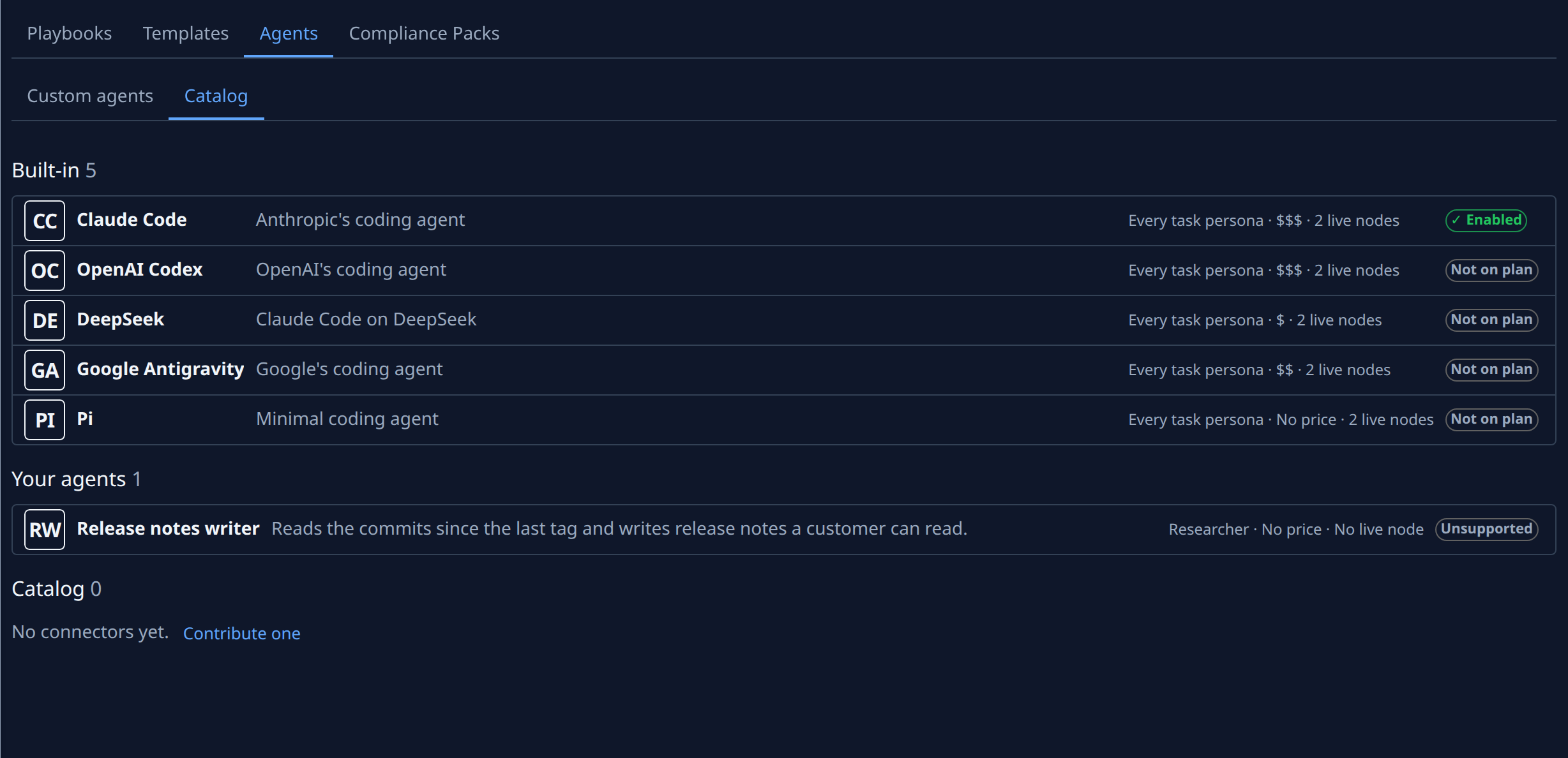
In the sidebar, select Settings, then Agents under Customize, then the Catalog tab. Agents are grouped under Built-in, Your agents, Catalog and Registry, each with how many it holds.
-
Read the mark at the end of the agent's row. Only an agent marked Enabled can take a task. Not on plan means your plan leaves that built-in agent out, Off that nobody turned it on, Unsupported that it must be registered again, and Removed from catalog that it is gone.
-
Read the facts line beside it: the personas it takes (a built-in agent reads Every task persona), its cost from $ to $$$, or No price, and how many live nodes can run it.
-
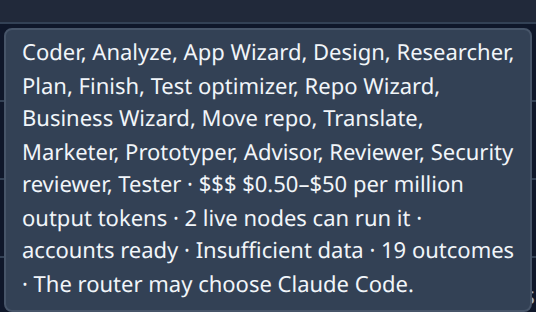
Hover the facts line for the full version: every persona by name, the price range per million output tokens, whether its accounts can take work, how its finished tasks turned out, and whether Jaah may pick it by itself.
-
Check the node and account part of the hover. No live node can run it means no online node can start it; bring one online or add one. every account at its quota or no account means its model accounts can't take work now, and API-key spillover only that only an API-key account can.
-
Fix what stops the agent you want:
- Off: an org admin selects Enable on its row.
- Unsupported: see Fix a custom agent whose refresh failed.
- No live node or no account: see Read a node's status and Model accounts.
-
Pick the agent in the task's Agent field when you start it, or make it the project's default. See Start a task and Set a project's default agent.
Related
- How agents work: what each kind of agent is and how Jaah runs it.
- Contribute a catalog connector: every fact on the Catalog tab, and turning a connector on.
- Install an agent from the ACP registry: add an agent to the Registry section.