Read a task's result
When a task finishes, everything it produced comes back to the task: the runner's own summary, a link to the change it delivered, any report or file it made, and what the run cost. This guide shows where each one is.
Read the outcome
- On the board, find the task under Done and select its title. Its page opens beside the board.
- Select the Details tab.
- Read Outcome: the runner's own summary of what it did. When it delivered a change, the outcome links to it.
- Read Task Run Metrics for how long it ran, the tokens it used and the cost estimate.
- For an epic, read Finisher Notes: what the final check found.
A task that ended without a change says why in its outcome, for example that the work was already done.
Open what it produced
-
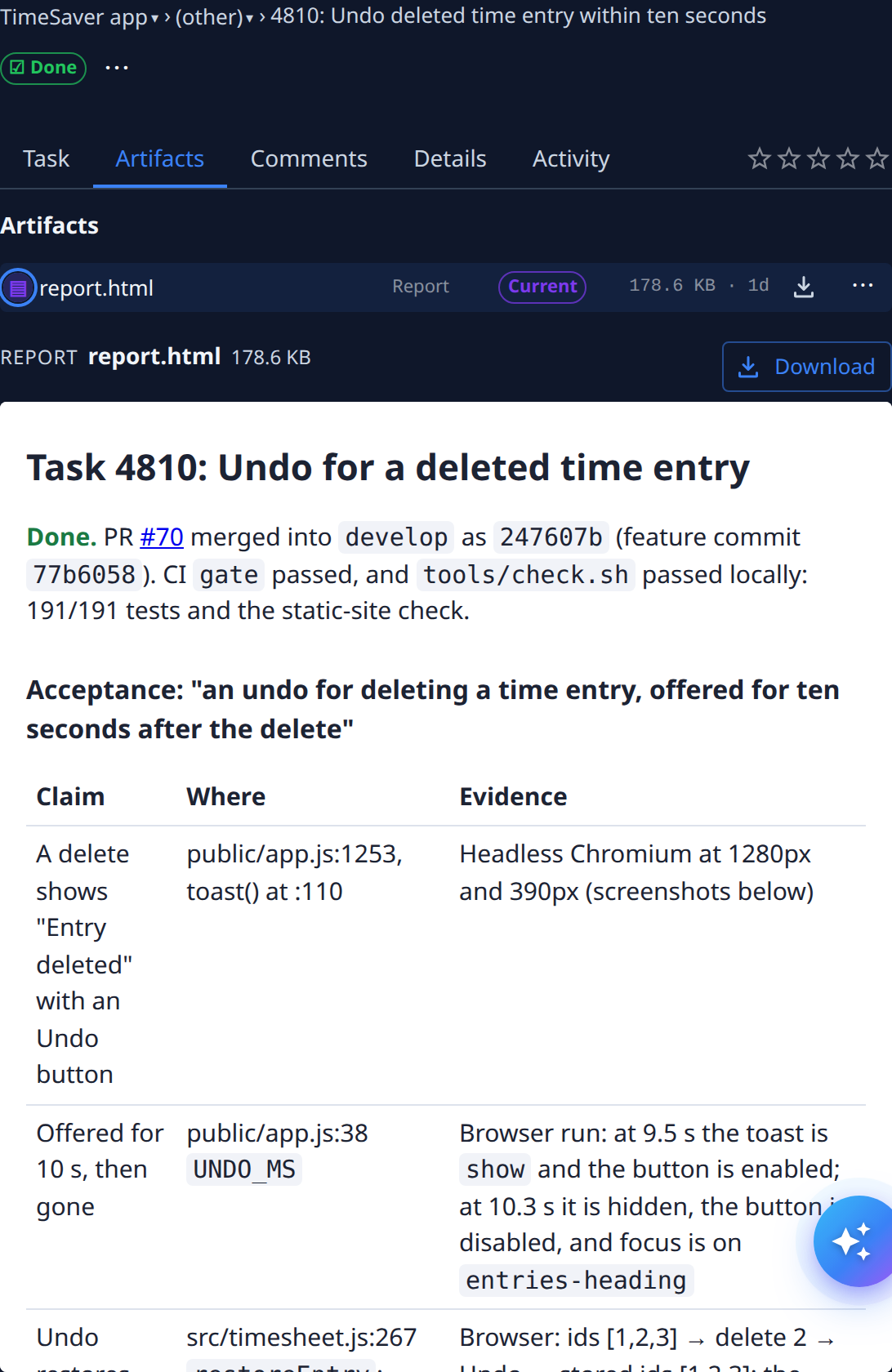
Select the Artifacts tab.
-
Select a file in the list. It's previewed below the list.
-
Read it in place, or select Download to save it.
-
If a file has several versions, the newest of each kind is marked Current.
A Researcher task's report, a Prototyper task's mockup and an epic's requirements and design documents all arrive here.
See what happened along the way
- Select the Activity tab.
- Read Timeline for every step, with its time and the state it moved to.
- Select Q&A for every question the task asked and your answer.
Rate it
- Hover the stars beside the tabs to see the current rating.
- Select a star, from one to five. Select another star to change your rating.
Related
- Task page — every tab and field.
- Stop, restart or reset a task — run a finished task again.
- How tasks work — what each kind of task hands back.