Check your Jaah AI spend
When your organization's work runs on the Jaah AI account, each run is paid per token from your Jaah AI balance. The Usage tab on the Jaah AI page shows what that cost over a period you choose.
Who can do this: Org Owners and Admins. Other members don't see Billing.
Read your spend
-
In the sidebar, select Billing.
-
On the Products tab, select Jaah AI. If there is no Jaah AI row, your organization runs on its own accounts; select Add product > Jaah AI to open the page anyway.
-
Select the Usage tab.
-
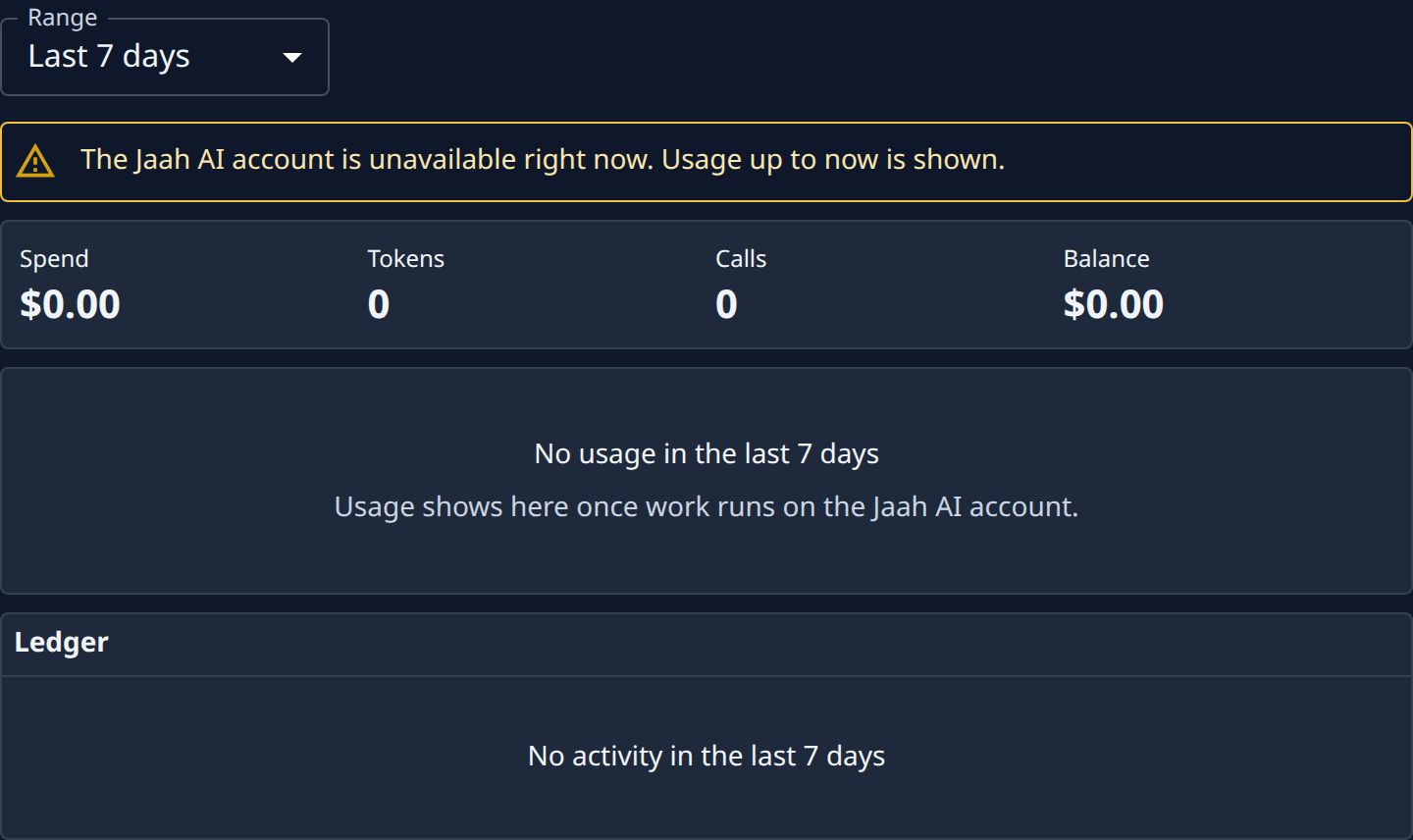
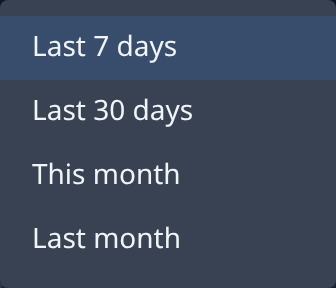
Open Range and pick the period: Last 7 days, Last 30 days, This month or Last month.
-
Read the totals for that period:
- Spend — what work on the Jaah AI account cost.
- Tokens — how many tokens it used.
- Calls — how many calls it made to the AI model.
- Balance — your Jaah AI balance now.
-
Under Ledger, read each change to your balance in the period, newest first, with its Date, Activity and Amount. A day's usage is one row.
The figures update by themselves as work runs.
If the tab is empty
- No usage in the last 7 days (or the range you picked) means nothing ran on the Jaah AI account in that period. If your organization uses its own model accounts, that is expected: their cost never shows here.
- The Jaah AI account is unavailable right now. Usage up to now is shown. means new work can't run on it at the moment; what already ran is still listed.
- The Jaah AI account isn't set up yet. means it isn't offered for your organization.
To choose whether work runs on the Jaah AI account or on your own accounts, top up, or set a low-balance alert, use the Overview tab. Each option there is described in the Jaah AI reference.
Related
- How plans and billing work — the Jaah AI account versus your own accounts.
- Jaah AI — the Usage tab, field by field.
- Model accounts — your organization's own AI accounts.