Limit how many tasks a node runs
A node takes a new task whenever it has a free worktree for the project. On a small machine that can be more tasks than its memory or CPU can carry, and they all slow down or get killed. Max running tasks puts a ceiling on it: once that many tasks run on the node, new ones wait until one finishes.
Who can do this: the permission to edit nodes. Without it, the node's Properties tab says Read-only — editing needs the nodes:edit permission. and the field is locked.
-
In the sidebar, select Directory, then the Machines tab.
-
Select the node's name. Its details open beside the list, on the Overview tab.
-
Check whether the node is short of resources. When it is, the top of Overview lists what went wrong, such as Memory critical, CPU critical, Process OOM-killed or Node commands timing out, with a Limit running tasks link under it. A node with more slots than its machine can run at once, and no limit, also shows a warning naming the number it can run, with a Set a limit button. Select the link or the button, or select the Properties tab.
-
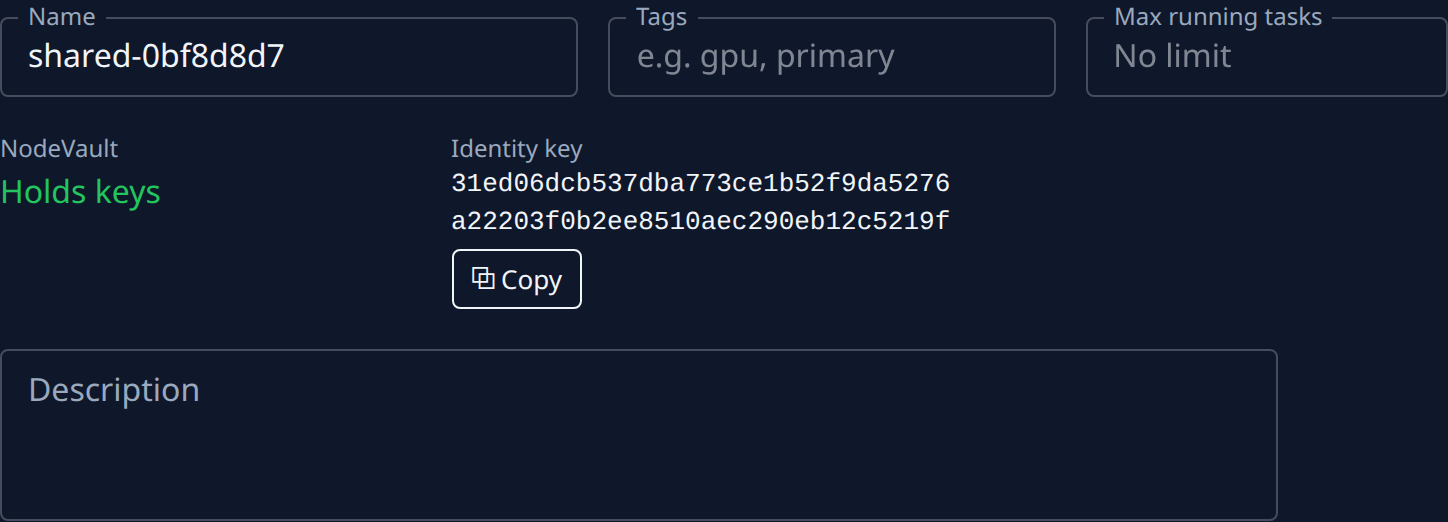
Find Max running tasks in the Identity group, beside Tags. It reads No limit until someone sets one.
-
Hover over the Max running tasks label. When the node reports its memory or CPUs, the hint suggests a number: about one task for every 8 GB and every 2 CPUs, whichever runs out first.
-
Type a whole number from 1 to 64. Anything else shows 1–64, or empty under the field, and saving it is refused.
-
Select Save. Saved shows above the tabs.
-
Watch the node for a while. Tasks already running keep going; new tasks for the node's projects wait while it runs that many. If the warnings on Overview stop, the cap is right. If tasks wait too long, raise it, or add another node.
To remove the limit, clear the field and select Save: the node takes tasks up to its free worktrees again.
A cap only holds back new work. To stop new tasks on a node altogether, drain or disable it instead: see Drain or disable a node.
Related
- Read a node's status: how loaded a node is and what its warnings mean.
- Add a node: more capacity when one node isn't enough.
- How nodes work: how a node picks up tasks.
- Machines: every field on a node's Properties tab.