Name and tag a node
A node starts with the name it was created with, often a machine's host name. Once you have more than a
few, give each a name people recognize, tags for what it is good at (such as gpu or primary), and a
note for whoever looks after it. The Machines list's search matches all three, so the right node is
one search away.
Who can do this: the permission to edit nodes. Without it, the node's Properties tab says Read-only — editing needs the nodes:edit permission. and every field is locked.
-
In the sidebar, select Directory, then the Machines tab.
-
Select the node's name. Its details open beside the list.
-
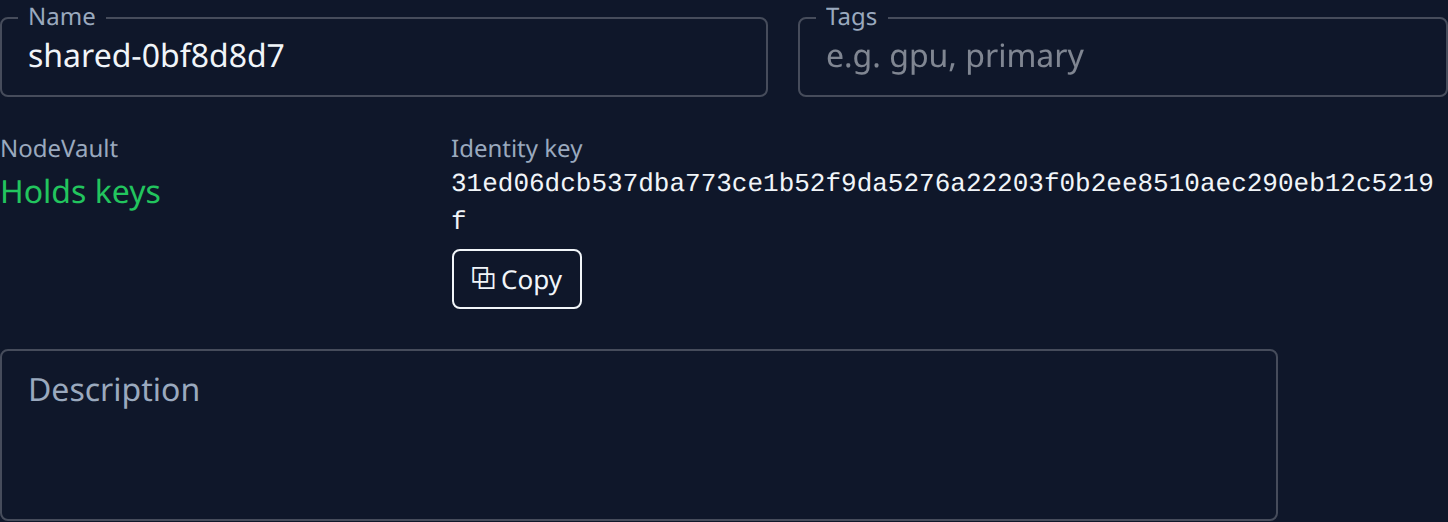
Select the Properties tab. The Identity group holds Name, Tags and Description.
-
In Name, type the new name. It must be unique in your organization, and it is shown wherever the node appears.
-
In Tags, type words separated by commas, such as
gpu, primary. -
In Description, write a note for people: what the node is for, who to ask about it.
-
Select Save. Saved shows above the tabs.
-
To check, go back to the list and type a tag in Search. The list narrows to the nodes whose name, tag or description contains it.
Org admins see a Host group under Identity on the same tab, with Jaah home and Auto-update: see Keep a node up to date. Which projects the node runs is set by node groups: see Run a project on some nodes only.
Related
- Read a node's status — whether a node is online, how loaded it is, and whether anything is wrong.
- How nodes work — where a node comes from and how it takes tasks.
- Machines — every column, filter and tab, including Properties.