Record task activity in your own system
Your team may want task history in a place it already reports from: a data warehouse, a spreadsheet, a BI tool. A webhook sends each step of every task's life to a small receiver of yours, which stores one row per event. From those rows you can count how long tasks wait, run and stay blocked, in your own reports. How endpoints, events and deliveries work is in How webhooks work.
Who can do this: Owners and Admins of your organization, on a plan that includes webhooks. You also need a
receiver at a public https:// address that can write to your store.
-
Open Settings, select Integrations, then Webhooks, and select New webhook.
-
Enter a Name that says where the events go, such as
Task history to warehouse, and the URL of your receiver. Use Description to note which table or sheet it fills. -
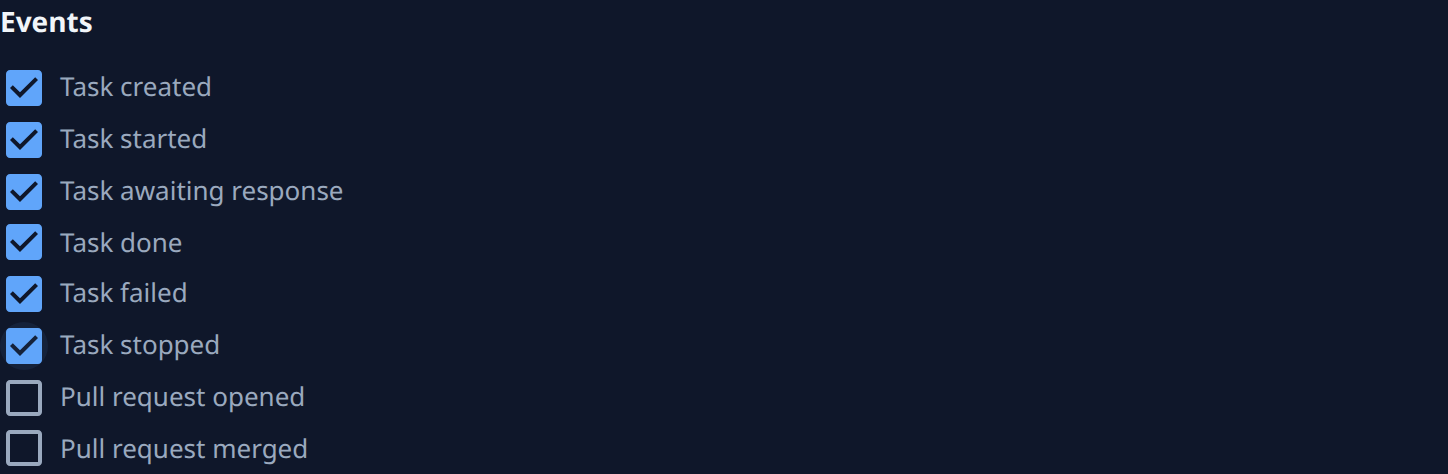
Under Events, tick every task event: Task created, Task started, Task awaiting response, Task done, Task failed and Task stopped. Tick Pull request opened and Pull request merged too if your reports follow work through to the merge.
-
Under Projects, keep All projects. It also sends the events of projects added later, so the record has no gaps when a new project starts.
-
Select Create, then Copy secret in the dialog, and put the signing secret in your receiver's configuration. Jaah shows it only once. Select Done.
-
Have your receiver, for each delivery:
- check the signature first, as in Verify the signature, and refuse a delivery that fails it;
- store one row per delivery, keyed by the body's
id, and skip anidit already holds, since the same delivery can arrive more than once; - keep the event's
typeandcreated_at, the project's name, and the task'sid,titleandstate, all shown in What a delivery looks like; - sort by
created_at, not by arrival, since deliveries can arrive out of order; - answer with a
2xxstatus within 10 seconds.
-
On the endpoint's page, select Send test. The Deliveries tab opens and shows the
pingas Delivered once your receiver answers. Apinghas no task, so your receiver should answer it without storing a row. -
Check the Deliveries tab from time to time. When a row shows Failed, fix your receiver and select Redeliver on that row; the record stays complete as long as you redeliver within 30 days, while the log still holds it.
The record starts when you create the endpoint: earlier tasks are not sent. If you turn Enabled off, the events in between are lost to the record, so leave this endpoint on.
Related
- Receive events with webhooks — the delivery body, headers, retries and the delivery log.
- Fix a failing webhook — read why deliveries fail and send the missed ones again.
- Change which events a webhook sends — add or drop events later.
- How tasks work — the states a task moves through.
- Event catalog — when each event is sent.