How notifications work
Jaah tells you what happened in two ways: the bell, an inbox inside the console, and alerts sent outside it to your email, Slack and Telegram channels.
The bell
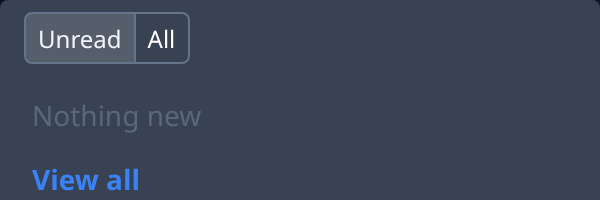
The bell at the top of the sidebar is Jaah's in-console inbox. Its badge counts your unread items. Select it to open the tray; View all opens the Notifications page, which lists the same items with room for longer lines and a Load more button.
What reaches the bell
Each item is about something that happened elsewhere in Jaah, and opening it takes you there. On the Notifications page the kind shows at the end of each row.
| Kind | What it tells you | Who gets it |
|---|---|---|
| Mention | Someone named you in a comment on a task or a support ticket. A Reaction is someone reacting to your comment. | Anyone named, or the comment's author. |
| Comment | Someone commented on a task you created or are assigned. | The task's creator and assignee, unless the comment names them. |
| Support | A support ticket you raised has a new reply or a new status. | The ticket's requester. |
| Trigger | One of your triggers was stopped. | The trigger's owner. |
| Automation | One of the organization's automations is failing or has stalled. | Org Owners and Org Admins. |
| API key | One of your API keys is about to expire. | The key's owner. |
| Billing | A payment failed, a refund, or a card about to expire. | Org Owners and Org Admins. |
The bell shows the organization you are working in. If you belong to several, another organization's items wait until you switch to it.
Unread and read
- Unread lists what you have not opened yet; it is where both the tray and the page start. All adds what you have already read, so a comment you skimmed can be found again.
- Opening an item marks it read. Its dot (● unread, ○ read) flips it either way, and Mark all read clears the list in one go.
- Mark as unread puts a read mention, reaction, trigger, automation or billing item back on the Unread list — a way to keep something to answer later.
- Support news and API key reminders are listed only while unread.
Alerts outside the console
You choose where alerts go and which ones, in the Alerts section of your Preferences:
- Channels. Each channel is one destination: an email address, a Slack DM, a Slack channel or a Telegram chat or group. You can hold several of each type, all added with one Add channel button. An email address you type is confirmed by a link or code first; your sign-in address is a channel from the start.
- Groups. Alerts come in nine groups, such as Assigned to you, Messages, Task progress, Releases and Node failures. Each channel has one Off, Brief or Full switch per group, and you can open a group to set each alert in it on its own.
- Who gets which. Every member can get Assigned to you, Messages, Support, API & automation and Task progress; Releases reach whoever a release concerns. Billing, AI account login and Node failures go only to Org Owners and Org Admins.
- Defaults. Every group starts at Full, except Task progress: Off by email, Brief on Slack and Telegram. When channels arrived, every channel's choices were reset to these defaults.
A Slack channel or a Telegram group is seen by everyone in it, so it carries only the alerts its owner can see. Each channel and group is described in Your profile › Alerts.
Related
- Comment on a task — mentions and reactions start here.
- How automations work — what a failing or stalled automation means.
- Alerts in your Preferences — add channels and choose each one's alerts.
- Connect Slack — connect your organization's Slack workspace first.