Comment on a task
Every task has a discussion of its own on its Comments tab. Use it to leave context for your team, ask a colleague to look at a result, or record a decision next to the work it's about.
Comments are for people. To answer a question the runner asked, use the Answer tab instead: see Answer a task's question.
Post a comment
-
Open the task from the board.
-
Select the Comments tab.
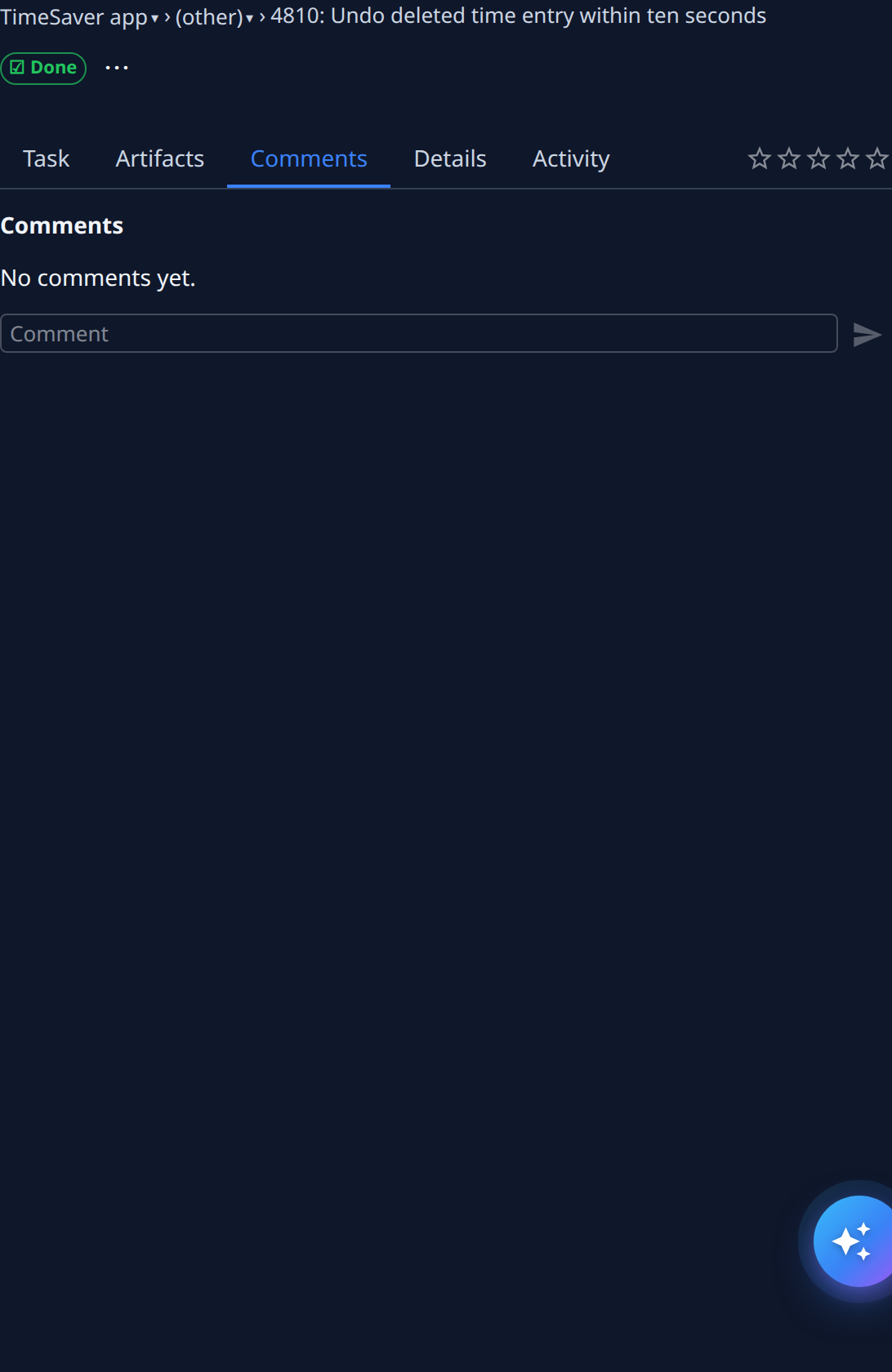
-
Select the Comment box and type your comment.
-
To mention someone, type
@and the start of their name, then pick them from the list. They're notified of the comment. -
Select the send arrow. Your comment appears in the list.
React to a comment
- Find the comment.
- Select Add reaction under it.
- Pick an emoji. It appears under the comment with a count.
- Hover a reaction to see who added it.
- To take your reaction back, select it again.
Edit or delete your comment
- Find your comment.
- Select Edit, change the text, and send it again. Select Cancel to keep it as it was.
- Or select Delete.
- In Delete comment?, select Delete to confirm.
- Check the list: the comment is gone.
Related
- Task page — the Comments tab.
- Profile — choose how you're notified.
- How tasks work — who works on a task and the states it moves through.