Delete your organization's account
Deleting the account closes your whole organization in Jaah, not just your own sign-in. Its plan ends at once with no refund, its nodes, hosting and running tasks stop, and every member is signed out and can't sign back in. You can't undo this yourself: only support can restore it.
Who can do this: Requires the Owner role. Admins and other members don't see Delete account.
Before you start, check that no one still needs the organization's work, and that you can enter a code from your authenticator app or a recovery code if you sign in with two-factor authentication.
Delete the account
-
In the sidebar, select Settings, then Billing.
-
Select the Details tab.
-
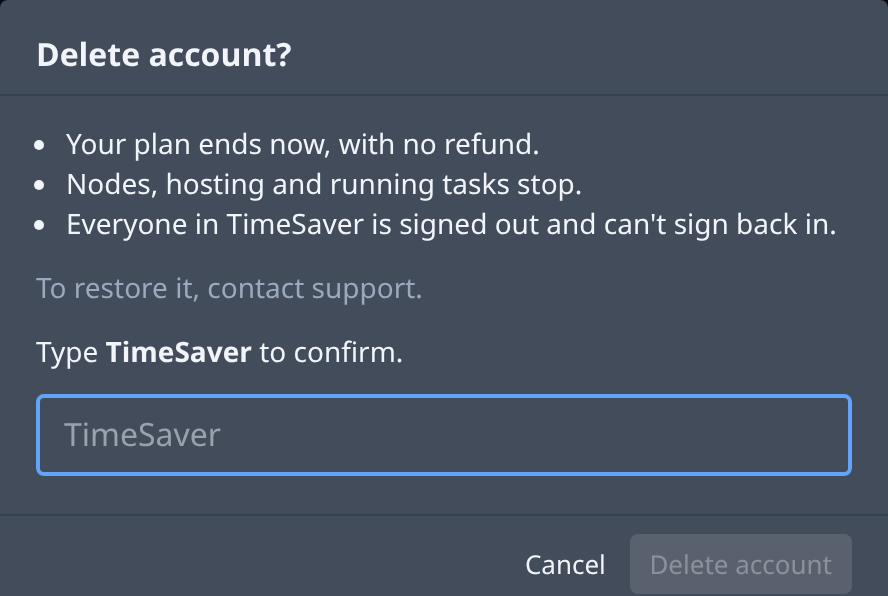
Select Delete account, last on the tab. The Delete account? dialog opens.
-
Read what ends:
- Your plan ends now, with no refund.
- Nodes, hosting and running tasks stop.
- Everyone in your organization is signed out and can't sign back in.
Below it: To restore it, contact support.
-
Type your organization's name exactly as shown in Type name to confirm.
-
If you sign in with two-factor authentication, enter a code from your authenticator app or a recovery code in 2FA or recovery code.
-
Select Delete account. It stays disabled until the name matches and, when asked for, a code is entered. While it works it reads Deleting….
Once the account is deleted, you're taken to the sign-in page, and so is everyone else in the organization. Cancel closes the dialog without deleting anything. If the delete fails, the dialog says Could not delete the account — try again and nothing is deleted.
Related
- Billing — the Delete account control on the Details tab.
- How plans and billing work — what a plan includes and what ending it means.
- Change your plan — cancel just the plan and keep the organization.