Check your plan and limits
Check your plan before you add a project, a node or a person, or when Jaah tells you a limit is reached. The Subscription page shows your plan and, for each limit, how much is used and how much is allowed.
Who can do this: Org Owners and Admins. Other members don't see Billing; ask an Owner or Admin.
Open your plan
- In the sidebar, select Billing. The Products tab opens.
- Read your plan's row: its name, for example Trial, its state and its price.
- Select the row, or its Change button. The Subscription page opens, titled with your plan's name. When a change to the plan is scheduled or a payment needs attention, its state shows under Subscription and a banner appears above the page.
Read your limits
-
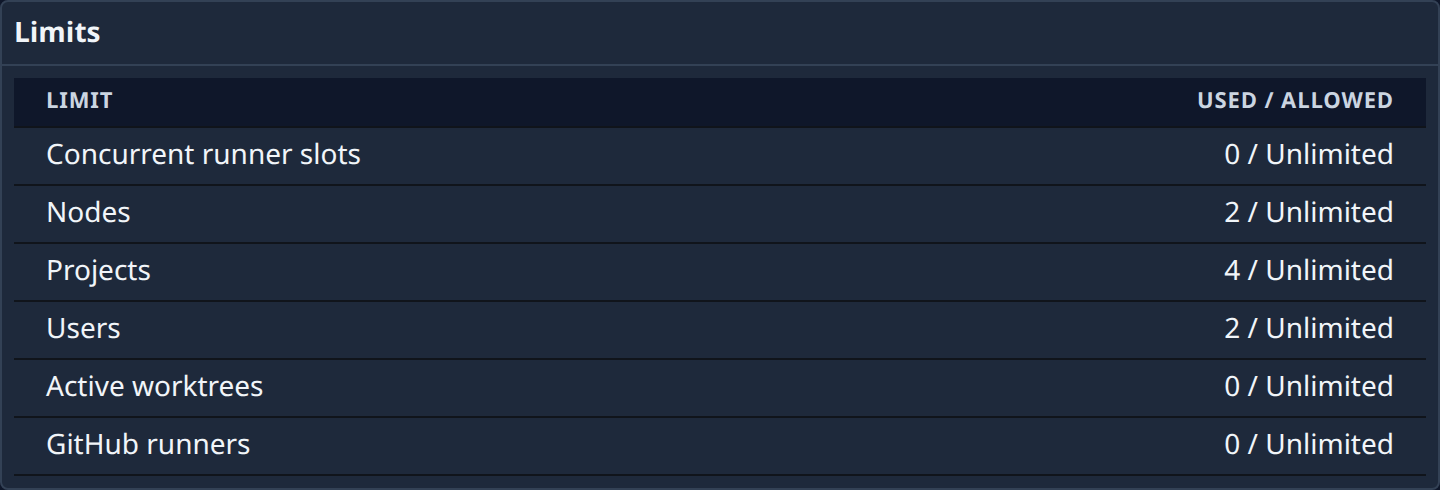
Scroll to Limits. Each row is one limit, with Used / allowed.
-
Compare the two numbers on the row you care about. Unlimited means your plan sets no limit there.
| Limit | What it counts |
|---|---|
| Concurrent runner slots | Runners working on tasks at the same time. |
| Nodes | The machines your organization runs work on. |
| Projects | The projects in your organization. |
| Users | The people in your organization. |
| Active worktrees | Working copies in use by tasks right now. |
| GitHub runners | GitHub Actions runners hosted on your nodes. |
- Scroll to Plans to see every plan: Current plan, a price with Upgrade or Switch, Choose for a free plan, Contact us for a plan set up with the Jaah team, or Coming soon for a plan not on sale yet.
When a limit is full
- Projects, nodes, users and GitHub runners: Jaah refuses to add another one with a message that starts Limit reached and asks you to contact us. Nothing you already have is removed or stopped.
- Concurrent runner slots and active worktrees: a new task doesn't fail. It waits, says it is waiting on your organization's limit, and starts as soon as a running task finishes.
To raise a limit, free one up (for example, remove a project you no longer need) or ask to change your plan.
Related
- How plans and billing work — what a plan is and how limits work.
- Subscription — every section and button on the page.
- How tasks work — why a task can wait before it starts.