Add a payment method
Your organization's paid plan, hosted nodes and other charges are paid with a saved card. Add one before your first paid purchase, when a card is about to expire, or after a payment failed.
Who can do this: Requires the org admin role (Org Owners and Admins). Other members don't see Billing.
Payments are handled by Stripe. You type the card only into Stripe's own form; Jaah keeps just its brand, last four digits and expiry date. If card payments aren't available, Billing has no Methods tab.
Add a card
-
In the sidebar, select Settings, then Billing.
-
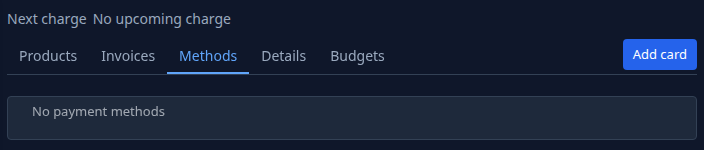
Select the Methods tab, then Add card at its top right. The New payment method page opens.
-
Under Card details, enter your card in Stripe's form.
-
If you already have a card, choose whether this one becomes the default: tick Make default to have new invoices and charges bill it. Your first card is always the default, so the box isn't shown then.
-
Select Save. It stays disabled until you have typed a card.
-
The new card's page opens. It is also listed on Billing's Methods tab, with Default beside the card that pays your invoices.
Cancel goes back to Billing without saving; with a card typed, it asks first.
After adding it
- To make an existing card the default, or delete one, see Make a card the default or delete it.
- To replace an expiring or failed card, add the new one as the default, then delete the old one.
- After a failed payment, select Pay now: on the Subscription page for your plan, or at the top of Billing for hosting.
Related
- Billing — the Methods tab and a card's page, field by field.
- How plans and billing work — what you pay for and when.
- Check your plan and limits — see which plan you're on.