Update your billing details
Your organization's billing details are what its invoices carry: the billed party's name, the billing contact's email, an address and a tax ID. Set them before your first paid purchase, or change them when your company's name, address or tax number changes.
Who can do this: Requires the org admin role (Org Owners and Admins). Other members don't see Billing.
Change the details
-
In the sidebar, select Settings, then Billing.
-
Select the Details tab. It has one row: the name and email on file, or Billing details marked Not set when there are none.
-
Select the row. The Billing details page opens.
-
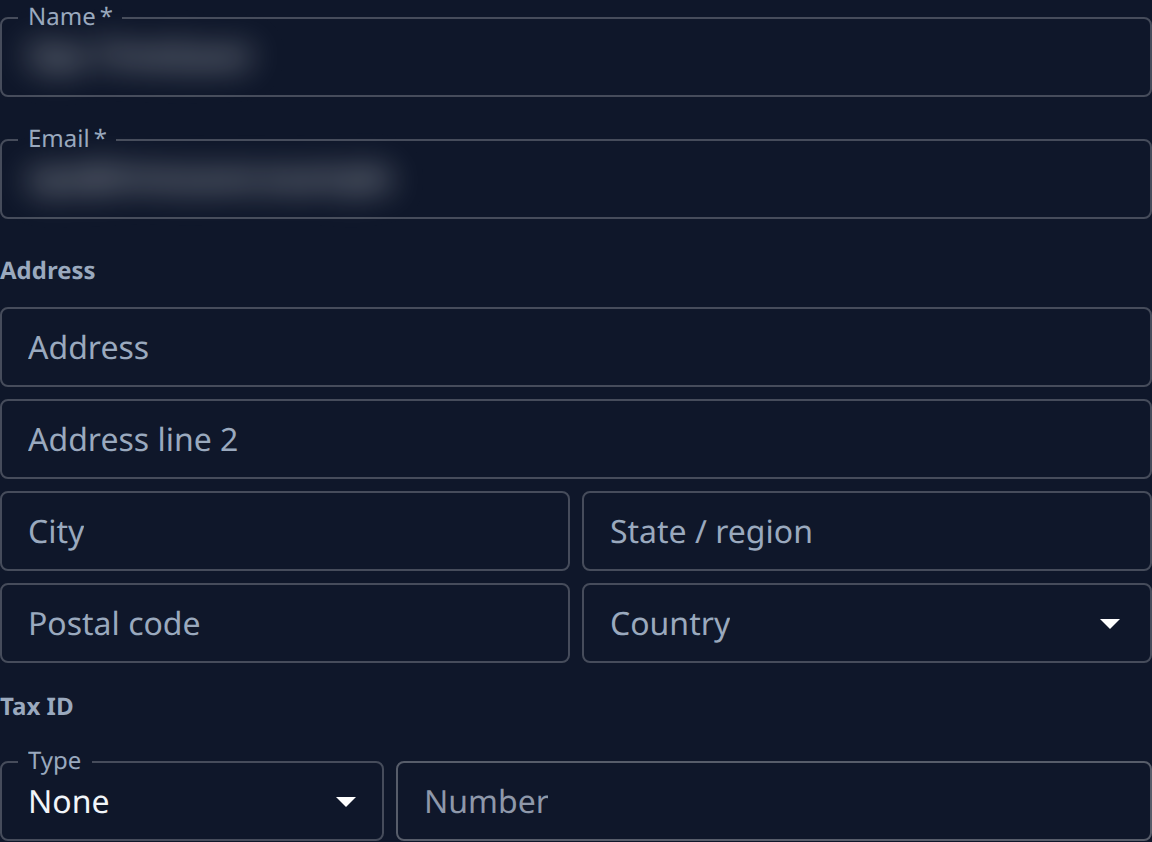
Fill in Name, printed on invoices as the billed party, and Email, the billing contact invoices go to. Both are required. If nothing is on file yet, they start with your own name (or, without one, your organization's) and email.
-
Optionally, fill in the address: Address, Address line 2, City, State / region, Postal code and Country.
-
Optionally, under Tax ID, pick a Type and enter the Number. Number stays disabled while Type is None; picking None clears a stored tax ID. With an EU country, EU VAT is picked for you with the country's prefix unless you already entered a number, and the page notes EU address: EU VAT number required.
-
Select Save. It stays disabled until every required field is valid and, once details are on file, until you change something. Once saved, the page shows Saved.
Leaving with unsaved changes
If you leave the page with changes not yet saved, an Unsaved changes dialog asks: Billing details have changes that have not been saved. Save them before leaving? Select Save to save and leave, Discard to leave without them, or Cancel to stay on the page.
Related
- Billing — the Details tab, field by field.
- How plans and billing work — what you pay for and when.
- Download or pay an invoice — see the details on an invoice.
- Add a payment method — save the card that pays your invoices.