Let agents import only approved modules
Do this when some of your code may use only a short list of libraries, such as one approved HTTP client for every outbound call. An Approved APIs rule checks each change an agent makes. Any import in the matched files that is not on your list fails the rule. At Gate or Lock, the Architectural Guard blocks that change and tells the agent what to use instead.
This is the opposite of an import boundary, which names the modules that are not allowed. To block a few modules and allow the rest, see Stop agents importing across a module boundary.
Who can do this: anyone with the permission to edit compliance, in your own pack. A ready-made pack shows Customize this ready-made pack to add rules. instead of the form.
Plan: needs Compliance and Advanced Compliance on your plan, which bring the Architectural Guard. Without them, Check kind offers no Change rule.
The rest of the page, such as Applies to, works as in Add a rule to a compliance pack. These steps cover only what differs.
-
Open your own pack's Rules tab and select New rule. Enter a Name; Key fills in from it.
-
Under Rule, pick a Mode. Gate or Lock blocks the change. Both need Fix guidance: what the blocked agent is told to do instead, such as which approved library to call.
-
Under Check, set Check kind to Change rule. Pillar and Level go away, since a change rule is not scored. The bar at the foot of the page now reads Enforced on writes and commits at Gate and Lock.
-
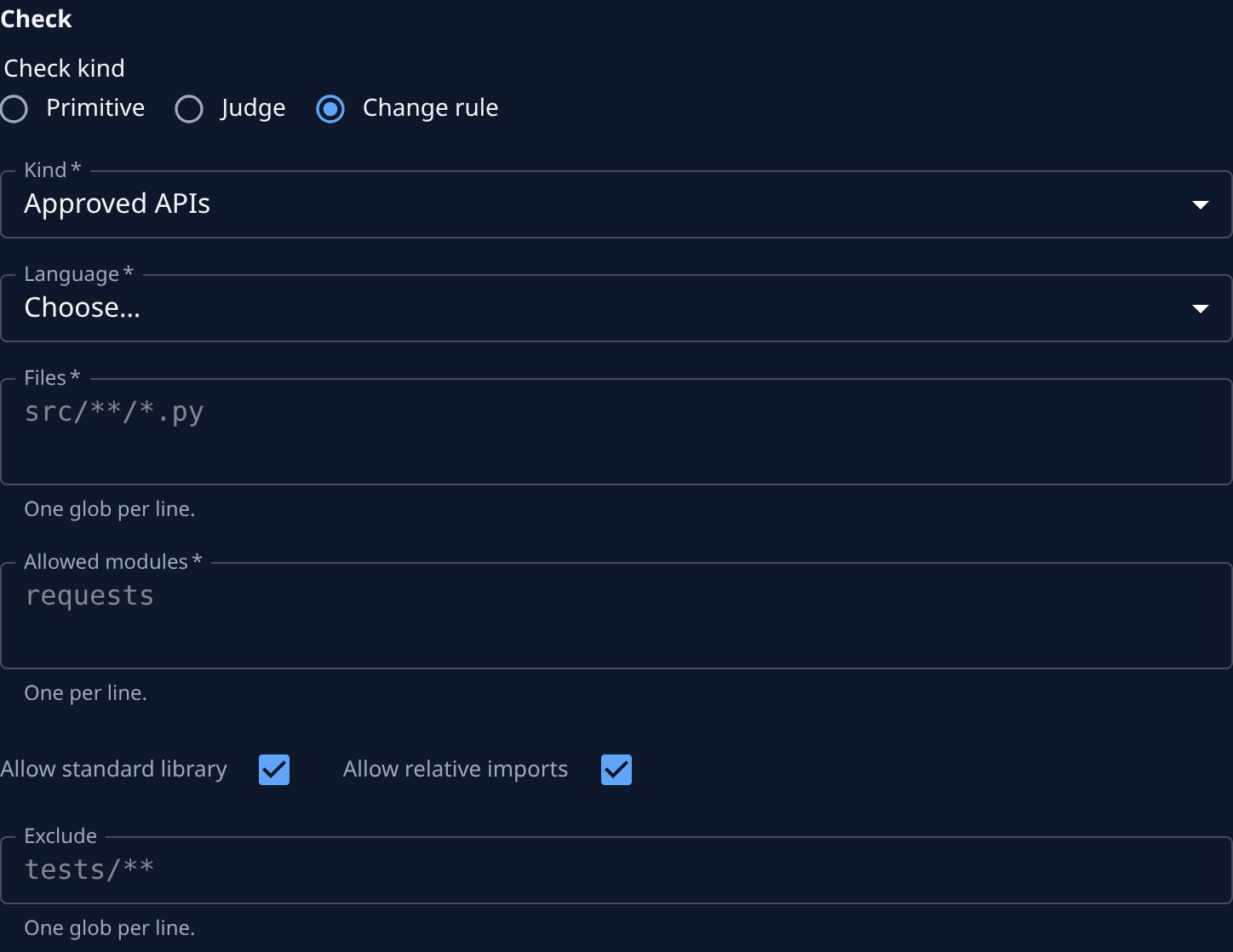
Set Kind to Approved APIs. Its fields show under it.
-
Pick the Language the files are written in.
-
In Files, enter the files whose imports the rule checks, one glob per line, such as
src/clients/**/*.py. -
In Allowed modules, enter the only modules those files may import, one per line, such as
requests. -
Leave Allow standard library ticked to let the language's own library through without listing it. Leave Allow relative imports ticked to let imports from within the same package through. Clear either one to make those imports count against the list too. Both start ticked.
-
Optional: in Exclude, list files to skip even when they match Files, such as
tests/**. -
Under Oracles, fill in the two sample changes. Keep Expect at Allowed on the first and Blocked on the second. In each, add the files under Before (leave it empty for a new file) and After. The allowed change imports a module on your list; the blocked change imports one that is not.
-
Select Save in the bar at the foot of the page. Jaah checks the samples when you save. When they pass, the new rule's page opens.
If a sample gives the wrong result, the rule isn't saved and the sample shows why. A common cause is a sample that imports a standard-library module after you cleared Allow standard library. Fix its files or the rule's fields, then save again.
Related
- How compliance works: what the Guard checks and when it blocks.
- Review what the guard blocked: see the changes your rule stopped.
- Change how strictly a rule is enforced: move the rule between modes later.