Review what the guard blocked
When an agent's change breaks a rule in Gate or Lock mode, the Architectural Guard stops it and logs the decision. This guide finds those decisions, reads what each one stopped, and follows it to the task and the rule behind it, so you can tell a rule doing its job from one that keeps getting in the way. How the Guard decides is in How compliance works.
Before you start: the Guard activity tab shows only where your organization has the Architectural Guard. Without it, Compliance has just Repos and Settings. Compliance itself is part of some plans only.
Who can do this: anyone who can see Compliance. The tab lists decisions on the projects you can see.
-
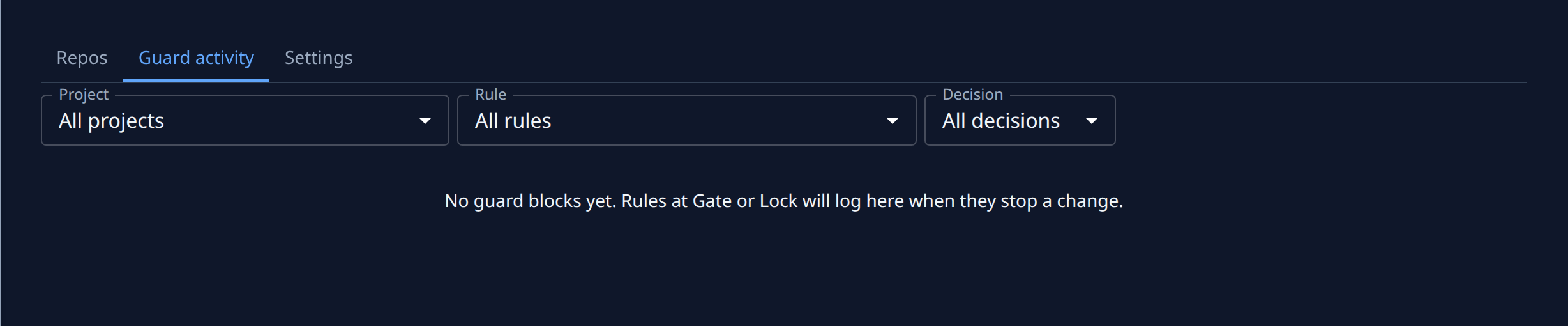
In the sidebar, select Compliance, then the Guard activity tab. Decisions are listed newest first. With none yet the tab reads "No guard blocks yet. Rules at Gate or Lock will log here when they stop a change."
-
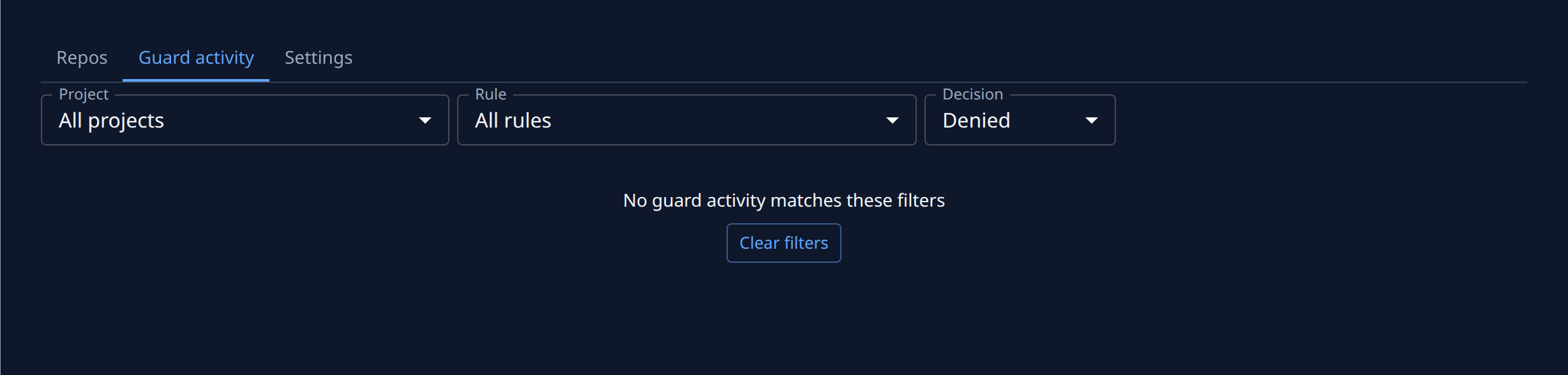
Narrow the list. Pick a Project and a Rule, and set Decision to the kind you want:
- Denied — the Guard stopped the change.
- Escalated — the same rule blocked an agent so many times in a row that the agent stopped and asked a question.
- Error — the Guard could not decide, and let the change through.
- Waived — a waiver on that rule let the change through.
The filters stay in the page's address, so you can share the view. When nothing matches, the tab says "No guard activity matches these filters"; Clear filters resets them.
-
Read a row. After the decision's mark comes the Rule and the Guard's message, then the Runtime, Where (the file and line), the Moment (on write, at commit or at push), the Task, the Project and the Time. On a narrow window some of these drop out; hover over the row to see the message and the file. A row named Bypass refused is an agent that tried to skip the checks.
-
Select the number under Task to open the task the agent was working on, and see what it was trying to do and whether it found another way. For an Escalated row, answer its question as in Answer a question.
-
Select the project's name under Project to open its compliance page. When the guard blocked anything there, its header shows Guard blocks: how many in the last 7 and 30 days, which links back here filtered to that project.
-
Open the rule from your pack: select Settings in the sidebar, then Compliance Packs under Customize, your pack, and the rule. Its Guard blocks line shows the same counts for that rule, and its Fix guidance is what the agent was told to do instead.
-
Decide what to change. If agents keep being stopped for the same reason, make the Fix guidance clearer; if the rule should not stop changes at all yet, set its Mode to Advise, which still counts it as a gap but blocks nothing. Changing a rule needs the permission to edit compliance. A gap you accept on one repository can be waived instead, unless the rule is in Lock mode.
Related
- How compliance works — modes, change rules and when the Guard asks rather than blocks.
- Add a rule to a compliance pack — write a change rule the Guard enforces.
- Repository compliance — every field on the Guard activity tab and the Settings tab's Blocks before asking.