Switch your compliance pack
Your organization scores its repositories against one active pack at a time. The active pack is the one scans, the Repos list and the Architectural Guard use. Switch to another when a ready-made pack fits your repositories better, or when you have made your own.
Who can do this: Org Owners and Org Admins activate a pack. Starting the rescan also needs the permission to edit compliance. Compliance is part of some plans only.
-
In the sidebar, select Settings, then Compliance Packs under Customize. Each row shows a pack's name, where it comes from (Ready-made, Own or Fork of a ready-made pack), its rule count and its version. The pack in use carries Active.

-
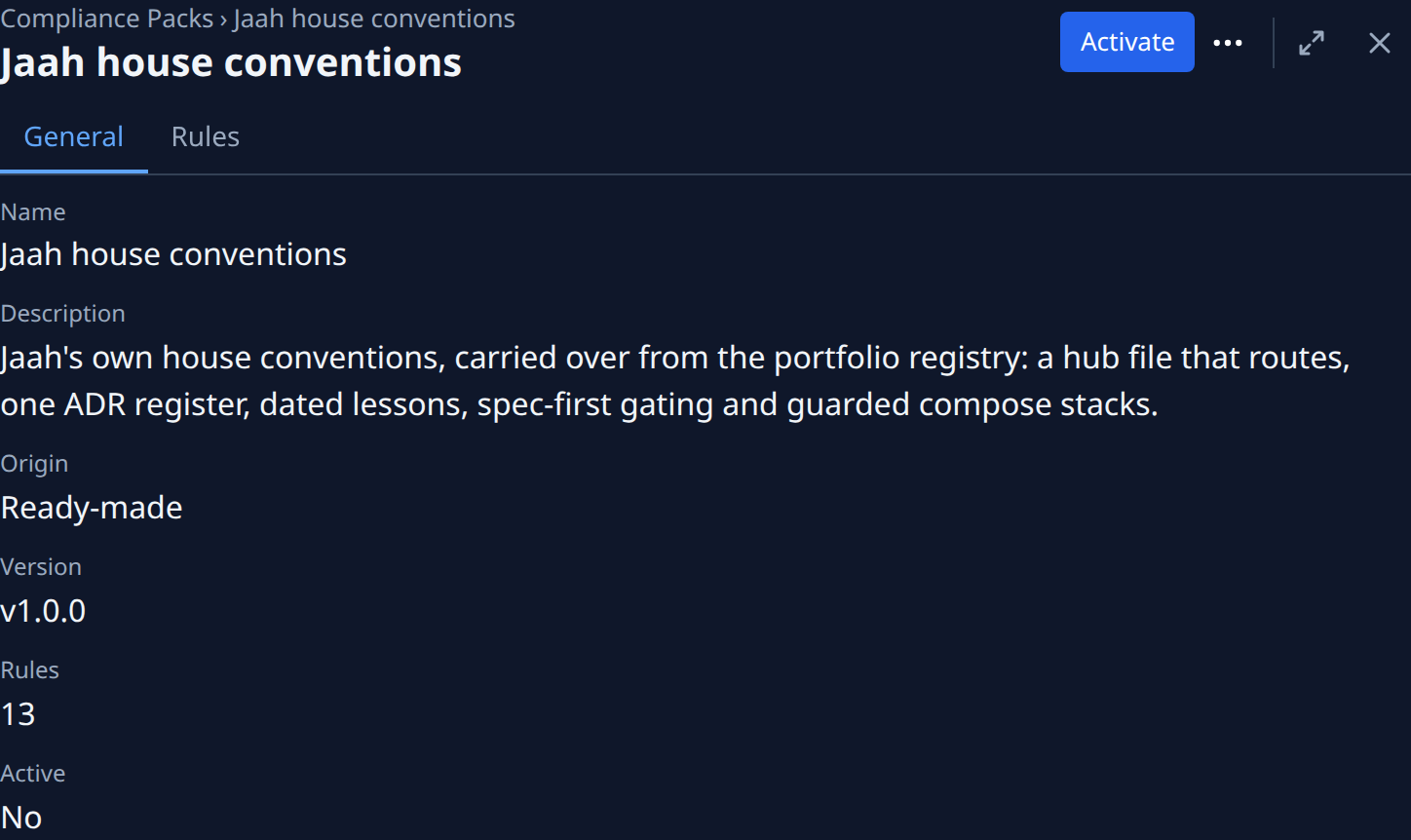
Select the pack you want to look at. Its page opens beside the list, on the General tab, with its Name, Description, Origin, Version, Rules and Active.
-
Select the Rules tab to read what the pack checks. Narrow the list with Pillar, Level, Mode, On/Off or Kind.
-
Select Activate in the pack's header. The Active mark moves to this pack. You can also select ⋯ on its row in Compliance Packs, then Activate.
-
Select Compliance in the sidebar. On the Repos tab, select ⋯, then Choose projects….
-
Under Pack, pick the pack you activated, keep or change the Projects, and select Start scan.
-
Wait while each row reads Scanning, then read each project's new Level, Gaps and Next gap.
To change a ready-made pack's rules, select ⋯, then Customize on its page instead: Jaah copies it into your own pack and makes the copy active. See Add a rule to a compliance pack.
Related
- How compliance works: packs, rules, pillars and levels.
- Run a compliance scan: read the results and set a daily scan.
- Apply or dismiss a pack update: take a new version of a ready-made pack.
- Repository compliance: every field on these screens.