Add a rule to a compliance pack
A pack is the set of rules a scan scores your repositories against. When the ready-made rules miss something your team cares about, add your own rule to your pack. The next scan checks it.
Before you start: Compliance is part of some plans only. Adding a rule needs the permission to edit compliance; without it, the pack's Rules tab says "Changing rules needs compliance edit." and shows no New rule.
Get a pack you can change
Ready-made packs are read-only: their Rules tab says "Ready-made packs are read-only." To add rules, copy one into your own pack first.
- In the sidebar, select Settings, then Compliance Packs under Customize.
- Select the ready-made pack.
- Select ⋯ at the top right, then Customize. Jaah copies the pack into your own pack and makes the copy active.
If your organization already has its own pack (its row shows "Fork of …"), skip this and use it.
Add the rule
-
On the Compliance Packs tab, select your own pack, then its Rules tab.
-
Select New rule. The Add rule page opens.
-
Under Rule, enter a Name. Key fills in from the name; change it if you like (lower-case letters, digits,
.,_or-). Add an Intent and Why it matters, then pick a Pillar and a Level.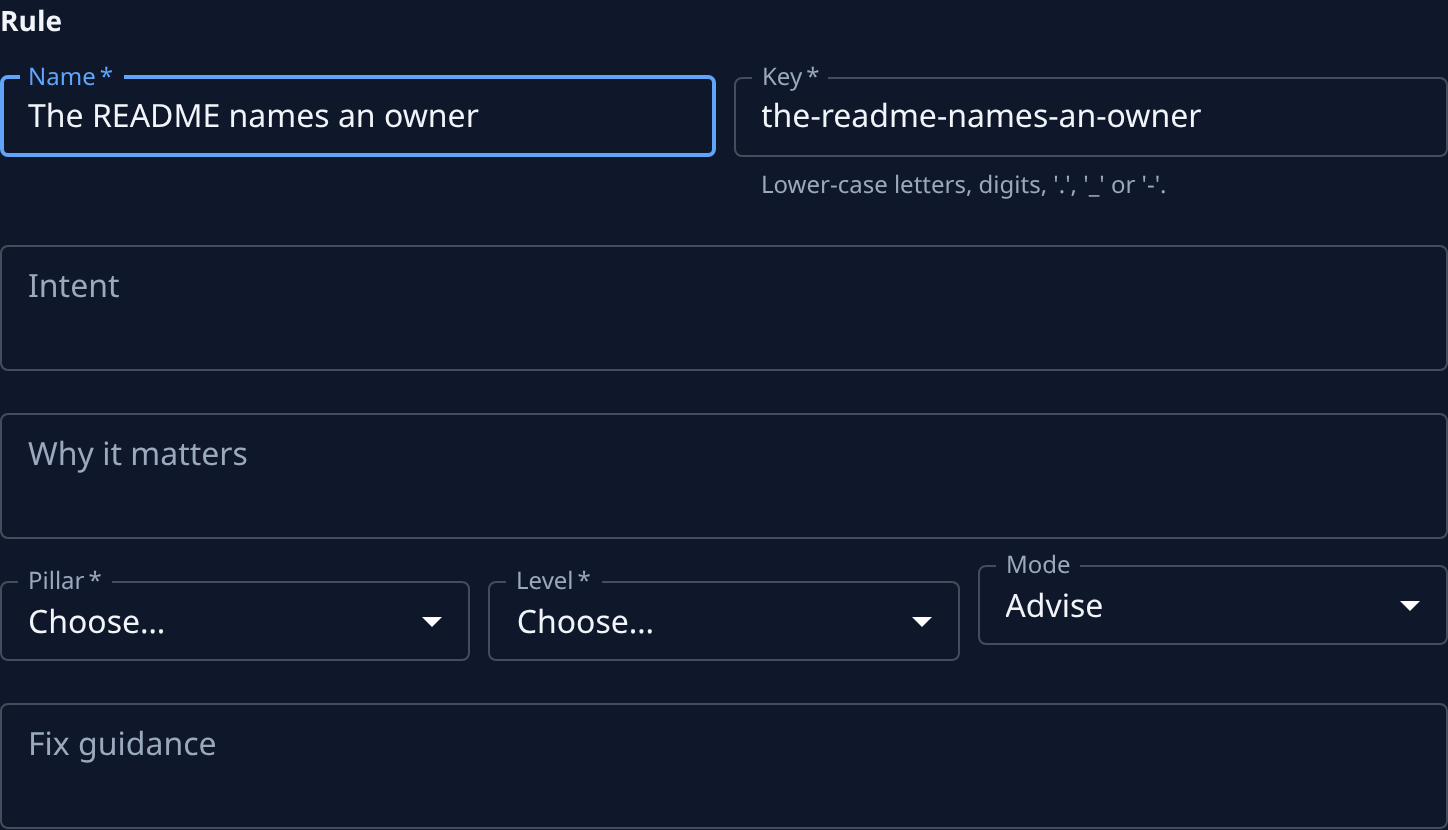
-
Pick a Mode. A new rule starts at Observe (recorded only) or Advise (counts toward the level and shows as a gap). If your organization has the Architectural Guard, fill in Fix guidance: what a blocked agent is told to do instead.
-
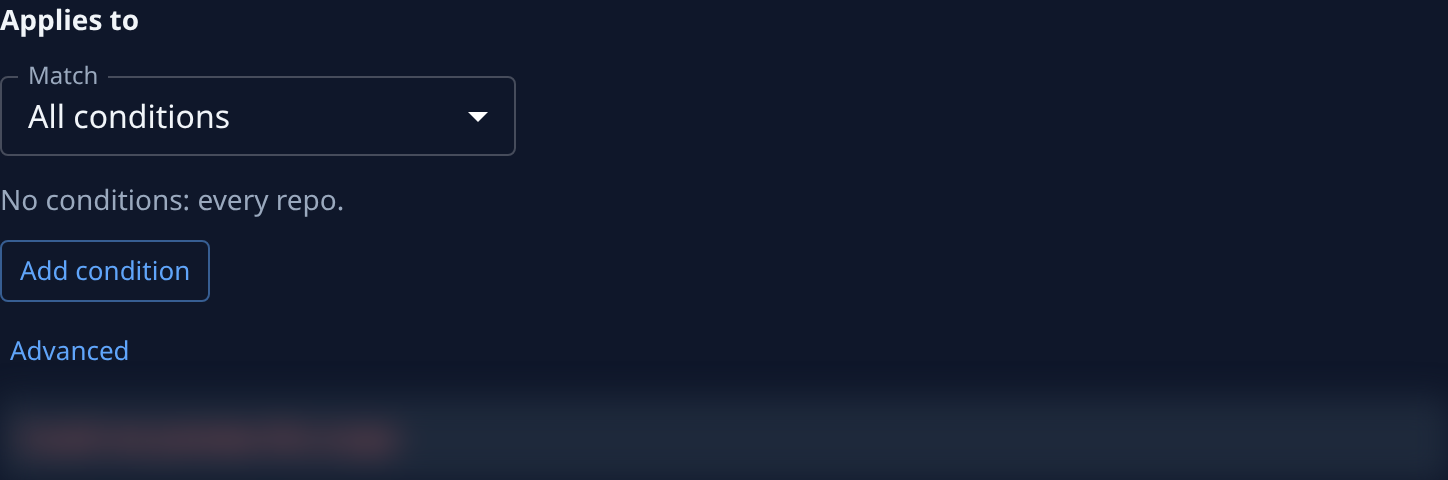
Under Applies to, choose which repositories the rule covers. With no conditions it covers every repository ("No conditions: every repo."). To narrow it, set Match to All conditions or Any condition and select Add condition for each fact to test. The box below shows how many repositories it selects, and which ones.
-
Under Check, pick the Check kind: Primitive runs a built-in check (pick it in Primitive, then fill in its settings), and Judge has an AI read the repository against your Rubric, with the Reason a judge is needed.

-
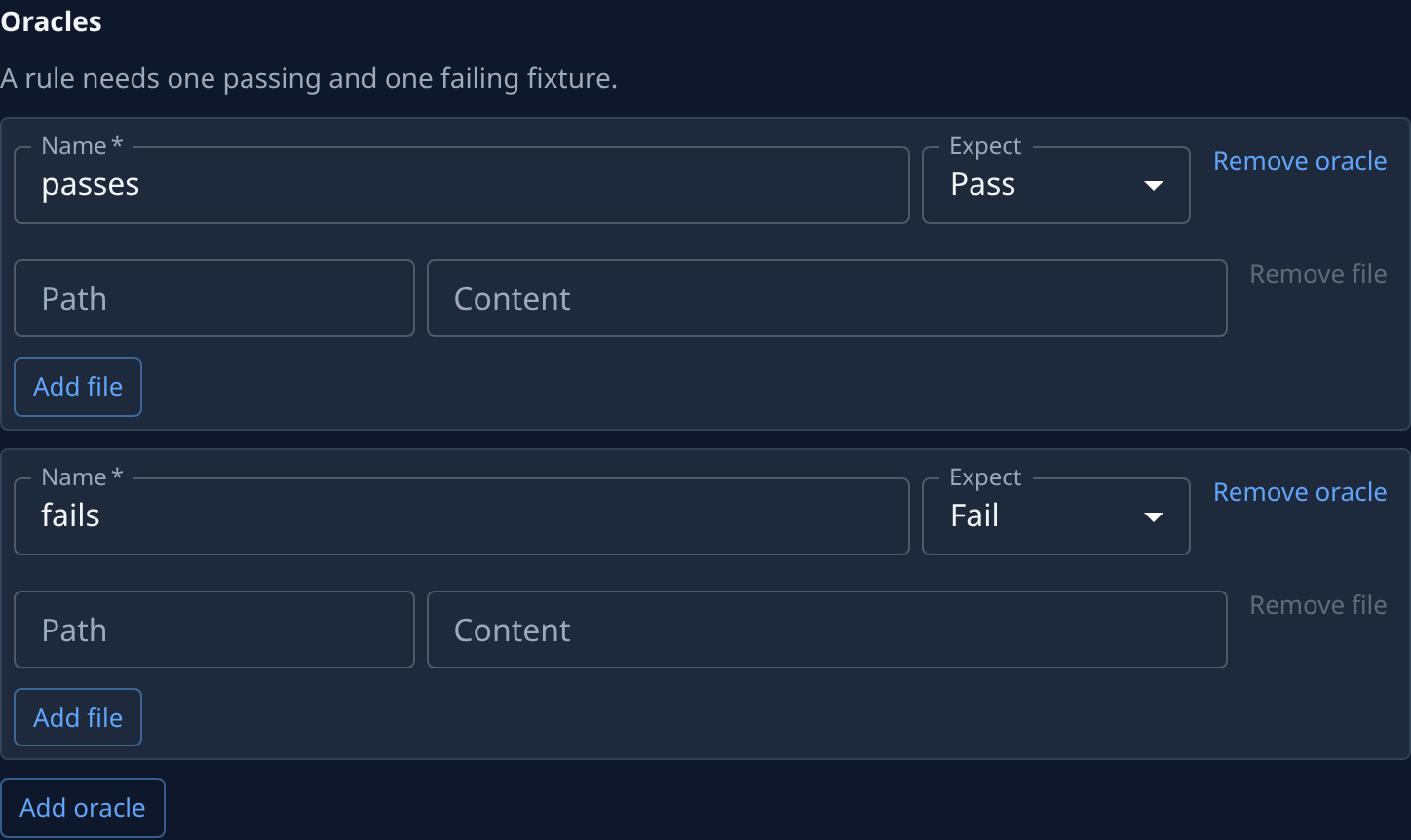
Under Oracles, give the samples the check must get right. The page starts with two: passes, with Expect set to Pass, and fails, set to Fail. In each, enter a file's Path and its Content; select Add file for more files, or Add oracle for another sample.
-
Select Save in the bar at the foot of the page. Save stays unavailable until every required field is filled, the repository preview has loaded, and there is one passing and one failing sample. Jaah adds the rule and opens its page.
A rule Jaah refuses shows each problem on the field it belongs to. The bar at the foot reads "Checked on the next scan." To see the rule scored, run a compliance scan.
With the Architectural Guard
When your organization has the Architectural Guard, Check kind also offers Change rule: instead of scoring a repository on each scan, it judges each change an agent makes and, at Gate or Lock, blocks one that breaks it. Pick its Kind (Forbidden pattern, Required pattern, Import boundary, Approved APIs or Lint command), and give one Allowed and one Blocked sample change, each with its Before and After files. Gate and Lock need Fix guidance.
How packs, rules, pillars, levels and modes fit together is in How compliance works. Every field on the page is listed in Repository compliance.