Limit a rule to some repositories
A rule covers every repository until you say otherwise. When a rule only makes sense for some of them, for example a database rule on repositories that have one, narrow the rule's Applies to instead of turning it off or waiving it everywhere else. Repositories it no longer covers stop counting it toward their level and stop showing it as a gap.
This page changes the scope of a rule you already have. To write a new rule, see Add a rule to a compliance pack; to change its mode instead, see Change how strictly a rule is enforced.
Before you start: changing a rule needs the permission to edit compliance, and the rule must be in your own pack. A rule of a Ready-made pack is read-only: open the pack and select Customize to copy it first. Compliance is part of some plans only.
-
In the sidebar, select Settings, then Compliance Packs under Customize, and open your Active pack.
-
Select the Rules tab and select the rule. Its page opens. Under Applies to it says which repositories it covers now, for example Every repo.
-
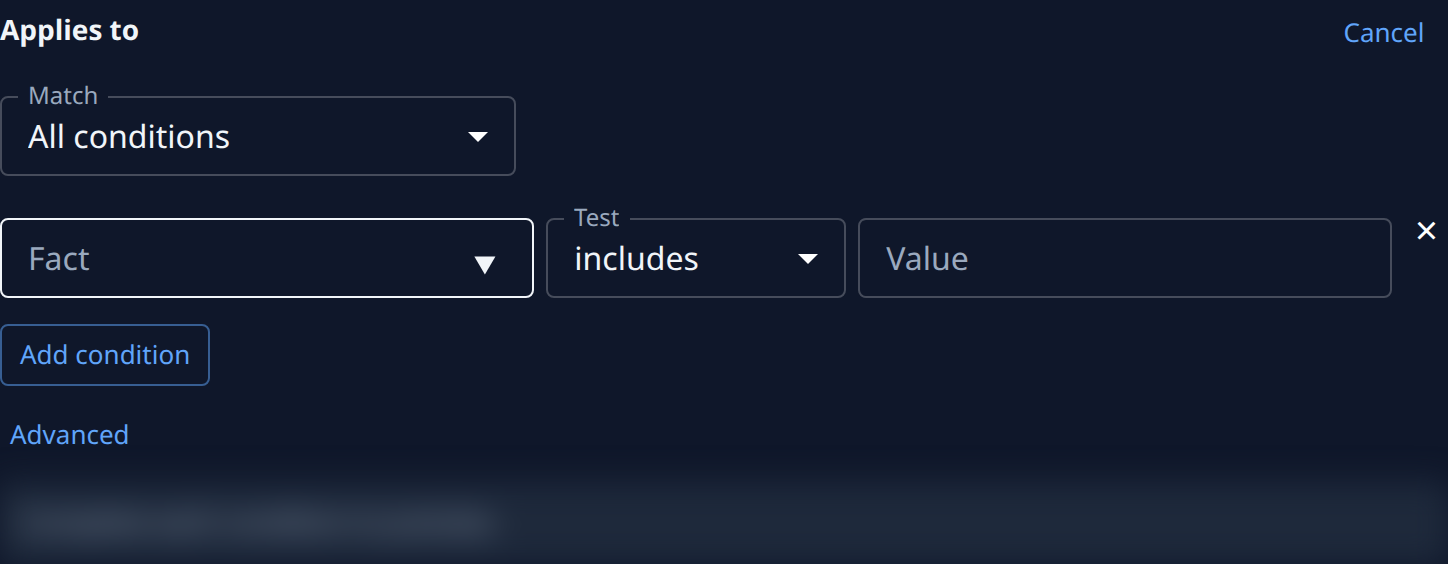
Select Edit beside Applies to. The conditions open, with a preview of the repositories they select below them.
-
Set Match: All conditions (a repository must meet every one) or Any condition (at least one). With no conditions, All conditions selects every repository and Any condition none.
-
Select Add condition and fill in the row:
- Fact: a fact a scan found about the repository, such as
languageorframework. Pick a suggestion or type another name. - Test: includes (the value is one of the fact's values), is exactly (the value is its only value), is known (the scan found any value) or is unknown (it found none).
- Value: what the fact is compared to, for example
python. is known and is unknown take no value.
Add a row for each further fact. Remove condition (×) at the end of a row deletes it.
- Fact: a fact a scan found about the repository, such as
-
Read the preview: Selects and the number of repositories, then their names. Until each row is complete it says Complete each condition to preview.; if it selects the wrong ones, change the rows.
-
For a scope the rows can't express, select Advanced and edit Scope (JSON) directly. Use conditions takes you back when the rows can show it.
-
Select Save. While the preview is still loading, the note beside it reads Saves once the scope preview loads. Cancel beside Applies to, or Discard, drops the change. Once saved, the note says the pack was published as a new version.
The new scope counts from the next scan. See Run a compliance scan. If a scan detected a fact wrongly, so the rule lands on the wrong repositories, fix the fact rather than the rule: Correct a fact a scan detected.
Related
- How compliance works — packs, rules, levels and scans.
- See where a rule fails — the repositories a rule fails on, with evidence.
- Waive a compliance gap — accept a failing rule on one repository instead.
- Compliance — a rule's page, field by field.