Get every project a compliance level
A scan gives each project a level, but some projects come back without one. Compliance lists them below the results in three groups, each with what to do next. This guide clears all three, so every project you chose is scored. To start a scan in the first place, see Run a compliance scan.
Before you start: Compliance is part of some plans only. Seeing results needs the permission to view compliance. Running Rescan on a project needs compliance edit on it; without it, the Scan failed group reads Ask an editor to rescan. and shows no Rescan.
-
In the sidebar, select Compliance. The page opens on its Repos tab. The line above the list counts the projects and how many are not scannable, scan failed or not scanned yet. When it names none of these, every project has a level and you are done.
-
Scroll below the list to the groups. Each one is a heading with its count in brackets, then one sentence for the projects that share a cause.
-
Under Not scannable, fix what stops the scan:
- No repository connected. Select Connect a repo on the project's row. It opens the project, where you connect its repository: see How projects work.
- No node hosts these projects. Select Add to a node, and add the projects to a node that can check out their repositories: see How nodes work.
- Any other sentence says what the node reported. Select Open nodes and fix it on the node.
-
Under Scan failed, read why. The sentence says how the run ended: Stopped, Timed out after a time, Could not start the run, Run could not start, Run finished without reporting or Run ended without a result. A red note under a project gives the run's own reason, such as no node being able to clone it. Fix that first, then select Rescan on the row.
-
Under Not scanned yet, which reads No result under this pack yet., select Rescan on each row. A project lands here when it was not part of the last scan, or when your organization switched to another pack.
-
Projects you never chose do not appear at all. To add them, open the ⋯ menu at the right of the Repos tab, select Choose projects…, and keep them in Projects. A project marked can't be scanned yet still needs step 3; the line below the picker counts how many.
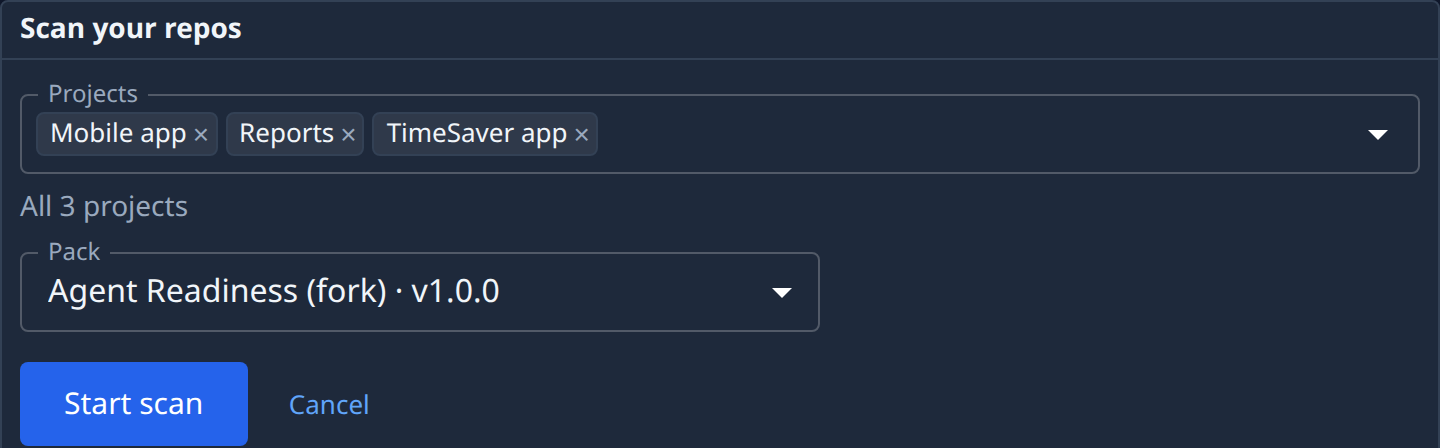
-
Wait while each row you sent to scan again reads Scanning. When its result comes in, the project moves up into the list with its Level, Gaps and Next gap.
-
To rescan a project that already has a level, open the ⋯ at the end of its row and select Rescan. Auditor run in the same menu opens the task that ran its last scan, to read what went wrong.

A project's own page says the same thing at the top: its scan state, why the last scan failed, and Rescan. A project with several repositories shows a failed scan on that repository's section only, so the others keep their results.
Related
- How compliance works: how a scan runs, and what each result means.
- Fix a repository's compliance gaps: what to do once a project has a level.
- Repository compliance: every field on the Repos tab and a project's page.