Attach a NodeLink to nodes
A NodeLink is a folder every node you attach it to mounts at the same path, so agents on different nodes work on the same files. You create it, give it storage, then attach nodes. The ideas behind it are in How NodeLink works.
Before you start:
- NodeLink is shown only while your plan includes it. Without it, the NodeLink tab doesn't appear, and Attach is greyed with NodeLink isn’t on your plan.
- Creating and changing a NodeLink requires permission to edit credentials. Attaching and detaching nodes requires the org admin role.
- Storage in your own cloud needs a route from each node to the file system. See Set up the network for NodeLink.
Create the NodeLink
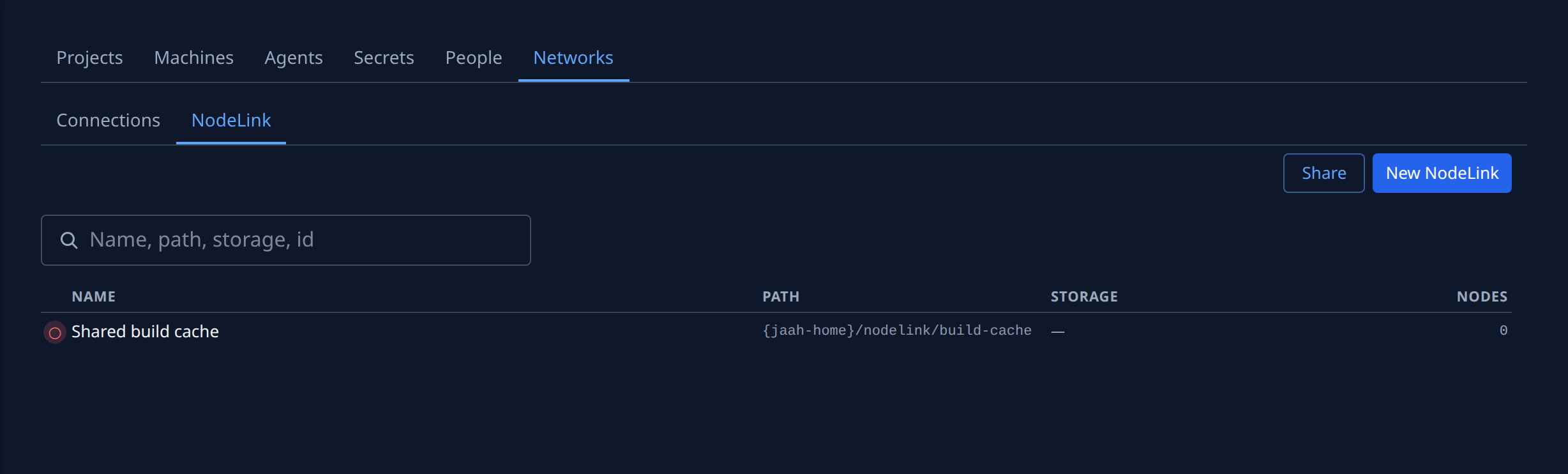
- In the sidebar, select Directory, then the Networks tab, then NodeLink.
- Select New NodeLink. The page opens on General.
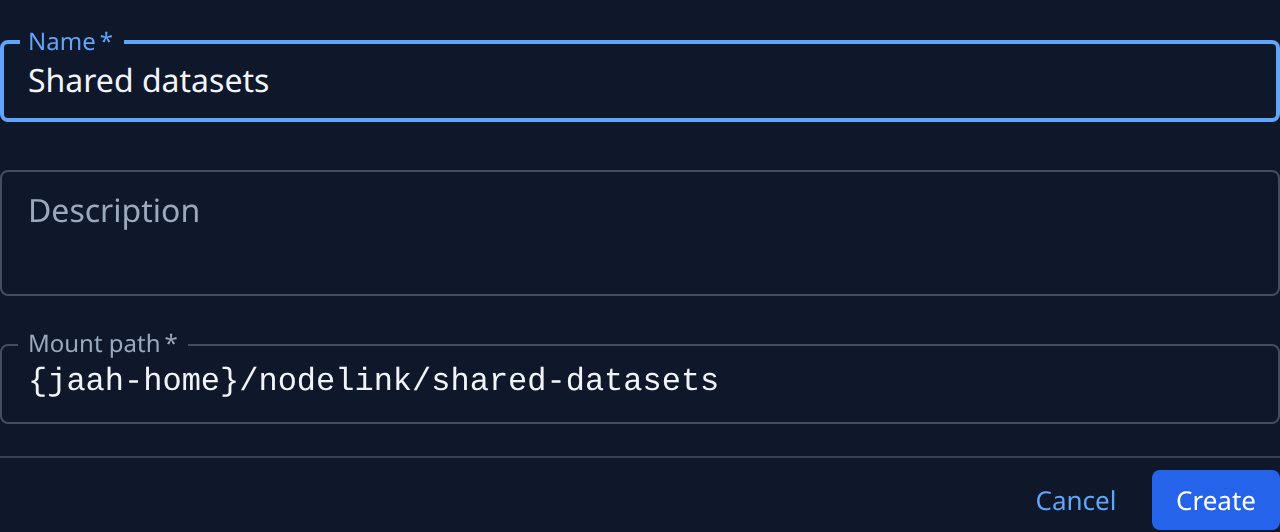
- Enter a Name, and optionally a Description. The Mount path follows the name until you change
it; keep it under
{jaah-home}/nodelink/. - Select Create. The NodeLink is saved as pending and its Storage tab opens.
Give it storage
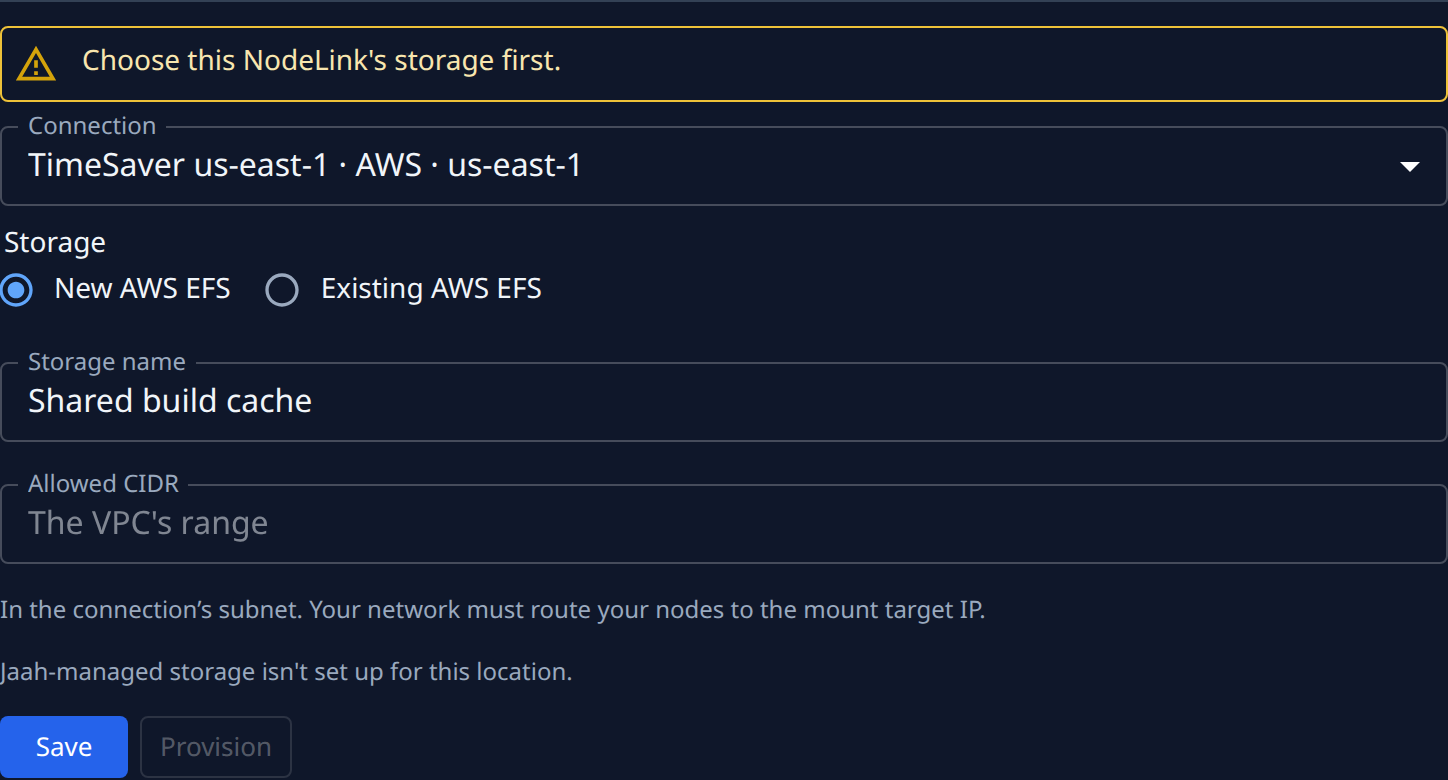
- On Storage, pick where its files live. Only the choices your organization can use are offered:
- Jaah-managed, picked for you when all its nodes run on machines Jaah runs in one location.
- Storage in Jaah, to share storage another NodeLink already uses.
- A Connection to your own cloud, then, on AWS, New AWS EFS or Existing AWS EFS, and the Access point: New, or Existing to pick one.
- Select Save. On storage in your own cloud, then select Provision.
- Wait for the status chip beside the name to read ready. A line shows each part as it is done; you can close the page meanwhile. If it reads failed, the tab shows why and offers Retry.
Attach the nodes
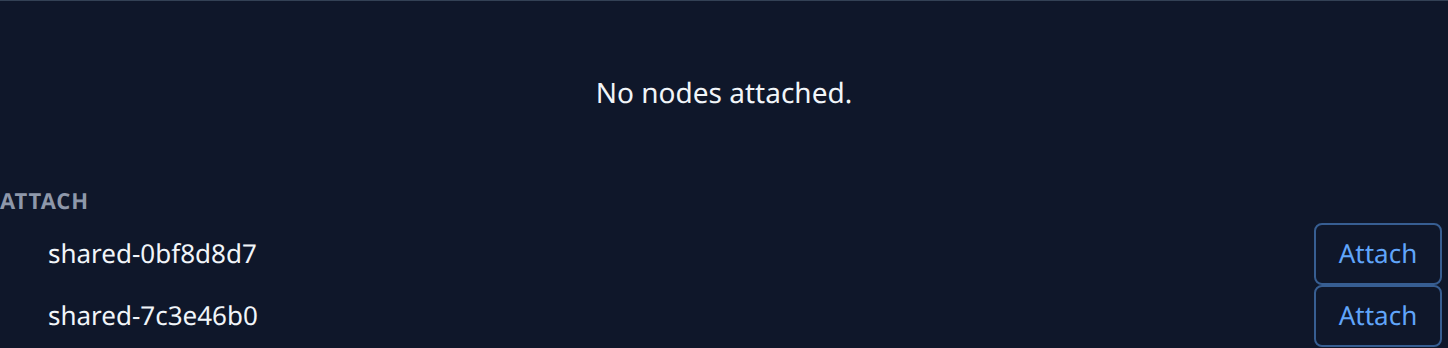
- Select the Nodes tab. Attached nodes are listed first; your other nodes are listed under Attach.
- Select Attach beside each node that should share the folder. It takes effect on the running node; nothing is reinstalled.
- Check each attached node's state: Mounted once the node reports it, usually within seconds. Not mounted shows the reason beneath, such as a timeout reaching the mount target.
A node that can't mount it shows Attach greyed, with the reason beside it.
You can also attach from the node: open the node, select its NodeLinks tab, pick the NodeLink, and select Attach.
Detach a node
- On the NodeLink's Nodes tab, select ⋯ on the node's row, then Detach.
- In the Detach node? dialog, select Detach. The NodeLink unmounts from that node; the files stay.
To remove the NodeLink from every node at once, select Delete in its page header. The confirmation says what stays in your cloud and whether it is still billed.
Related
- Networks › NodeLink: every field and tab.
- How nodes work: the machines a NodeLink mounts on.