Delete a NodeLink and its storage
When nodes no longer need to share a folder, delete its NodeLink. That unmounts it from every node, but the storage behind it can stay in your cloud, and keep billing, until you delete the storage too. Deleting a NodeLink and deleting its storage are two steps, so you choose whether the files survive.
Before you start:
- NodeLink is shown only while your plan includes it. Without it, the NodeLink tab doesn't appear.
- Deleting a NodeLink or a storage requires permission to edit credentials, as org admins have.
- Copy off any file you want to keep. Every agent on every attached node loses the folder at once.
Delete the NodeLink
-
In the sidebar, select Directory, then the Networks tab, then NodeLink.
-
Select the NodeLink's name. Its page opens on General.
-
Optional: select the Nodes tab to see which nodes still mount it. They all lose it.
-
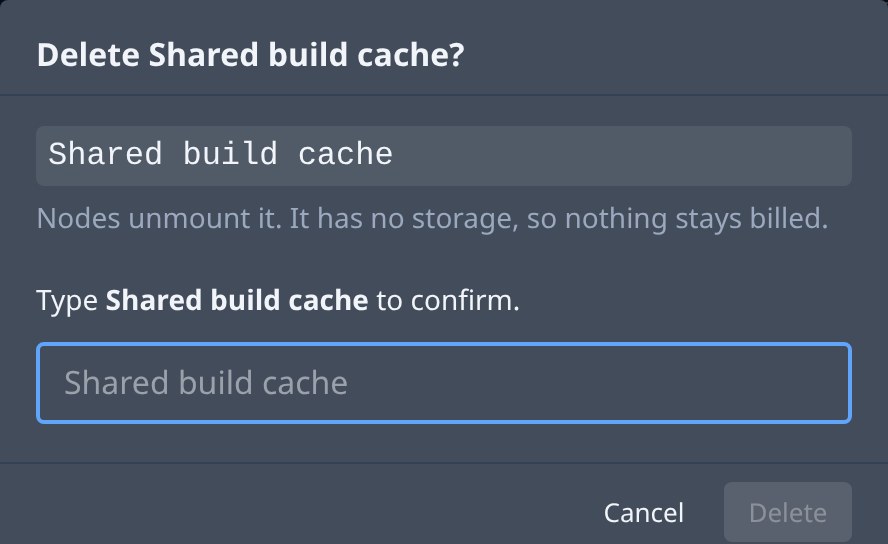
Select Delete at the top of the page. The dialog says what goes and what stays: nodes unmount it, Jaah deletes the access point it created, and the files stay on the storage, still billed. A NodeLink that never got storage says It has no storage, so nothing stays billed.
-
Type the NodeLink's name where it says Type … to confirm. Delete becomes available once it matches; select it.
-
Wait while its chip reads deleting. Once every node has unmounted it, the NodeLink leaves the list.
If it stays deleting, a node it was attached to hasn't reported back, for example because it is offline. Select Retry delete to try again, or Delete anyway to finish without that node. A node that never reported may keep a stale mount until it next syncs with Jaah.
Delete the storage
A storage that Jaah created in your cloud outlives its last NodeLink. The delete dialog says so, naming the file system that stays and is still billed.
-
Go back to Directory › Networks › NodeLink. Under the NodeLinks, Storage lists each storage with its cloud, tier and how many NodeLinks use it.
-
Select ⋯ on the storage's row, then Delete. It is unavailable while a NodeLink still uses the storage, and says how many do.
-
Choose what happens in your cloud:
- Leave Also delete the EFS file system in AWS (or Also delete the Filestore instance in GCP) cleared to remove only Jaah's record. The storage and its files stay in your cloud, still billed.
- Tick it to delete the storage in your cloud too, with every file on it. Type the storage's name to confirm.
-
Select Delete. The row reads Being deleted until the cloud has removed it.
Storage you picked with Existing, and Azure file shares, are never deleted in your cloud: delete them there yourself if you no longer need them. If Jaah refuses a delete, for example of Jaah-managed storage, it says why above the list.
Related
- How NodeLink works — where a NodeLink's files live and the states it moves through.
- Attach a NodeLink to nodes — create one again, or detach a single node instead of deleting.
- Networks — every field of a NodeLink and the Storage list.