Put a NodeLink on a file system you already have
A NodeLink can use an AWS EFS file system you already run, instead of one Jaah creates: one that already holds the files your nodes should share, or one your own network rules are built around. Jaah never deletes a file system you pick this way, but it does take over the file system's access policy.
Who can do this: anyone with permission to edit credentials. NodeLink is shown only while your plan includes it. You need a cloud connection to the AWS account and region the file system is in, and the storage can be chosen only before the NodeLink's access point exists.
- In the sidebar, select Directory, then the Networks tab, then NodeLink. Select the NodeLink's name, or create one first with New NodeLink, as in Attach a NodeLink to nodes.
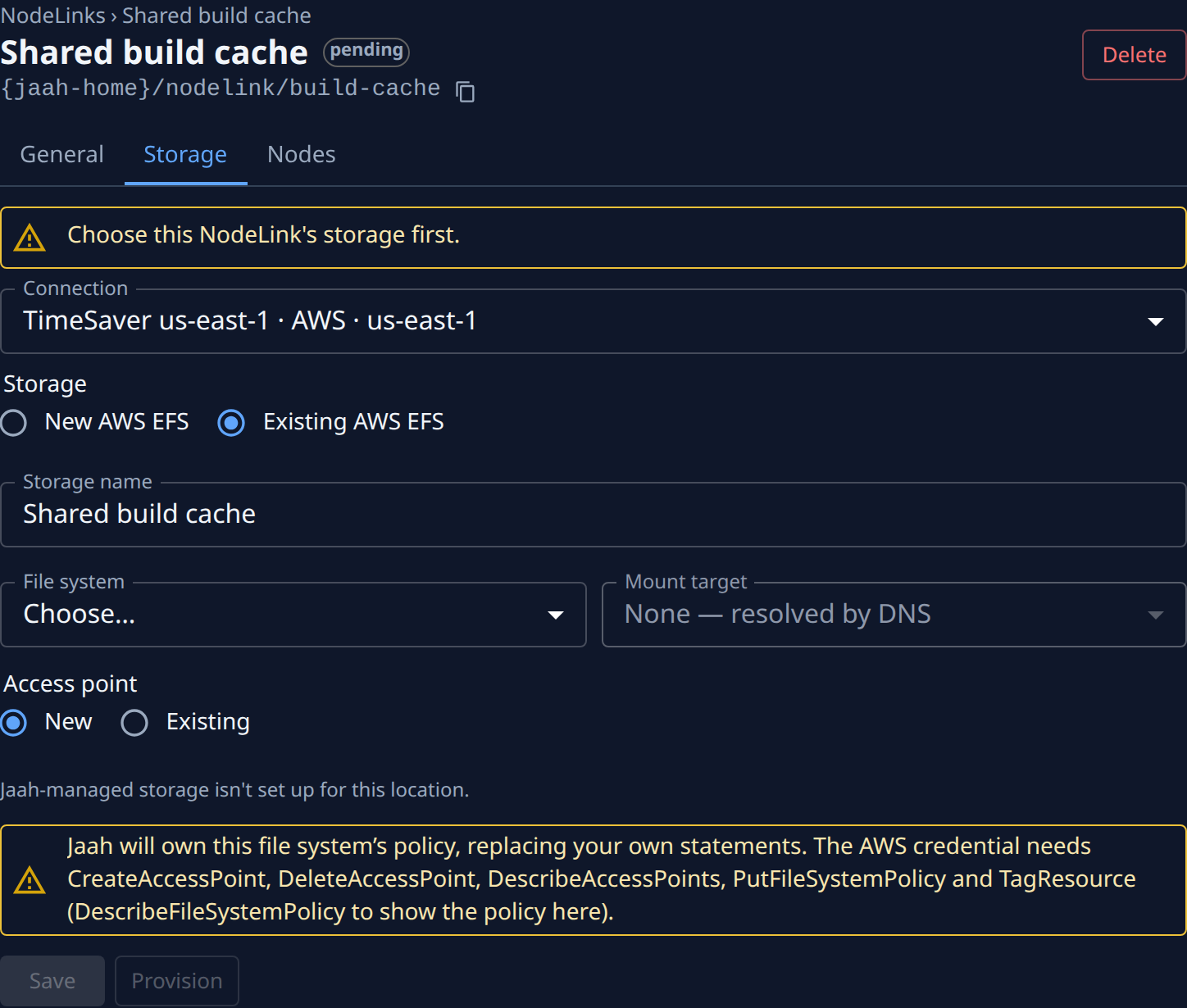
- Select the Storage tab. In Connection, pick the connection to the file system's account and region. Your only connection is picked for you.
- Under Storage, select Existing AWS EFS. Jaah reads the account's file systems; while it does, the tab reads Reading EFS…. No file system in this region. means the connection's region holds none.
- Optional: change Storage name, the name it gets in the Storage list. It must be unique in your organization.
- In File system, pick the file system. Read the warning under the fields: Jaah replaces your own statements in the file system's policy, and names the permissions the connection's AWS credential needs.
- In Mount target, keep None — resolved by DNS when your nodes run in the file system's VPC and it has a mount target in every Availability Zone. For nodes outside the VPC, pick the mount target their network can reach. See Set up the network for NodeLink.
- Under Access point, keep New to let Jaah create one, or select Existing and pick one of the file system's access points. An existing one must enforce user and group 3000; the list says why one can't be used.
- Select Save, then Provision. A line shows File system, Mount target, Access point and Policy as each is done; you can close the page meanwhile.
- Wait for the chip beside the name to read ready. If it reads failed, the tab shows AWS's reason and offers Retry.
- Select the Nodes tab and Attach the nodes that should share the files. Each reads Mounted once it has mounted the NodeLink.
Your file system's security group must admit NFS, TCP port 2049, from your nodes: Jaah does not change the security groups of a file system you picked.
Related
- How NodeLink works — storage, access points and the file-system policy.
- Delete a NodeLink and its storage — what stays in your cloud when you remove it.
- Networks — every field on the Storage tab.