Answer a task's question
A Guided task, and any task that hits something only you can decide, stops and asks. It waits until you answer. The runner keeps everything it has done so far and carries on from your answer.
Find the question
A task waiting for you shows a ? on the board, in the Stopped section, and the state Asking.
Answer it
-
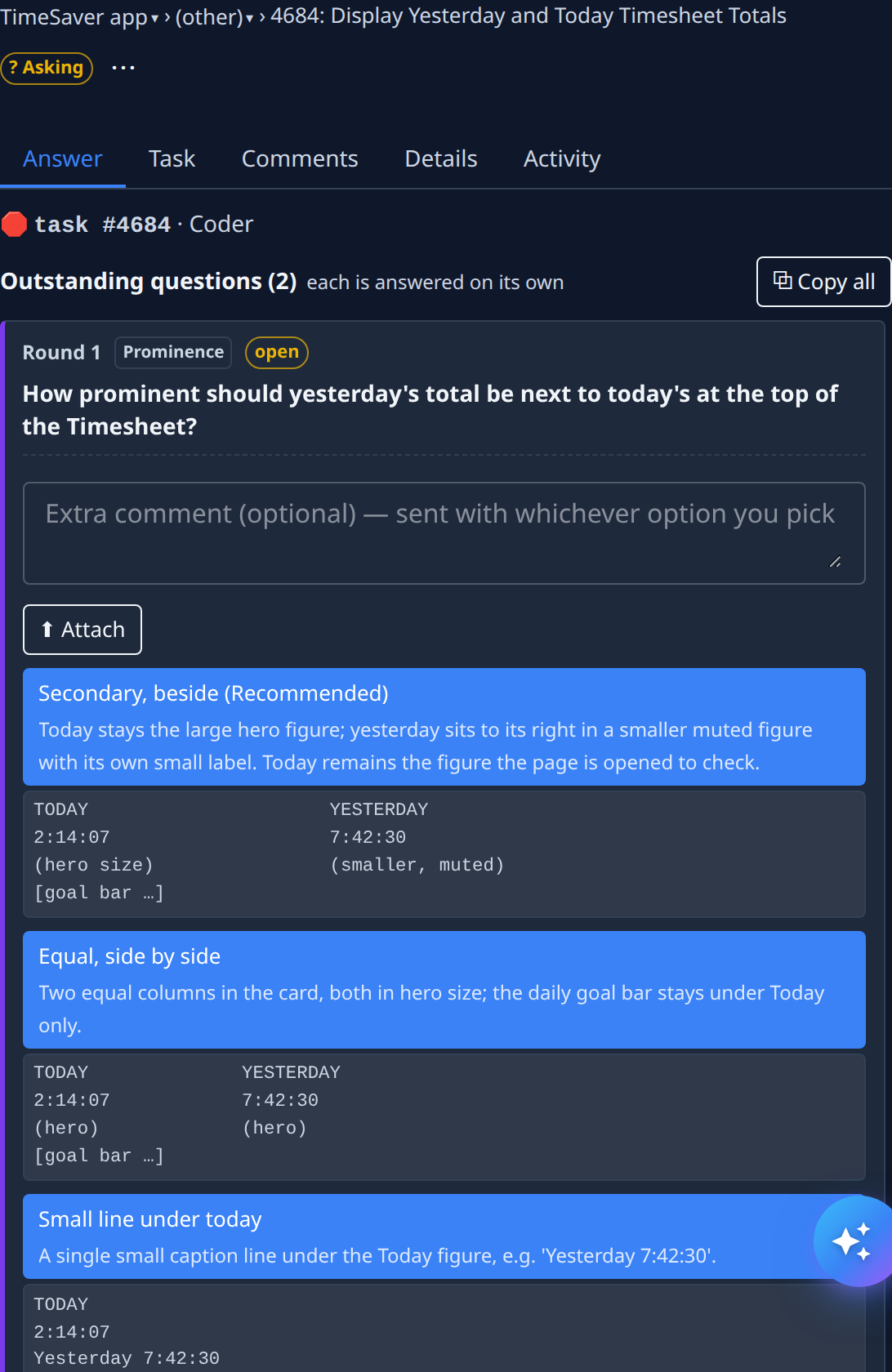
Select the task. It opens on the Answer tab.
-
Read the question. Outstanding questions counts the open ones; each is answered on its own. Some options show a small preview under them.
-
Optional: type an Extra comment. It's sent with the option you pick.
-
Optional: select Attach and pick one or more files, such as a screenshot, a log or a document the runner needs. See Attach files to your answer.
-
Select an option. Your answer is sent at once, with your comment and any attached files.
-
Check the task's state: it shows Delivering while your answer travels to the runner, then carries on.
The option the runner suggests is marked (Recommended).
Other ways to answer a round:
- Comment only — sends your comment without picking an option.
- A round that accepts more than one option shows tick boxes. Tick every option that applies, then select Submit — the button counts them, for example Submit 2 options. With nothing ticked, Submit — none of these records that no option applies.
- A round with no options has an answer box. Type your answer and select Submit answer.
- Ignore — dismisses the round without answering it. Anything you typed for it is discarded.
Copy all copies every open question, to paste somewhere else.
Attach files to your answer
Every open round has its own Attach button. Files you attach go to the runner together with that round's answer, so it can read them before it carries on.
- Each file uploads as soon as you pick it. It then shows by name beside Attach; hover it to see its size. Select the download button at its left to save a copy, or × to take it off the answer and delete the upload.
- One answer carries up to 20 files. A file over the size limit isn't attached, and the round says which file and why.
- While a file is uploading, the send buttons wait. Send once the upload finishes.
- A file can be the whole answer. With a file attached, Comment only and Submit answer work even when the box is empty.
- Ignore sends neither your comment nor your files. Use an option, Comment only or Submit answer to send them.
After you answer
The task shows Delivering while your answer travels to the runner, then carries on. Your question and answer are kept on the task's Activity tab, under Q&A. See Task page.
Related
- How tasks work — Unattended, Guided and when a task asks.
- Task page — the Answer tab and every other tab of a task.
- Start an epic and follow its stages — a Guided epic asks while it settles the requirements and the approach.