Set a task's language
Each task has a language. Jaah reads it from the task's description when the task gets its title. The runner then writes its questions, reports, files and summary in that language. Code, commits and pull requests stay in the repository's own language.
If Jaah guessed wrong, or you want the answers in another language, change it by hand. A language you pick stays: Jaah never detects over it again.
Who can do this: anyone who may edit the task. Others see the language but no Change…. Only a top-level task has its own language. A subtask shows its epic's.
Change the language
-
Open the task: select its title on the board.
-
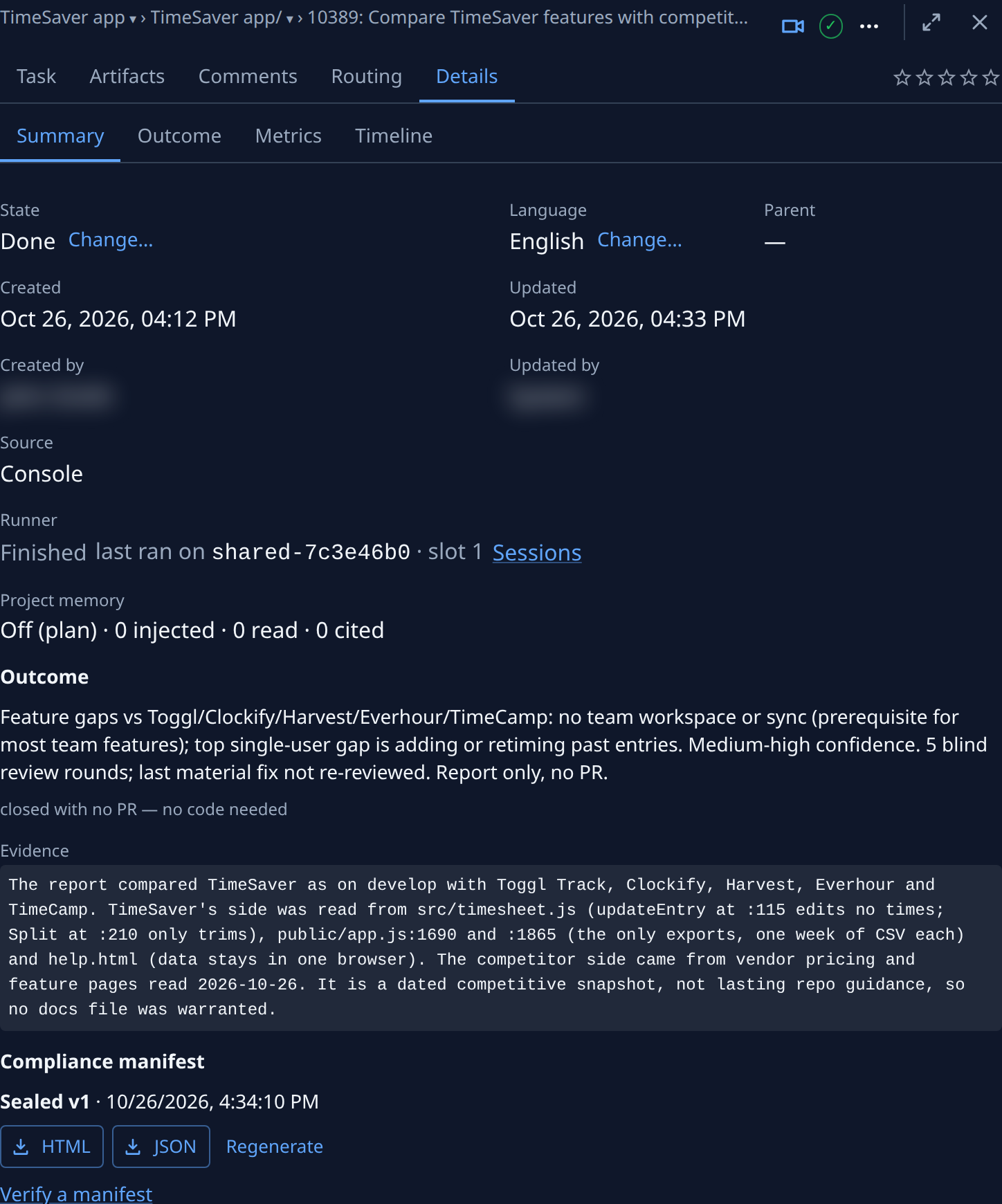
Select the Details tab, then Summary if another of its tabs is open.
-
Find Language. It shows the current one, such as English. Hover the label to read Questions and reports are written in it.
-
Select Change… beside the language. A list of languages opens in its place.

-
Pick the language. It saves at once; there is no Save to press.
-
Check that Language now shows the one you picked.
On an epic, the language covers every subtask too. Set it before you start the task, so every question and report comes in it.
Change… is greyed out while the task's form has unsaved changes. Save or discard them first.
If hovering English shows Not detected yet; treated as English, Jaah has not read the language from the description yet. Picking one, English included, fixes it.
Related
- Answer a task's question: the questions the language applies to.
- Read a task's result: the summary and reports written in it.
- Task page › Summary: every field on the Summary tab.