Rate a task's result
A rating says how good a finished task's work was, from one star to five. Everyone who opens the task can vote once, and the task shows the average. Ratings help your team see which work landed well and which needed fixing afterwards.
Who can do this: any member who can open the task. You can rate a finished top-level task or a finished epic. A subtask has no stars: rate its epic instead.
Give your rating
-
On the task board, select ▸ beside Done to open the finished tasks.
-
Select the task's title. Its page opens beside the board.
-
Find the five stars at the right end of the tabs.

-
If other people have rated the task already, read their average beside the stars, such as 4.5 with a star, before you vote.
-
Select a star: the first for one, the last for five. Your vote counts at once, with no Save.
-
Check that the stars have folded into the average with a star. Your vote is part of it now.
If the vote can't be saved, not saved shows beside the stars and they stay open. Hover it for the reason, then select a star again.
Read who voted what
- Hover the average beside the tabs.
- Read the first line, such as 4.5 out of 5 — 2 ratings, then one line per person with the stars they gave.
Change your vote
- Select the average beside the tabs. The stars open again, with your vote filled in.
- Select another star. The new vote replaces your old one.
- To leave without changing it, press Escape, or select the star you already gave.
You can change a vote but not take it back.
See ratings on the board
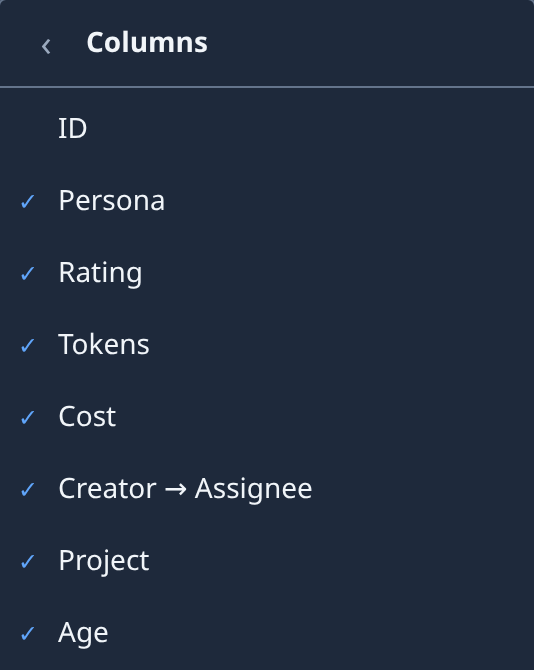
On the board, a rated task shows its average and a star in the Rating column. Hover it for how many ratings it has. If the column is missing, open Filter & view (the sliders button), select Columns and tick Rating.
When the task page is narrow, such as on a phone, the stars move to the Task tab under Rating, and the header shows the average with a star.
Related
- Read a task's result: its outcome, the change it delivered, its files and its cost.
- Choose which columns the board shows: show or hide Rating and the other columns.
- Task page: every tab, and where the stars sit.