Add a second account on the same code host
When your work's repositories sit under two accounts on one host, for example a work and a client GitHub account, connect both on your profile so your tasks can reach every repository.
Who can do this: everyone, for their own account.
-
Select your initials at the bottom of the sidebar, then My Profile, then Git. Your first account is listed there with a green ✓.
-
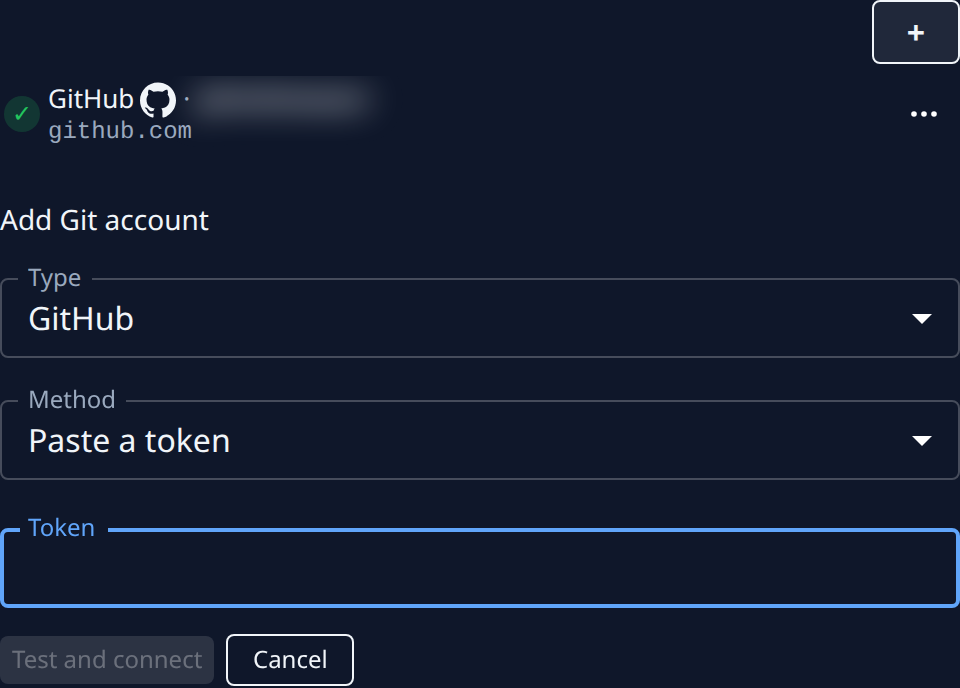
Select +. The Add Git account form opens under the list.
-
In Type, pick the same host as your first account, such as GitHub.
-
In Method, pick how to connect the second account:
- Sign in with the host (such as Sign in with GitHub): select Connect and the host's name, then sign in on the host as the second account.
- Paste a token: make a personal access token with repository read and write while signed in to the second account, paste it in Token, then select Test and connect.
-
Check the list. Both accounts now show under the host, each with its account name, and one of them carries ★ Default.
-
To change which one is the default, select ⋯ on the other row, then Make default. Make default appears only while a host has more than one account.
A task uses the account that reaches the repository's owner (its organization, group or workspace), and the Default for any repository neither account reaches. When an account joins a new organization later, select ⋯ on its row, then Reconnect, so Jaah learns what it reaches now. To stop using one, select ⋯, then Disconnect.
Next steps
- Connecting your first account: Connect your GitHub, GitLab or other code host.
- Every control on the Git tab: Your profile.
- Your other first-week settings: Set up your profile.