Connect your GitHub, GitLab or other code host
A task clones, pushes and opens its pull request with the Git account of the person who started it, never a teammate's. So before you start a task on a project with a repository, connect an account that can at least read that repository. You can create tasks without one; they wait at the start and say what's missing.
Who can do this: every member, for their own accounts. To set a teammate's account for them, see Set a teammate's GitHub or GitLab push account.
Connect an account
- Select your initials at the bottom of the sidebar, then My Profile.
- Select Git. It lists the accounts you have connected, or None.
- Select + at the top right of the list. A form opens under the list.
- In Type, pick your host: GitHub, GitLab, Bitbucket, Azure DevOps or Self-managed GitLab.
- In Method, pick how to connect:
- Sign in with the host, for example Sign in with GitHub: no token to paste. Select the button named for the host, such as Connect GitHub, and allow access on the host's page.
- Paste a token: create a token on the host, paste it in Token, and select Test and connect. Bitbucket asks for your Atlassian email and an API token; Azure DevOps also asks for the Organization the token is tested against.
- Use a credential I already added: pick a Git secret you already saved in Credential, then select Use.
- For Self-managed GitLab, enter its Base URL and a Token, then select Test and connect.
- Check the new row in the Git section: the host, your account and its address, with a green tick.

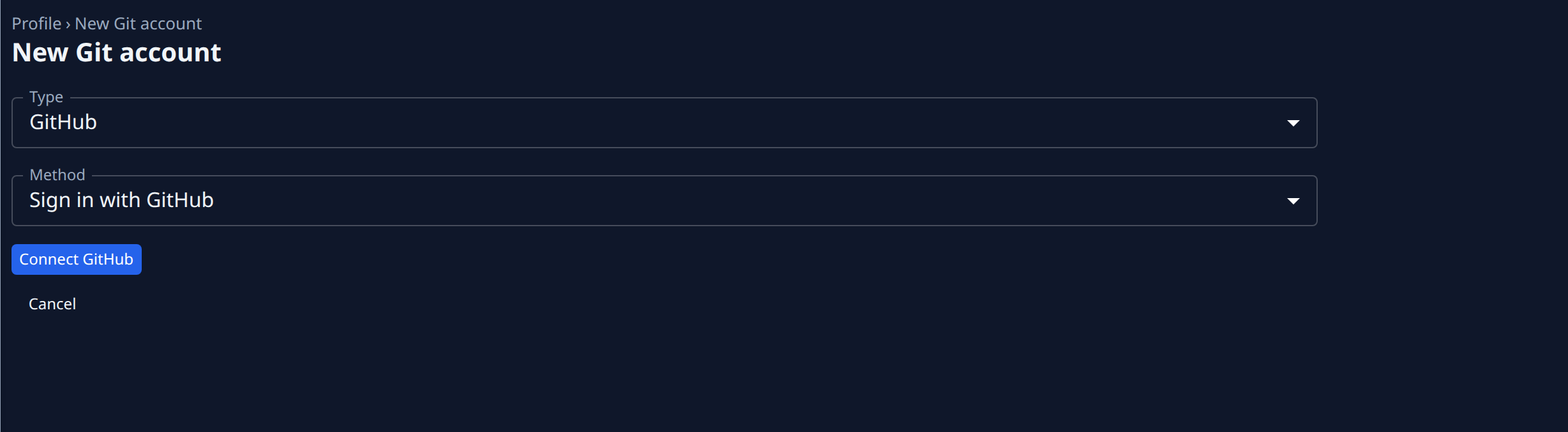
When New project asks you to connect an account, its Connect opens the same form on a New Git account page, and brings you back with what you typed once the account is connected.
With GitHub, signing in may take you to the Jaah GitHub App's install page. An owner of the GitHub organization installs it there; anyone else can ask an owner to approve it. Until then, a warning under the list names each organization whose repositories are out of reach, with Install or request approval, Request approval or Authorize to fix it.
Keep your accounts working
Open a row's ⋯ menu:
- Reconnect: connect the account again when its row says Needs reconnect (hover it for the reason), or after the account joins a new organization, so Jaah learns what it reaches.
- Make default: with several accounts on one host, the one a task uses when no other account reaches the repository's owner. Shown only then.
- Disconnect: remove the account. Tasks you start can no longer use it.
Related
- Every control in the Git section: Profile.
- When Start says you can't see the repository: Start a task when you can't see its repository.
- What a person can reach, and why: Check what someone can access.