Run an epic again from the start
Sometimes an epic goes the wrong way as a whole: the requirements missed the point, or the design chose an approach you don't want. Redoing one subtask at a time won't fix that. Reset the epic instead: it and every subtask go back to clean drafts, and when you start it again it runs from the top, beginning with Analyze.
To redo just one subtask, see Steer an epic's subtasks instead.
Who can do this: anyone with permission to start tasks in the epic's project.
What a reset keeps
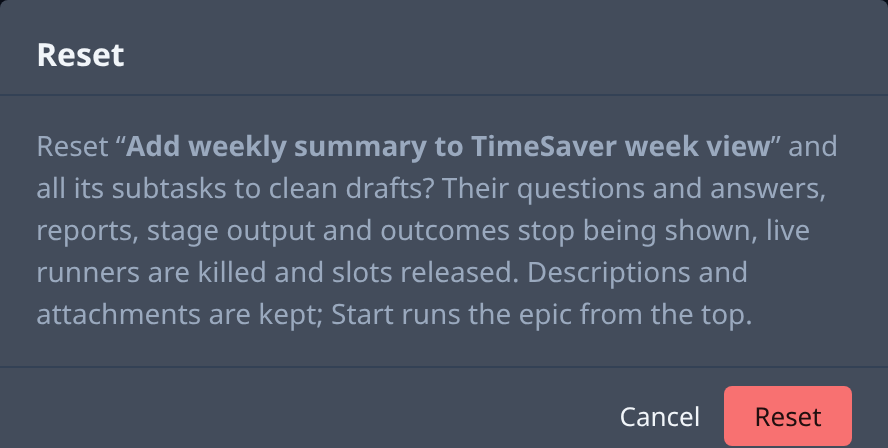
Reset keeps the epic's description and attachments, and those of its subtasks. It stops showing their questions and answers, reports, stage output and outcomes, kills any live runner and frees its slot. Changes the epic's subtasks already merged stay merged: a reset never undoes them in your repository.
Reset and restart the epic
-
On the board, select the epic's title to open its page.
-
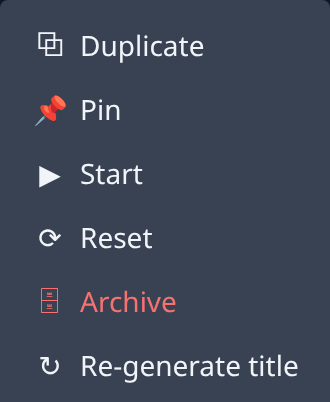
Open the epic's ⋯ menu, at the top right of its page.
-
Select Reset. A dialog asks you to confirm: it resets the epic and all its subtasks to clean drafts, and says what goes and what is kept.
-
Select Reset in the dialog. The epic moves to Draft, and so does each of its subtasks.
-
Select the epic's Task tab and change the description: say what the last run got wrong and what you want instead, so Analyze starts from the right brief.
-
Optional: change how involved you want to be. Choose Guided to be asked before Analyze and Design settle the requirements and the design.
-
Open the ⋯ menu again and select Start. The epic runs from the top: Analyze, then Design and Plan, then the build subtasks and Finish, as in Start an epic and follow its stages.
Related
- How epics and features work — the stages and how the epic's state follows its subtasks.
- Steer an epic's subtasks — start, stop or redo one subtask.
- How tasks work — every state a task moves through, Draft included.