Start an epic and follow its stages
Use an epic for work too big for one runner: a new feature with several parts, or a change that touches many places. Jaah doesn't start building straight away. It first pins down what you want and how to build it, then splits the work into subtasks and runs them, and finally checks the result as a whole.
Who can do this: creating an epic needs permission to create tasks. Starting it needs edit access to its project.
Start the epic
-
In the sidebar, select the project the work belongs to.
-
On the board, select +. The new task opens beside the board.
-
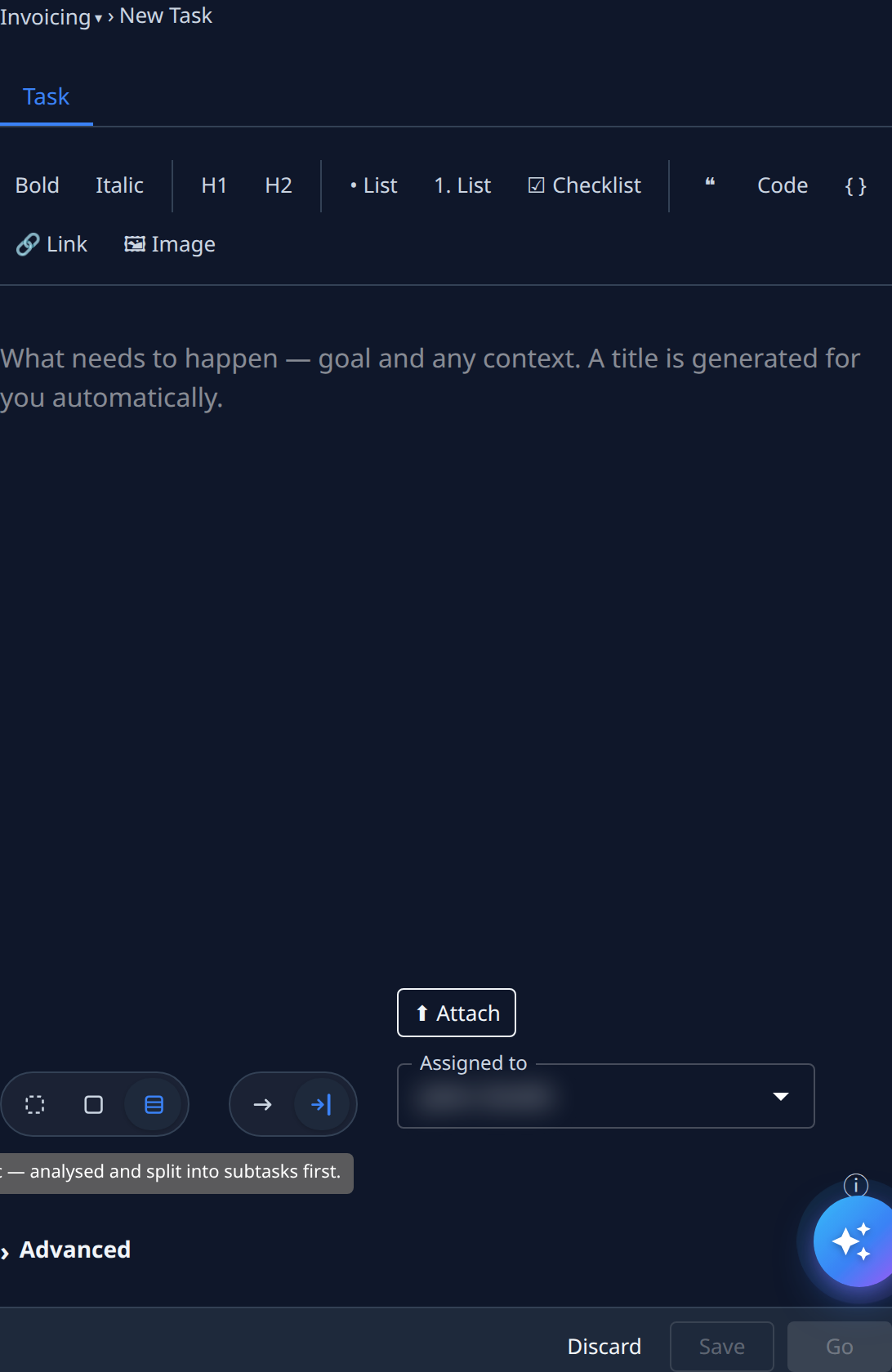
In the description box, describe the outcome you want: what it should do, who it's for, and what done looks like. The more context you give, the fewer questions the epic asks later.
-
Select Epic among the size buttons. Its hint reads Epic — analysed and split into subtasks first.
-
Choose how involved you want to be: Unattended lets the epic decide everything itself; Guided makes it ask you before key decisions about the requirements and the approach. An epic can't be a chat.
-
Optional: select Attach to add mockups, screenshots or documents.
-
Select Go. The epic is saved and started.
Follow its stages
-
Find the epic on the board under In progress. Its row has a +: select it to show its subtasks under it.
-
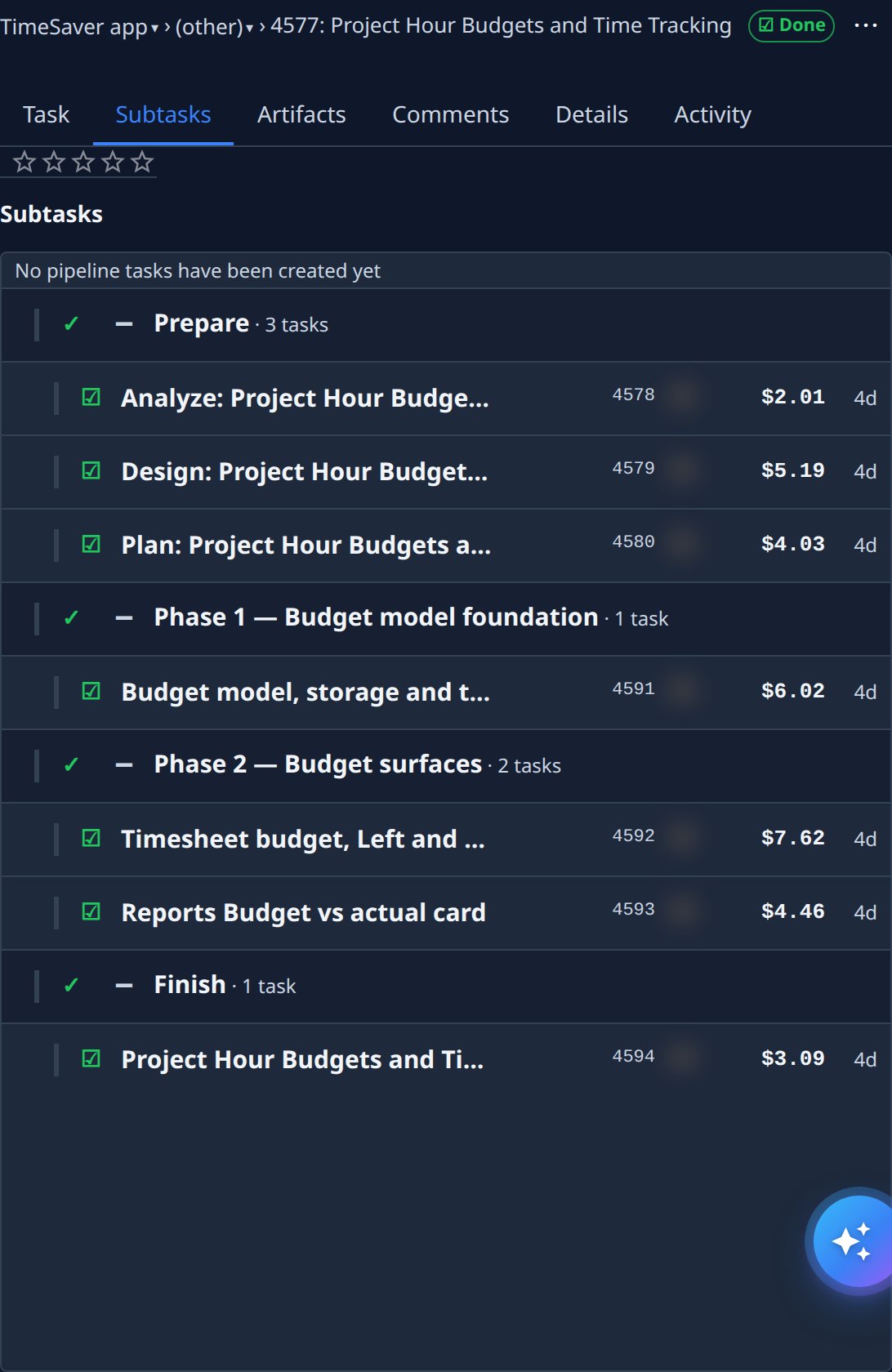
Select the epic's title to open it, then the Subtasks tab. The subtasks are grouped by stage.
-
Watch Prepare. Its three subtasks run one after another: Analyze pins down the requirements, Design chooses the approach, and Plan splits the work into pieces.
-
If you chose Guided, answer when a subtask stops with a ?. See Answer a task's question. Each Prepare subtask leaves its document on its Artifacts tab: open it to read what was decided.
-
Watch the phases. Once Plan is done, the subtasks that build the work appear, grouped into phases. Each one runs as its own task and delivers its own change.
-
Wait for Finish. It checks that the delivered result, taken together, does what you asked.
-
Read the result. When every subtask is done, the epic is Done. Its Details tab shows the Finisher Notes, and the Finish subtask's Artifacts tab holds its report. See Read a task's result.
The epic's own state follows its subtasks': it's In progress while any subtask runs, and moves to Stopped when one needs you.
Related
- Steer an epic's subtasks — start, stop or reset one subtask.
- How epics and features work — the stages, and how an epic's state follows its subtasks'.
- How tasks work — epics, subtasks and stages.
- Task page — every part of the Subtasks tab.