Get a failed epic going again
An epic shows Failed when one of its subtasks has used all its attempts. The rest of the epic waits: subtasks that need the failed one's work stay Waiting. You don't have to run the whole epic again. Fix the one subtask, start it, and the epic carries on with the work already done.
To throw the work away and start from Analyze instead, see Run an epic again from the start.
Who can do this: starting and resetting subtasks needs edit access to the epic's project.
-
On the board, select the epic's title to open its page.
-
Select the Subtasks tab. The subtasks are grouped by stage: Prepare, each build phase, then Finish. Each row starts with its state mark, then its number and title.
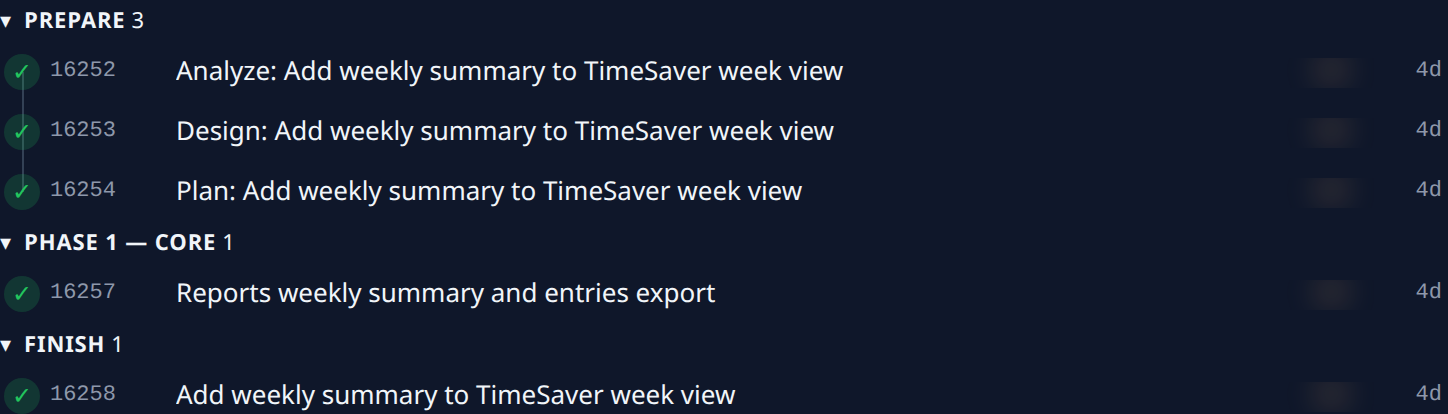
-
Find the subtask marked Failed and select its title to open its page.
-
Read why it failed: on its Details tab, its Outcome and Timeline say what each attempt ran into. See Read a task's result.
-
Fix what it needed. If the cause was outside the task, such as a missing secret or a node that was offline, fix that first. If the task itself was unclear, select its Task tab and change the description.
-
Start the subtask again: select Go on the Task tab if you changed the description, or Start in its ⋯ menu if you didn't. A failed subtask gets a fresh set of attempts.
-
Go back to the epic. While the subtask runs, the epic shows Running again, and the subtasks that were waiting for it start in turn once it is done.
If the subtask went the wrong way rather than hitting a problem, select Reset in its ⋯ menu instead of step 6, then Start: it begins again from a clean draft. See Steer an epic's subtasks.
Rarely, an epic fails while it splits its work, and no subtask is marked Failed. Then select Start in the epic's own ⋯ menu to try again.
Related
- How epics and features work — how the epic's state follows its subtasks.
- Stop, restart or reset a task — what Start and Reset do to a task.
- Steer an epic's subtasks — start a subtask early, or stop or redo one.