Find a feature in the sidebar
Once your organization has many projects, each with its own features, scrolling the sidebar to find one takes time. The box at the top of the sidebar finds a project or a feature by name and opens its tasks on the board.
Who can do this: anyone who can see the task board. The box only finds the projects and features you can see.
-
Open Tasks. The box Find a project or feature sits at the top of the sidebar, above All projects.
-
Type part of the feature's name. Case doesn't matter, and the words can come from anywhere in the name. The sidebar now lists only the projects and features whose names contain what you typed, with the matching letters highlighted. A feature's match shows its project's name beside it, so two features with the same name in different projects can be told apart.
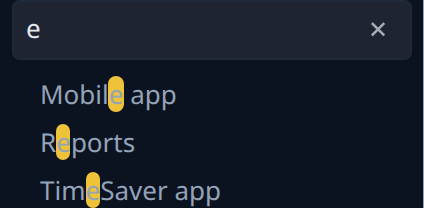
-
If the list says Nothing matches and your text, check the spelling or type less of the name. A feature you hid doesn't match while it is hidden: select the eye at the end of the box, Show hidden, to include it.
-
Select the feature. The board shows its tasks, with the feature's description above them if it has one.
-
To do it from the keyboard, press the Down arrow in the box to move to the first match, the arrows to move between matches, and Enter to open one. The Up arrow on the first match returns to the box.
-
To see the whole sidebar again, select ✕ at the end of the box, or press Escape. The board stays on the feature you opened.
While the box holds text, the matches have no + or ⋯ and can't be dragged. Clear the box to add, order or pin features, as in Arrange features in the sidebar.
Related
- Organize tasks into features: create a feature and file tasks under it.
- Hide a feature you don't work on: take a feature out of your sidebar, and show it again.
- Feature: every part of a feature's header and page.