Group the board by feature
Selecting a feature in the sidebar shows that feature alone. To see how every feature is doing side by side, group the board by feature instead: each feature gets its own section, with its tasks under it in one list.
Who can do this: any member who can see the board. You see only the features of projects you can see, and none that you hid.
-
In the sidebar, select All projects to open the task board.
-
Select Filter & view, the button with the sliders to the left of New Task.
-
Select Group by. It offers State, Feature, Recency, Project, any tag groups your organization uses, and None. Under All projects the current choice is Project.
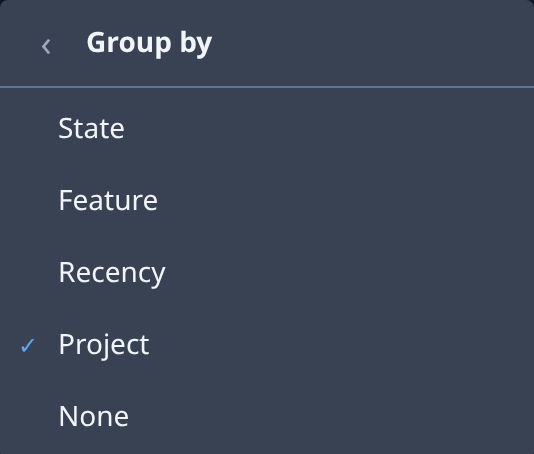
-
Select Feature. The panel closes and the board shows one section per feature, each with how many tasks it holds.
-
Read the sections after the features: one per project, holding that project's tasks that are in no feature. A project with no features shows only that section.
-
To file a task into a feature, open the task and pick the feature in its breadcrumb. See Organize tasks into features.
-
To go back, open Filter & view › Group by again and select Project, or State to group by where each task stands.
The grouping is part of the page's address, so a bookmark or a link you send opens the board grouped by feature too.
Related
- How epics and features work: what a feature is, and how it differs from an epic.
- Arrange features in the sidebar: add features and drag tasks onto them.
- Give a feature an owner and a progress ring: see how much of each feature is done from the sidebar.