Add a subscription to another node
A subscription runs only on the nodes where it is signed in. When you add a node, or want more runners to share one subscription, sign the account in on that node too. Each node keeps its own sign-in.
An API-key account runs on any node, so it has nothing to add. If your nodes read sign-ins from a shared folder, sign in once instead: see Share model account sign-ins between nodes.
Who can do this: signing in needs permission to add accounts. Taking an account off a node needs the Org Owner or Org Admin role.
Sign it in on another node
- In the sidebar, select Directory, then AI Accounts.
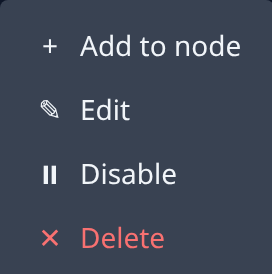
- Find the subscription and open its ⋯ row menu.
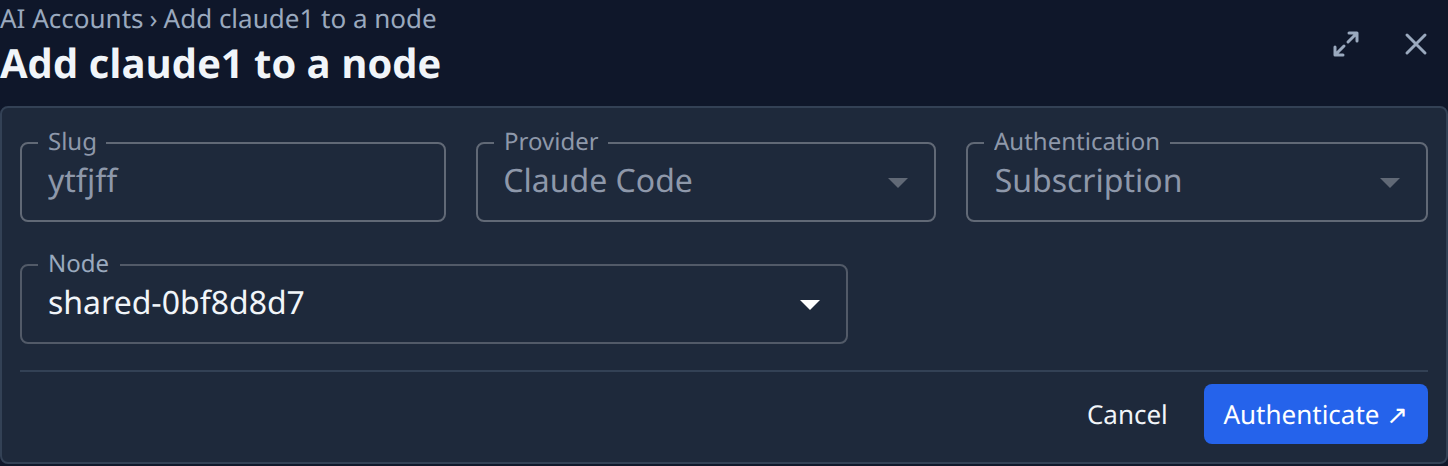
- Select Add to node. The form Add name to a node opens beside the list, with Slug, Provider and Authentication fixed. If the account is already on every node, the page says No node to add it to instead.
- Pick the Node. Only the nodes the account isn't on yet are listed.
- Select Authenticate. The provider's page opens in a new tab.
- Authorize there, paste the code it shows into Authorization code, and select Confirm. If it shows a one-time code instead, copy it with Copy code and enter it where the link asks.
- Wait for Signed in on this node. The page then closes itself.
Check it
- Select ▶ beside the account's name to list its nodes.
- Find the new node's row. ● with the state ok means it is signed in there and reports its quota. ? with no reading means signed in, with no quota reading yet.

A node row that shows ○ doesn't hold the account. Select Login in that row's ⋯ menu to sign it in on that node alone.
Take it off a node
- Select ▶ beside the account's name.
- Open the node row's ⋯ menu and select Deprovision.
- Confirm with Remove. The other nodes keep their sign-in, and the account stays.

To remove the account from every node at once, delete it: see Pause or remove a model account.
Related
- Add a model account: the first sign-in.
- Sign a model account in again: renew a sign-in that expired or was refused.
- What each node state means: Model accounts.