Replace a model account's API key
Replace the key when you rotate keys on a schedule, when an old key leaked or was revoked, or when the account's row shows ✕ or the no key chip. The account keeps its name, slug, settings and access: only the key changes, so tasks that pick it carry on as before. An account signed in with a subscription has no key; to renew one, see Sign a model account in again.
Who can do this: requires the Org Owner or Org Admin role. Anyone else sees the account under Read-only — only an administrator can change an account.
- Create the new key with your AI provider. Keep the old one working until step 7, so no run is left without a key.
- In the sidebar, select Directory, then AI Accounts.
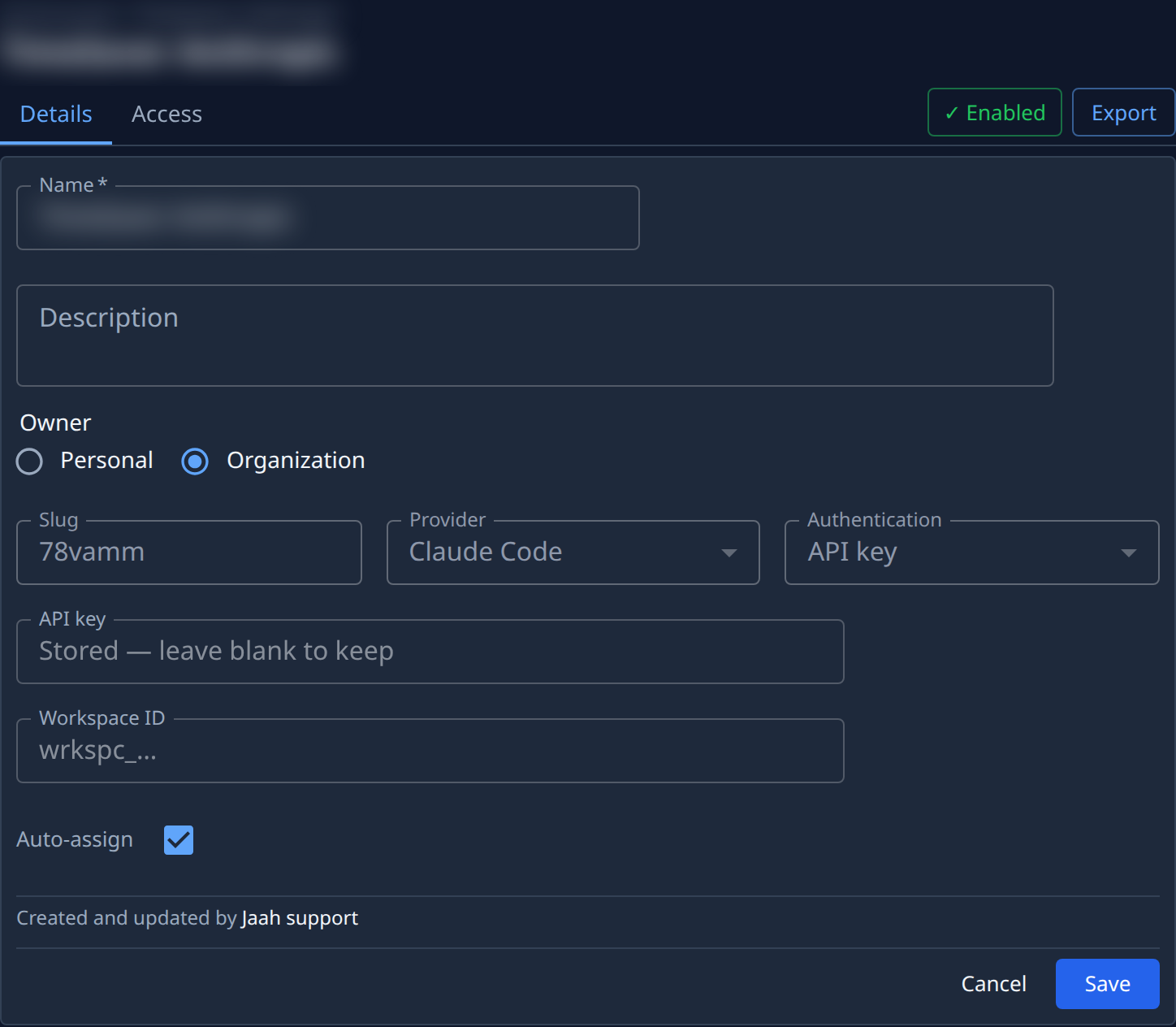
- Select the account's name, or Edit in its ⋯ row menu. Its Details tab opens beside the list.
- Paste the new key into API key. The field never shows the stored key: it reads Stored — leave blank to keep, or No key stored when the key is gone.
- If the form shows Workspace ID, change it only when the new key belongs to another workspace. Leave it blank for a key scoped to its own workspace.
- Select Save. Jaah checks the new key with the provider before it stores it. A key the provider refuses, or one it can't reach, is not saved: the error shows above the form, and the old key stays.
- Check the account's row in the list: ● means the account is available again, and the no key chip is gone. Then revoke the old key with your provider.
Leaving API key blank keeps the stored key, so you can change the name or other settings without touching it. A new key takes over for runs that start after Save.
Related
- How model accounts work — API key or subscription, and what the round marks mean.
- Pause or remove a model account — stop runs using the account while you get a new key.
- Model accounts — every field on the Details tab.