Choose the node a subscription signs in on
A subscription signs in on one node, and runs only where it is signed in. Pick that node with care when your nodes differ: one runs more tasks, one sits in another network, or one can't run the provider at all. An API key needs no node; it runs on any of them. For the difference, see How model accounts work.
Who can do this: signing a subscription in needs permission to add accounts. A member on no project reads Subscription sign-in needs a project. Ask an admin to add you to one. and can add an API key only.
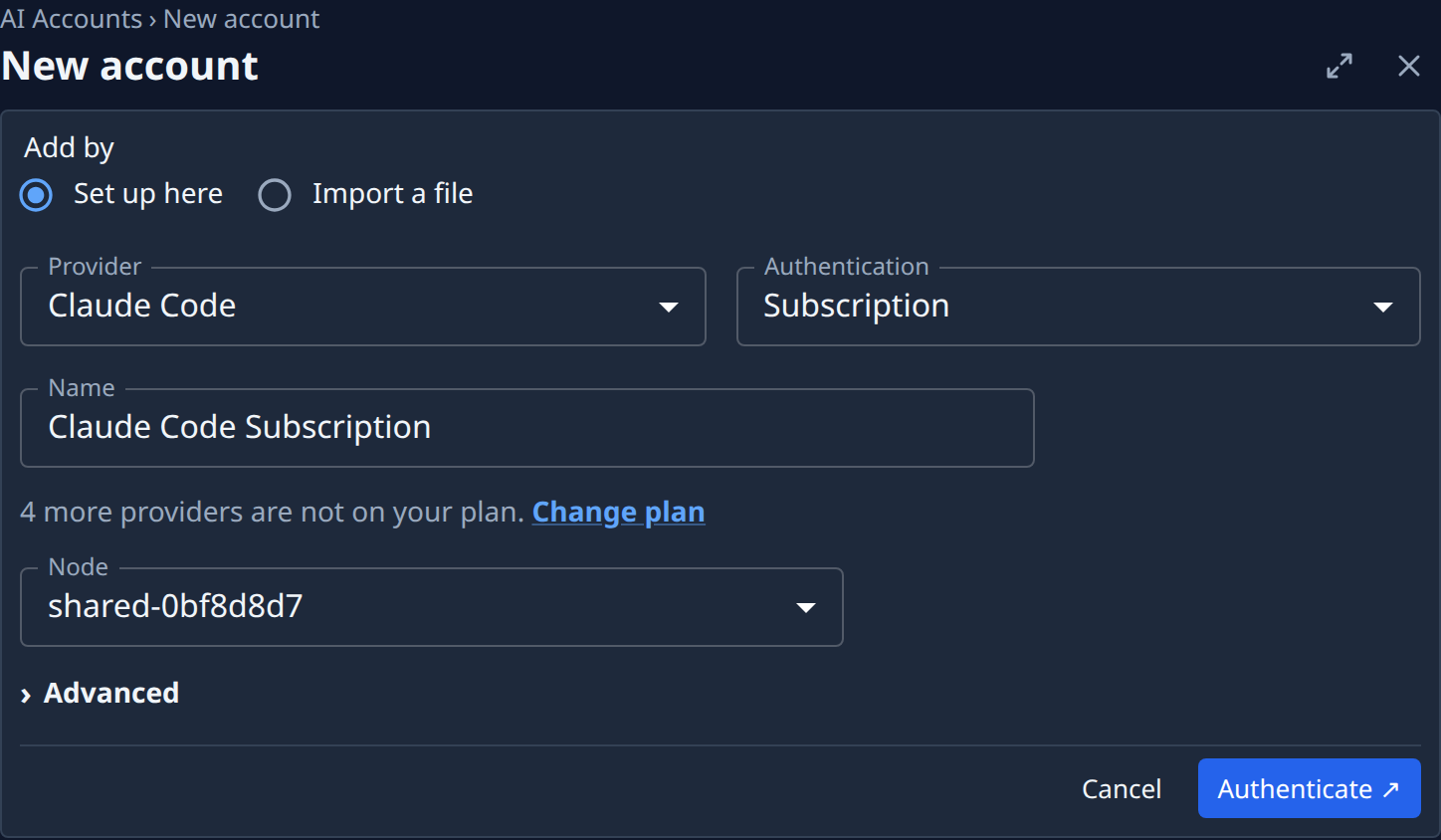
- In the sidebar, select Directory, then AI Accounts, and select Add account.
- Pick the Provider and set Authentication to Subscription.
- Open Node. It lists only the nodes you can see whose operating system runs the provider. The field's help says where the sign-in lives: on some providers the sign-in stays on that node, and every other node needs its own.
- Pick the node. If Node isn't on the form, open Advanced: a node that reports the shared token folder mounted starts there, so other nodes on that NodeLink reuse the sign-in.
- Select Authenticate and finish the sign-in as in Add a model account.
- Back on AI Accounts, select ▶ beside the account. Each row under it is a node it is signed in on; ● with ok means that node runs it. Local means the node keeps the sign-in in its own folder, Shared that it reads it from a NodeLink.

To run the same subscription on more nodes, use Add to node in its ⋯ menu: see Add a subscription to another node. To sign in once for all nodes, see Share model account sign-ins between nodes.
When no node can take it
- The form says no node you can see runs the provider, with Add a Linux node, or use an API key. Your nodes' operating system can't run that provider's sign-in. Add a node that can, or switch Authentication to API key.
- An account's row says No node to sign it in on yet. Org Owners and Admins see a New node link there, and New node in the row's ⋯ menu. Add the node, then select Sign in in the row's ⋯ menu once it is online.
- The row says its node was removed. The node that held the sign-in was deleted, and the sign-in went with it. Select Sign in or Add to node in the row's ⋯ menu and pick another node.
Related
- Sign a model account in again: renew the sign-in on the node it already uses.
- Model accounts: every node state and mark.
- How nodes work: what a node is and how it runs tasks.