Add a model account
Add a model account when your organization has none that works, or needs more room to run tasks. A model account is an API key Jaah stores, or a Subscription (OAuth) a person signs in to on a node. See How model accounts work for which to choose.
Who can do this: adding accounts needs permission to add them. Without it, Add account doesn't appear. While your organization awaits approval, Add account is turned off and says why.
Add it
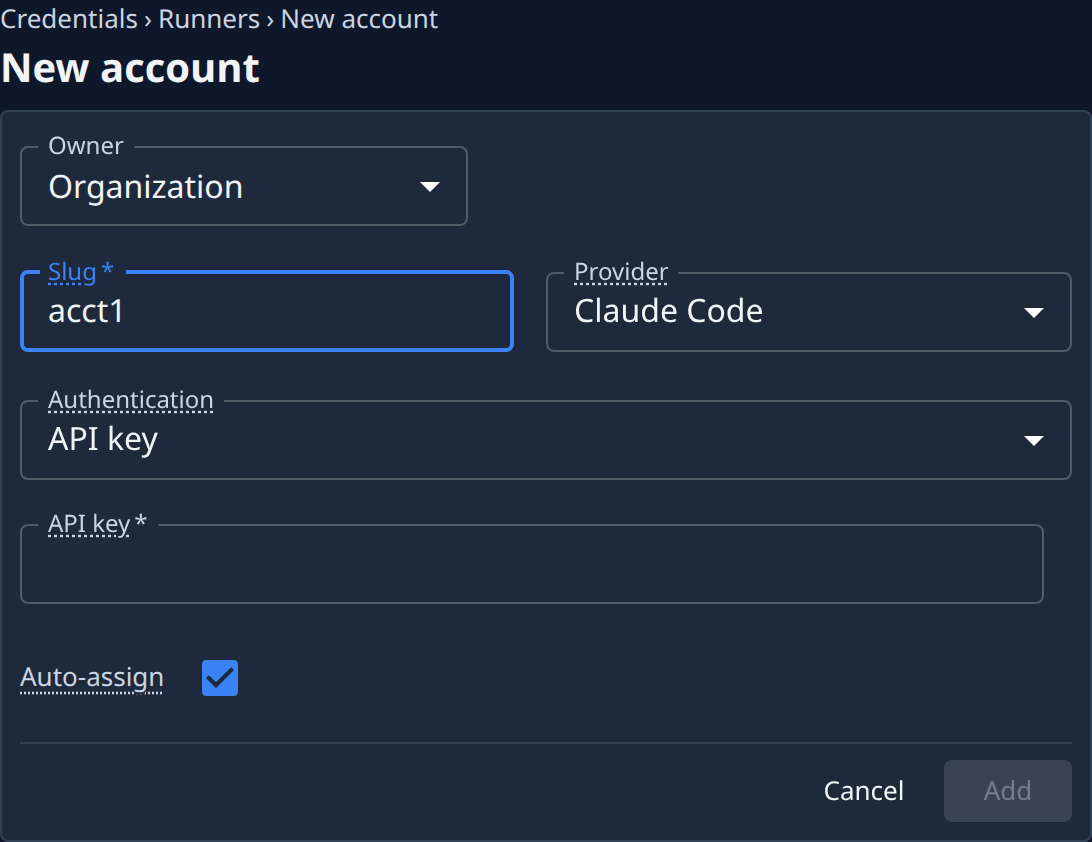
- In the sidebar, select Directory, then the Model Accounts tab.
- Select Add account. The New account form opens beside the list.
- Choose the Owner, if the form shows it: Organization or Personal.
- Type a Name, if you want one: the label the account shows everywhere. Left blank, the account shows its slug, a short code Jaah picks for it. You can change the name later.
- Pick the Provider: the agent this account runs, for example Claude Code. You can't change it later.
- Pick the Authentication, when the provider offers both: API key or Subscription (OAuth). You can't change it later.
- For an API key, paste it in API key. It's stored and never shown again. For a subscription, pick the Node the sign-in runs on.
- If the form shows Auto-assign, choose it: on, the account runs tasks that allow any provider; off, only tasks that pick its provider.
- If the form shows Max runners, enter the most runners the account may run at once, or leave it blank for the fleet limit.
- Select Add for an API key, or Start login for a subscription.
An API-key account is ready at once. Select Cancel to close the form without adding anything.
Finish a subscription sign-in
After Start login, the sign-in's progress shows under the form:
- If it shows a link, open it and authorize in the browser. Paste the code the browser shows into Authorization code, then select Submit code.
- If it shows a one-time code instead, copy it with Copy code and enter it where the link asks. The page says Waiting for you to authorize… until you do.
- Wait for Account added and enabled.
If the form says no provider is allowed for your organization, or you can't add one it allows, ask an administrator: the providers and authentication on offer are set for your organization.
Check it works
The account appears in the list with its round mark. ● means it's available. A new subscription shows — for its quota until the first reading comes in.
Related
- Sign a model account in again when a subscription's sign-in expires.
- Every column and chip: Model accounts.
- Subscription or API key, and how runs pick an account: How model accounts work.