Check what the virtual machines on a node are doing
Do this when sessions on a MicroVM node wait, fail or run slowly. On a MicroVM node, each session runs in its own VM. The node sends Jaah a report on those VMs, and the Shape tab shows it, so you can see what the node has left without signing in to the machine.
Who can do this: anyone who can open the node's page can read the report. Changing the shape or the size needs more; see Choose a node's shape.
Plan: needs MicroVM nodes on your plan. The Shape tab shows only while your plan includes it.
-
In the sidebar, select Directory, then the Machines tab.
-
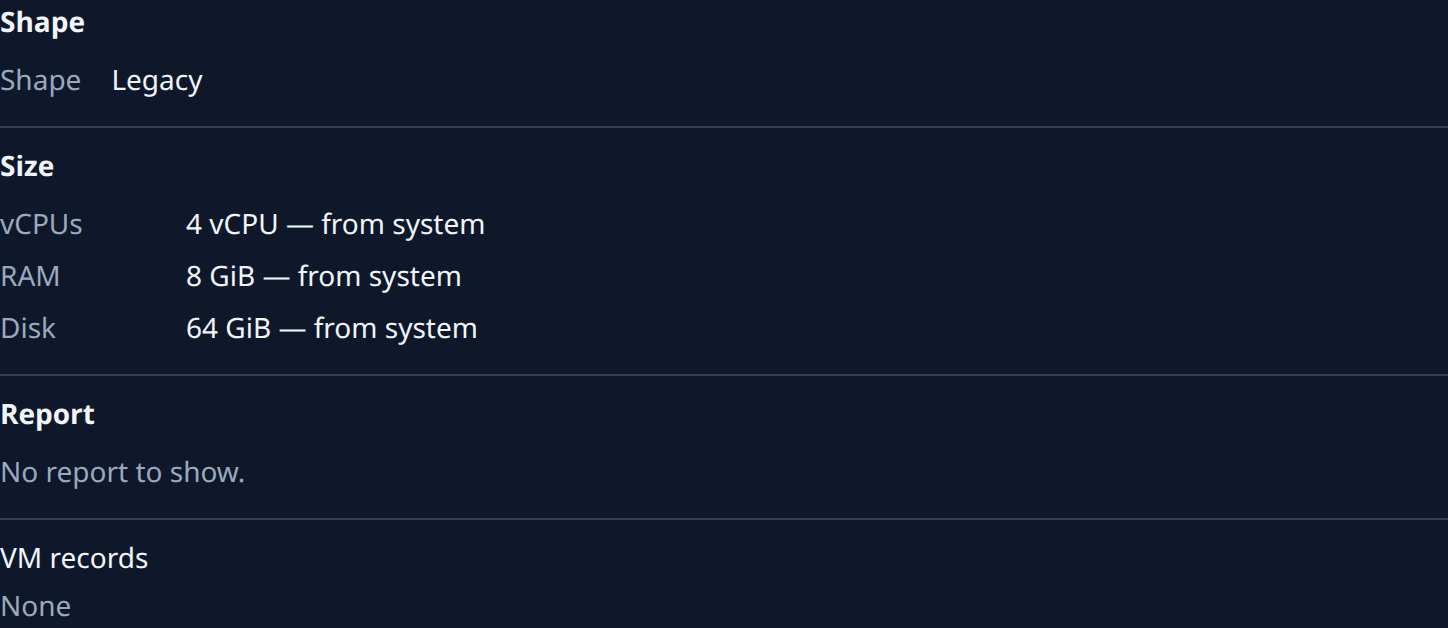
Select the node's name, then its Shape tab. Under Shape and Size sits Report.
-
Read the facts at the top of Report:
Fact What it tells you Hypervisor Usable when the node can start VMs. Red when it can't, with the reason. Free memory, Free disk What the node has left. A VM starts only while both are enough for its size. Base image The image every VM starts from, and its state. Red text under it is why it failed. Running VMs Live VMs on the node, then how many Jaah's records count as running. Taps in use, Taps free Network links for VMs. With none free, no new VM can start. VMM processes, virtiofsd processes Processes that run the VMs and their shared folders. VM folders Folders VMs left on the node, and how many have no live VM. Reported When the node last sent this report. Not reported means the node did not send that fact. It is not a zero. With no report at all, the section says No report to show. A yellow warning above the facts means VM or file-sharing processes are running with no live VM to match. They hold memory until the node is cleaned up.
-
Select Show ids under VM folders to list each folder. Each one reads live, retained or no live VM.
-
Read VMs on the node: each live VM with its VM, State, Tap and Generation. VMs that powered off sit under the ended line below it; select it to list them.
-
Read Layers: what the node built for each project's VMs, with Project, Key, State and Log. When a build failed, the cause shows in red under its row. Select Log under it to read the end of the build log.
-
Read Egress refusals: names a VM tried to reach that its project does not allow. Each name is one row with its Count, the VM, the Reason and when it was Last refused. A name your work needs belongs on the project's allowed names.
-
Read VM records at the bottom: Jaah's own record of each VM on this node, newest first. For links to the task it ran for. A line under a row says why a VM waits or failed. Select the earlier line under a row for the tries before it.
A long VM id, layer key or log name is cut short. Hover it to see it whole, or select the copy button beside it: Copy VM id, Copy layer key or Copy log path. Paste it into a message to support.
If Free memory or Free disk is too low for the VMs you need, make each VM smaller in Change how big each session's VM is, or use a larger machine.
Related
- Choose a node's shape: turn MicroVM on or off on a node.
- Change how big each session's VM is: the vCPUs, RAM and disk each VM gets.
- Read a node's status: whether the node itself is online and healthy.