Check whether a node is big enough
A node's current load tells you about today. To decide whether a machine is the right size, look at a whole week: how many tasks it ran at its busiest, and how close its memory, processor and disk came to their limits while it did. The node's Metrics card keeps that history.
Who can do this: anyone who can view nodes. Resizing a machine or changing Max running tasks needs the permission to edit nodes.
-
In the sidebar, select Directory, then the Machines tab.
-
Select the node's name. Its details open on the Overview tab.
-
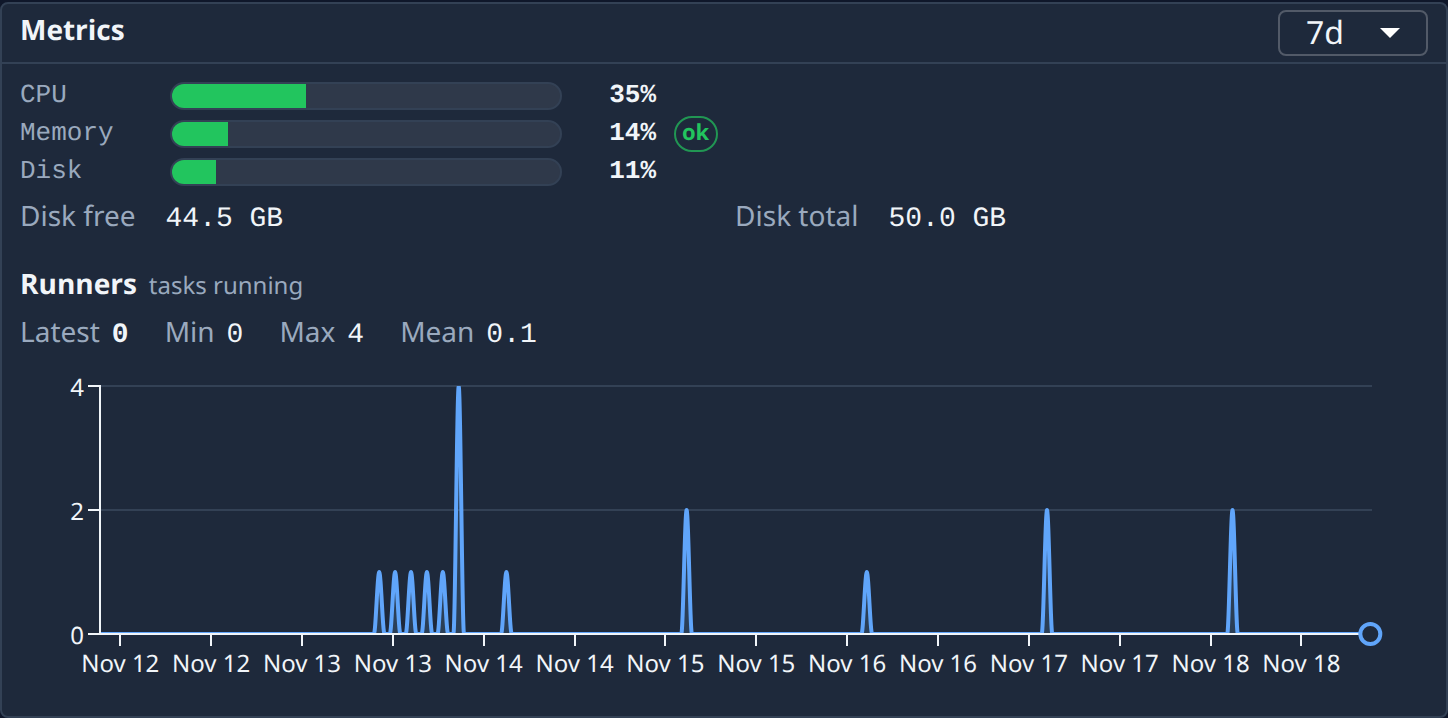
On the Metrics card, open the range list at its top right and pick 7d. The other choices are 1h, 6h and 24h.
-
Read the Runners chart, the tasks running. Max is the most it ran at once in the week and Mean the usual number. A node whose Max keeps hitting the same number may be held back by its Max running tasks or by its memory.
-
Read the CPU, Memory and Disk charts, where the node reports them. Each one gives Latest, Min, Max and Mean for the range. Dashed lines mark 75% (yellow) and 90% (red); a Max over the red line means the node ran out of room at least once.
-
Look for hatched bands on a chart. Each marks a stretch with no samples, often a node too starved to report. Hover one to see how long it lasted.
-
Under the CPU and Memory charts, note the core count and total memory. As a rough guide, a node holds one task for every 8 GB of memory or every 2 cores, whichever runs out first.
-
Decide:
- Max near the red lines, or hatched bands: the machine is too small for its work. Give it a bigger machine, or cap how many tasks it takes.
- Charts that stay low all week while tasks wait in Queued: the node has room. Look at its Max running tasks, or at which projects may use it.
- Charts that stay low and few tasks run: the machine may be bigger than you need.
A node at 90% memory or more takes no new tasks until it has stayed under 90% for 10 minutes, so a node that is too small runs fewer tasks rather than failing outright. Tasks then wait longer in the queue.
What to do next
- Change a cloud node's machine type or disk: move it to a bigger or smaller machine.
- Limit how many tasks a node runs: set Max running tasks to what the machine can carry.
- Add a node: share the work with another machine.
Related
- Find what is overloading a node: what is using the node right now.
- Read a node's status: the rest of a node's row and details.
- Nodes: every chart on the Metrics card.