Check whether an event reached your receiver
Sometimes nothing looks broken, yet your system says it never got one event, such as a task that finished this morning. The endpoint's settings tell you whether Jaah was meant to send it, and its delivery log tells you whether it went and what your receiver answered. When deliveries fail one after another, start from Fix a failing webhook instead.
Who can do this: your organization's Owners and Admins, on a plan that includes webhooks.
-
Open Settings, select Integrations, then Webhooks. A hollow mark before an endpoint's name means it is Disabled. Hover the number in Events to list the events each endpoint sends, and select the name of the endpoint that should have sent it.
-
On the Settings tab, check three things:
- Enabled is ticked. Events that happen while it is cleared are never sent, not even later.
- Under Events, the event is ticked, such as Task done.
- Under Projects, All projects is ticked, or the project the event came from is.
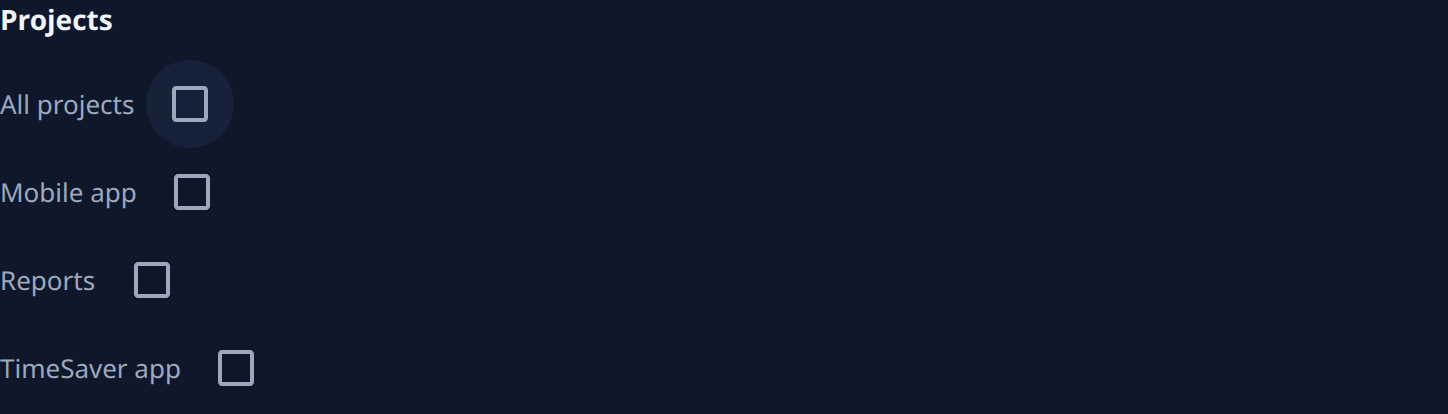
If one of them was off, the event was never sent and there is no delivery to find. Fix it and select Save: events from now on are sent, earlier ones are not.
-
Select the Deliveries tab. Each row is one delivery, newest first. Event shows its type, such as
task.done, and When shows how long ago it was made; hover it for the exact time. -
Find the row that matches the event's type and time. If it is older than the first page, select Load more. The log keeps 30 days, so an older delivery is no longer listed.
-
Read its Status:
- Delivered: your receiver answered with success, and Code shows what it answered. The event reached your system, so look for it in your receiver's own logs at that time.
- Queued or Retrying: it is still on its way. Hover the status for when the next try is due.
- Failed: every try failed. Hover the status for why, and see Fix a failing webhook for what each Code means.
-
To send the event again, select Redeliver on its row. Jaah sends it at once with the same delivery id, so a receiver that already handled it can skip it. The row then shows the new result.
-
To check the path to your receiver without waiting for a real event, select Send test. A
pingdelivery appears at the top of Deliveries, and reads Delivered once your receiver answers with success.
An endpoint sends only what happens after you create it, so an event from before then has no delivery either.
Related
- How webhooks work: how a delivery goes from Queued to Delivered or Failed.
- Change which events a webhook sends: add events or projects to an endpoint.
- Receive events with webhooks: the time your receiver has to answer, and the retry schedule.
- Webhooks: every column, tab and button on the screens.