Follow your project's releases
When a project releases its merged changes to Production, Jaah tells the people concerned. Everyone who may approve a release that waits for approval gets Approve release with the project's name, the person who asked for a release that failed gets Release failed, and each person whose task a release carried gets Live with the task's name. Each shows in the bell, with Release as its kind, and goes out to your channels as the Releases group of alerts.
Choose which release alerts you get
-
Select your initials at the bottom of the sidebar, then My Profile, then Preferences.
-
Select a channel's row (Expand) to open its alerts. Releases is one of its groups.
-
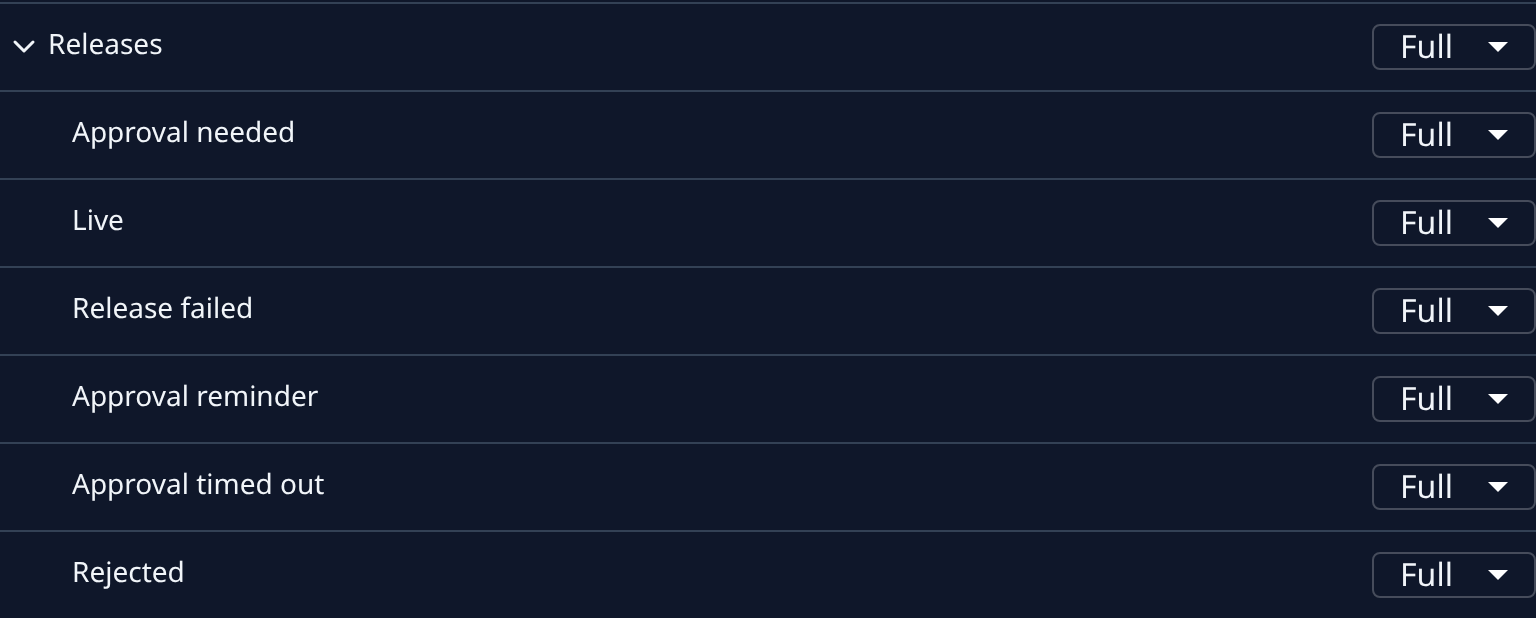
Select Releases to open its six alerts: Approval needed, Live, Release failed, Approval reminder, Approval timed out and Rejected.
-
On each, select Off, Brief or Full. For example, keep Approval needed on Full by email and set Live to Off. It saves at once.
Turning a channel's alerts off never empties the bell: release notices land there either way.
Act on a release notice
- Select the bell, or open Notifications, and select the notice. It opens the project's board, where the pipeline shows the release.
- For Approve release, select the Release step and select Approve. The person who asked for the release can't approve it. See Deploy to production.
- For Release failed, the notice names what to do next, such as Release again, Open the PR or Open the run. Do it from the Release step. Release again means selecting Release there: it sends everything still waiting.
- A Live notice needs nothing: your task is in Production. Its row in the bell becomes read when you open it.
Related
- Choose which alerts you get — every group of alerts and its switches.
- Catch up on your notifications — the bell and the Notifications page.
- How notifications work — who gets each kind, and how an item goes from unread to read.