Change a teammate's alerts
Someone on leave keeps getting task alerts; a new hire's mailbox fills with progress updates; a teammate's old Slack DM still gets every question. An org admin can change another person's alerts from their account page, channel by channel, without waiting for them to sign in.
Who can do this: changing a teammate's alerts requires the org admin role. Anyone who can view users can open the tab, but every switch is locked for them. You can't add a channel for someone else, or confirm their email address: each person adds and confirms their own.
-
In the sidebar, select Directory, then the People tab.
-
Select the person's name to open their account.
-
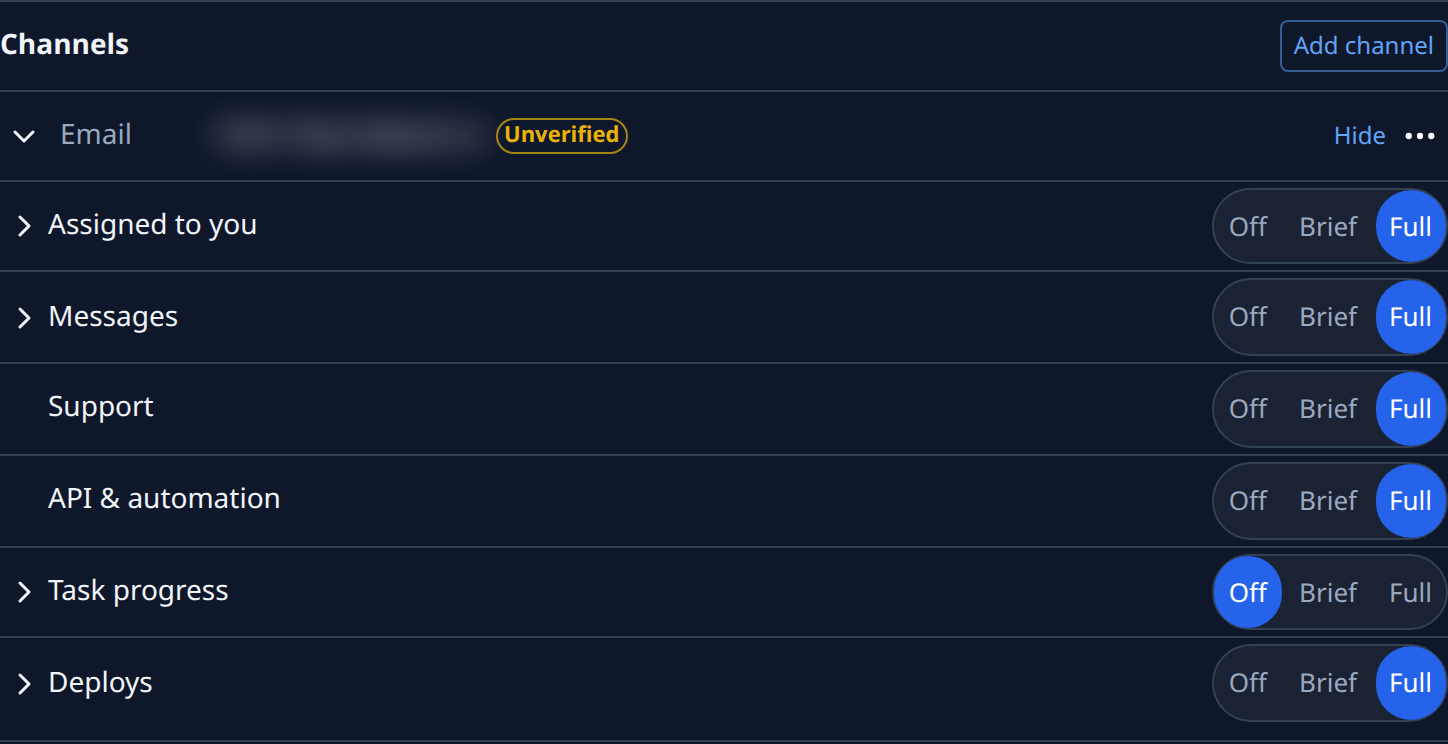
Select the Notifications tab. Channels lists every place their alerts go: their email, and any Slack or Telegram chats they added.
-
Select a channel's row (Expand) to open its alerts. With only one channel, it is open already.
-
On a group, such as Task progress, select Off to send nothing, Brief for a headline and a link, or Full for the whole message. It saves at once, and sets every alert in the group.
-
To set one alert on its own, select the group's name (only a group of several alerts has an arrow before it), then the alert's own switch.
-
To stop a channel altogether, select ⋯ on its row, then Remove, and confirm. Alerts stop going there; their other channels keep theirs.
-
Select Collapse to close the row, and repeat for their other channels.
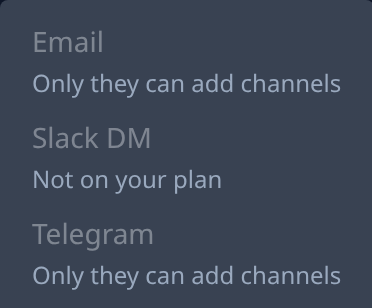
Add channel lists every kind of channel greyed out, most with Only they can add channels, and any your plan leaves out with Not on your plan.
Tell the person what you changed: they see the same switches on their own profile and can change them back. If a save fails, the switch goes back and the reason shows above the list.
Related
- Choose which alerts you get — the same switches on your own profile.
- How notifications work — what each group of alerts holds and who gets it.
- People — every tab of a person's account.