Choose which alerts you get
Alerts are the news Jaah sends outside the console, to your email, Slack and Telegram channels. Each channel has its own choices, so you can, for example, get everything on Slack but only questions by email. Change them in the Alerts section of your Preferences; every switch saves as soon as you select it.
-
Select your initials at the bottom of the sidebar, then My Profile.
-
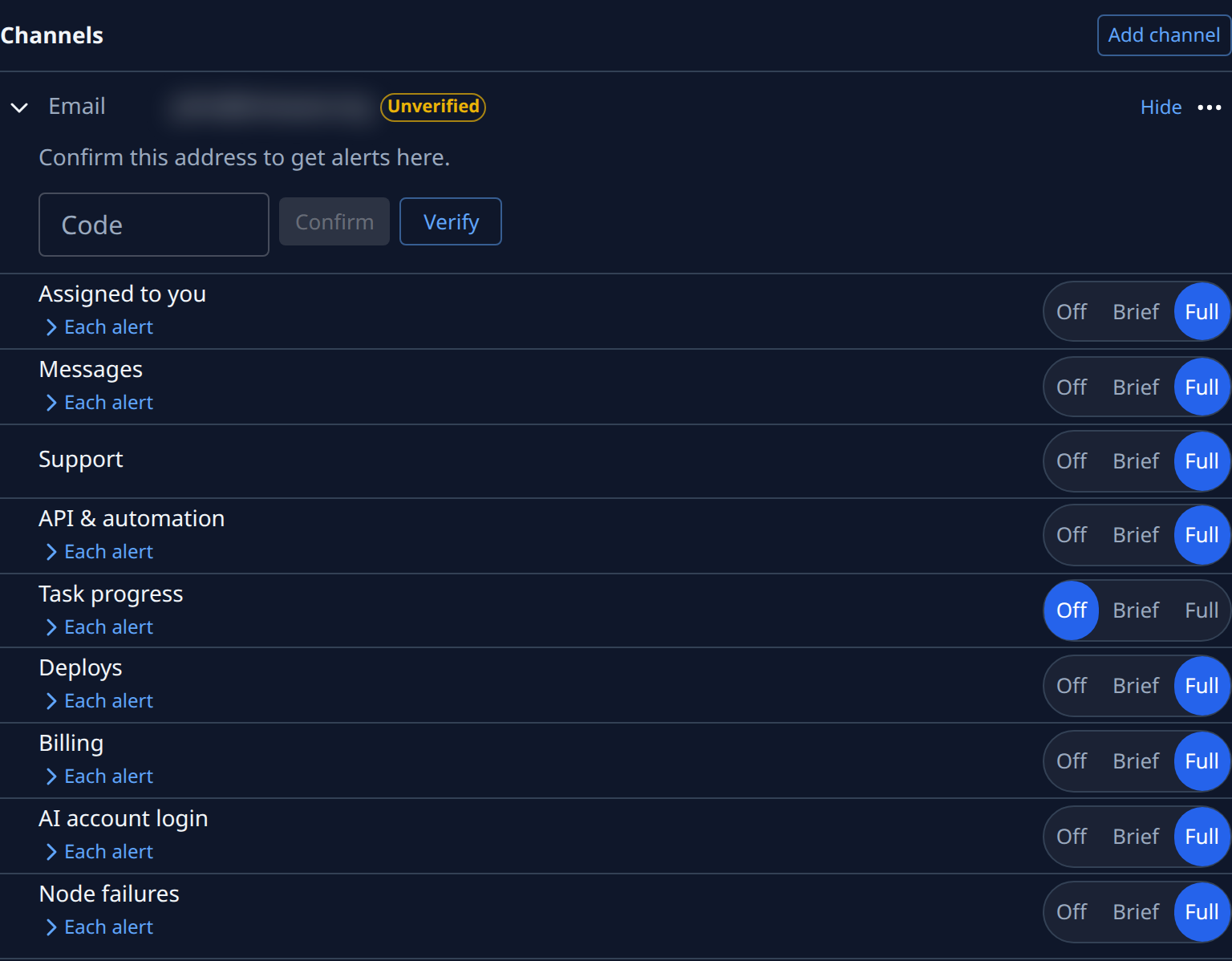
Select Preferences. Channels lists every place your alerts go.
-
Select a channel's row (Expand) to open its alerts; with only one channel, it is open already. Each group of alerts, such as Assigned to you, Messages or Task progress, has one switch.
-
On a group, select Off to send nothing, Brief for a headline and a link only, or Full for the whole message. It saves at once and sets every alert in the group.
-
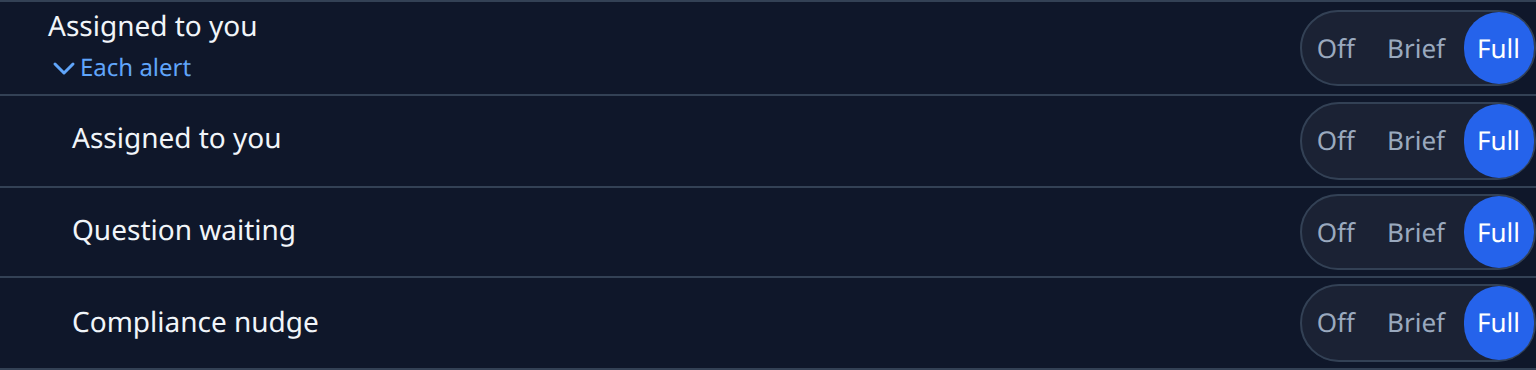
To set one alert on its own, select the group's name (only a group of several alerts has an arrow before its name). The group's alerts open beneath it, each with its own switch.
-
Select Off, Brief or Full on the alert. When a group's alerts differ, none of the group's choices is lit.
-
Select the channel's row again (Collapse) to close it, and repeat for your other channels.
If a save fails, the switch goes back and the reason shows above the list. Some groups, such as Billing and Node failures, are offered only to Org Owners and Org Admins.
To add a destination first, select Add channel: see Your profile › Alerts.
Related
- How notifications work — what each group of alerts holds and its defaults.
- Catch up on your notifications — the bell, inside the console.
- Connect Slack — connect your organization's Slack workspace before adding a Slack channel.