Check your notifications on your phone
Jaah works in your phone's browser, so you can look at a mention or an alert while you are away from your desk. The bell and the Notifications page work as they do on a computer, but a few things move or hide to fit the small screen.
-
Open Jaah in your phone's browser and sign in. The sidebar becomes a bar along the bottom of the screen. The bell sits in that bar. A number on it counts your unread items.

-
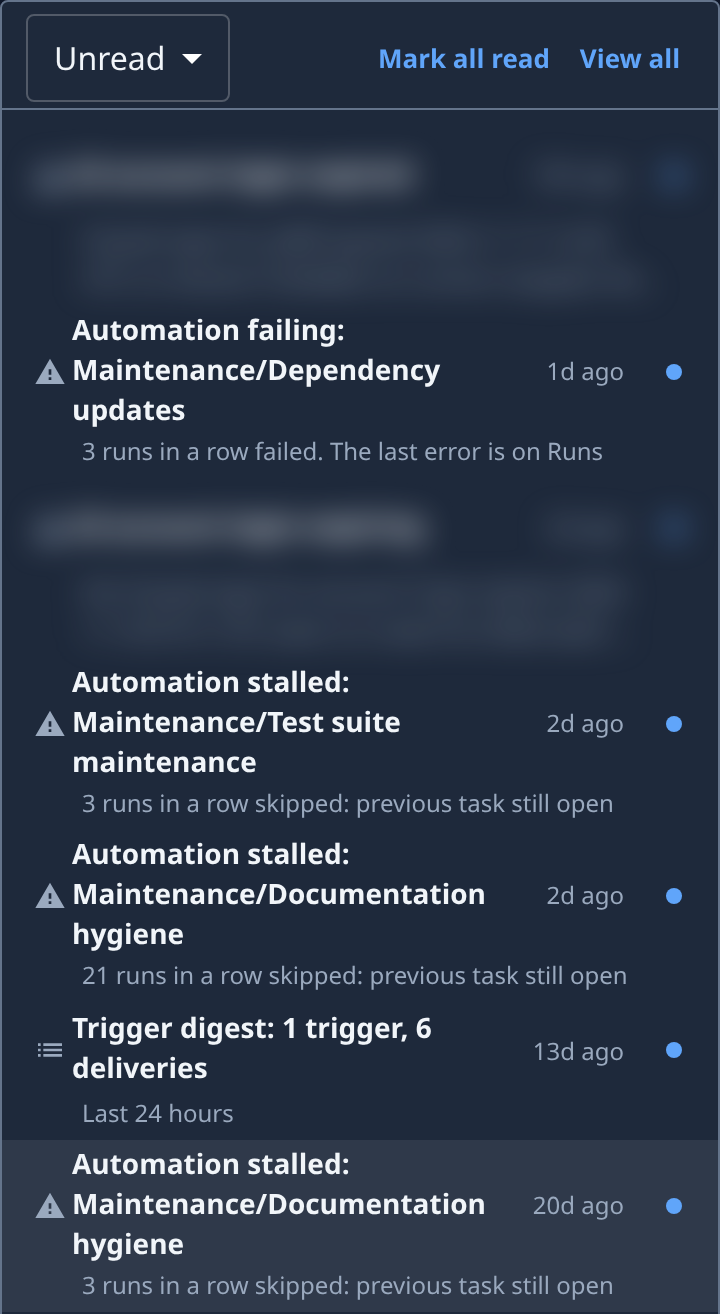
Tap the bell. The tray opens on Unread. Tap Unread to switch to All if you want read items too.
-
Read down the tray. Each item shows what happened, its age and a dot while it is unread. Tap an item to open the task, automation or page it is about. It is marked read.
-
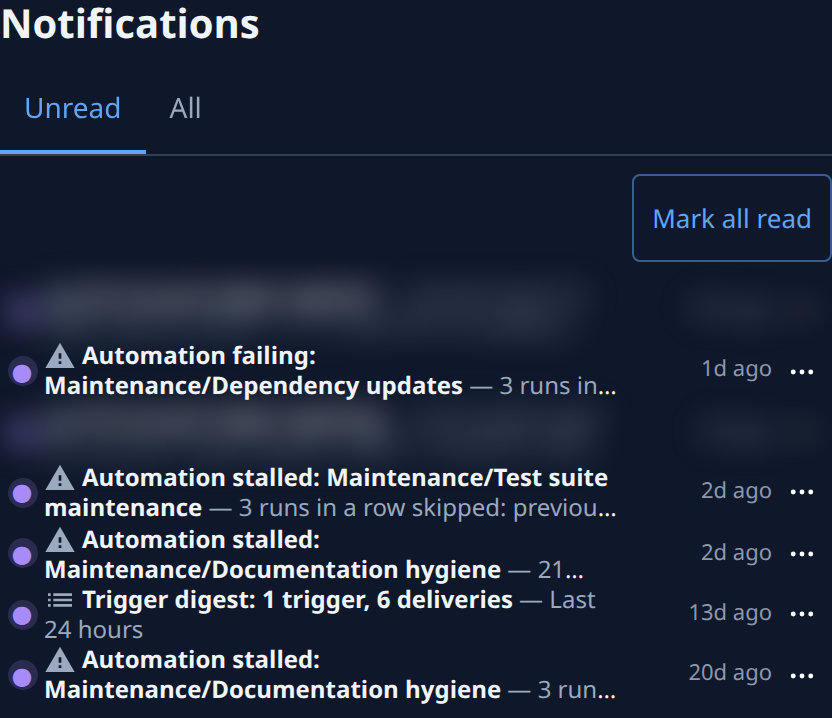
For more room, tap View all. The Notifications page opens, with the Unread and All tabs.
-
On the page, tap ⋯ at the end of a row for Open, plus Mark as read on an unread item or Mark as unread on a read one. Mark an item unread to come back to it at your desk.

-
When nothing else needs you now, tap Mark all read above the list.
What looks different on a phone
- The kind of each item, such as Mention or Alert, is hidden. The icon before the title still marks alerts and trigger digests.
- On a mention or a reaction, the name of the person who acted is hidden. Open the item to see who it was.
- The age stays. Long titles wrap to two lines and end in "…".
Related
- Catch up on your notifications: the same job on a computer, step by step.
- Notifications: every part of the page.
- Find your way around: the phone's bottom bar and its More menu.